Ragging is caused by various reasons, depending on their types. The most commonly seen type is as below.
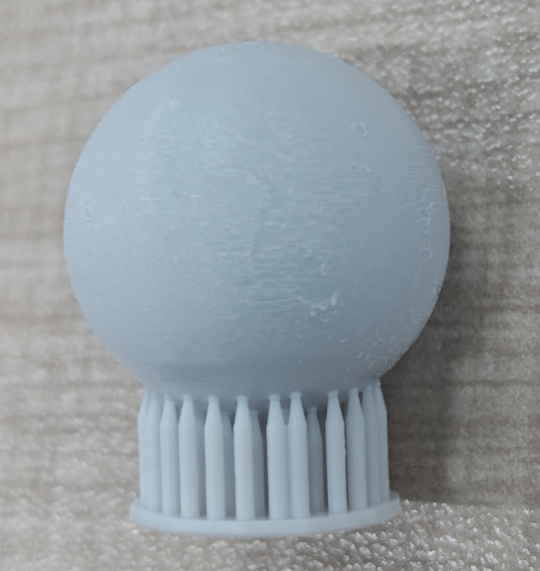
Fig. 1 Ragging on surface
¶ Potential reason ①: Suction cups
If there’re suction cups on models facing down at the print platform, they might cause resin to vibrate or shake in the resin tank during printing because of pressure, leading to ragging on printed objects.
Solution: Run [Printability] check in the project on Blueprint Studio, and if reminders show up as below, you may solve them by:
①adding some holes properly;
②optimizing the layout.
¶ Potential reason ②: Slice issue
Models are sliced without repairs, leading to severe slice issues (layer shifting, missing or so).
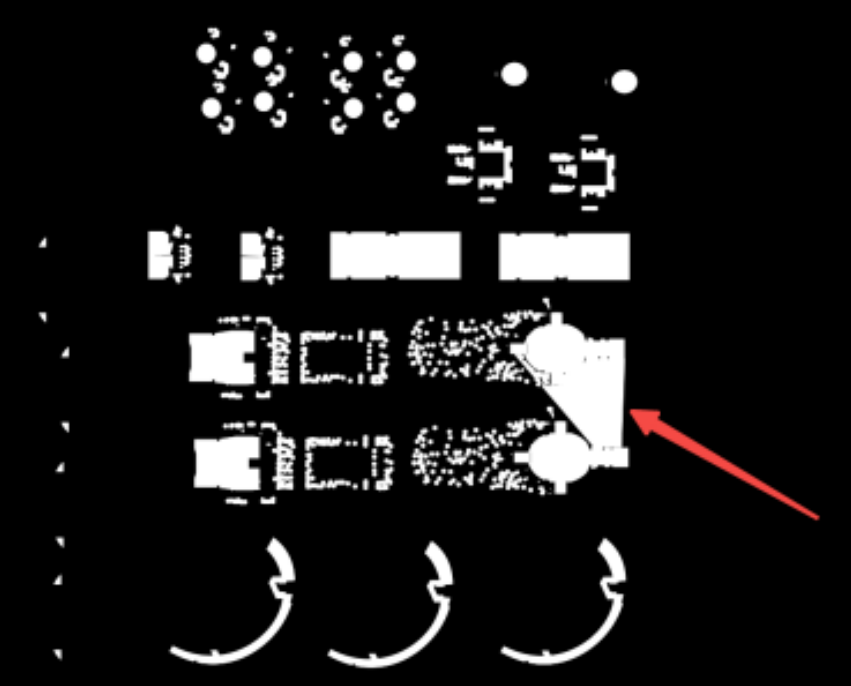
Fig. 2 Slice issue seen on a layer image
Solution: It’s advised to always perform repairs (inverted normals, bad edges, bad contours etc.) before slicing. Move on to slicing only when there’re no issues to repair.
¶ Potential reason ③: Solid resin residue
Overexposure during printing lead to extra cured resin flakes.
Solution: After each print, make sure to check if there's any residue (print part residue, flocculent, foreign matters or so) in the resin tank with the provided scraper. If any, use Resin Tank Cleaning feature on your printer. It’s also recommended to filter the resin in your resin tank every time you finish 3 print jobs.
¶ Potential reason④: Resin material in the resin tank does not match that in the slicing parameters
Each resin material has its specific set of slicing parameters. Mistaken selection of material or mistaken settings of parameters might cause issues like residual cured resin, partial missing, ragging or so on.
Solution: Choose the correct material and configure its parameters (application type, layer thickness and so on) properly during slicing.