¶ Random holes on my prints
Different types of holes are caused by different reasons. The most commonly seen holes are as below, and can be categorized as irregular holes and regular round holes.
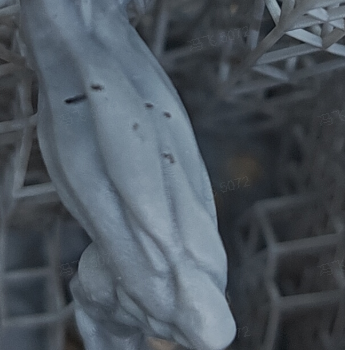
Fig. 1 Holes on print objects
¶ Potential reasons for irregular holes:
①Release film: dirt, dents or so scratches on the resin tank’s release film;
②Supports: Not enough strength or quantity, improper positions, or so causing little parts on printed objects fall during printing;
③Cured resin residues.
Solution:
During pre-processing, make sure you have enough strong supports; Before each print, check the resin tank status and if there’s any residue; After each print, check on print parts and in the resin tank if there’s any residue. In cases where there’s residue in the resin tank, filter the resin before printing again.
¶ Potential reasons for regular round holes: Improper support settings.
Set as [No] for [Contact shape] in support parameters in Blueprint Studio, it’s more possible to result in these holes, compared to set as [Sphere]. Rigid material, when printed, is brittle, so the parts connecting supports might easily be removed together when supports are removed.
Solution: Set [Contact shape] as [Sphere] rather than [No], if possible, in support parameters in Blueprint Studio.
Supports with sphere contacts are more easy to remove and also more easy to polish for a fine surface.
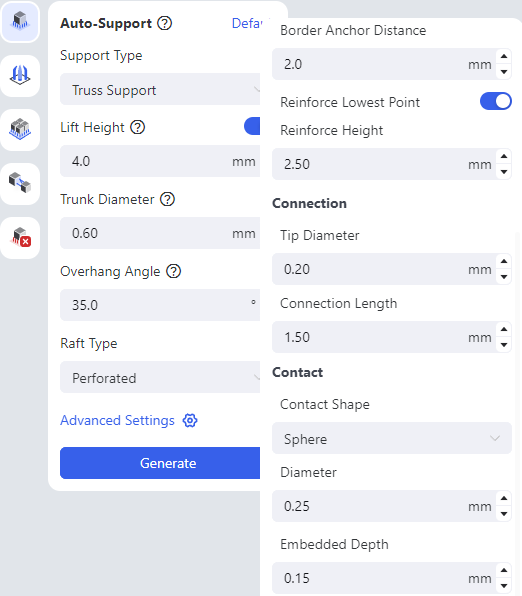
Fig. 2 Support parameters
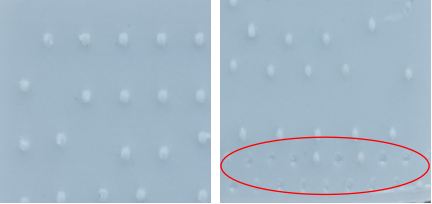
Fig. 3 Results after supports are removed (Left: Contact shape-Shpere; Right: Contact shape-No)