Blueprint Studio provides various tools and features to help you design models efficiently and improve your creating experience and productivity.
Here is the introduction to the basic operations commonly used in the software.
¶ 1. Import & Delete Models and Project Files
- Drag: after entering the project, drag the model files to be imported to the application window to import them.
- <Import>: import model files from the local directory by hitting the icon.
- Delete: to delete a model, click the ellipsis icon <...> after the model in the Model List and choose Delete, or select the model and hit the Delete key on the keyboard.
¶ 2. Select Models
¶ 2.1 Select a Single Model
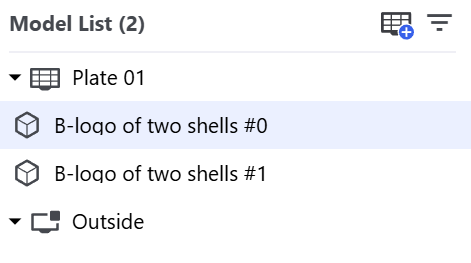
Model List: click the model name; it turns blue when selected.
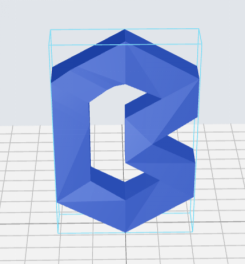
Work Plane: click the model to select; it turns blue when selected.
¶ 2.2 Select Multiple Models
select several models at the same time.
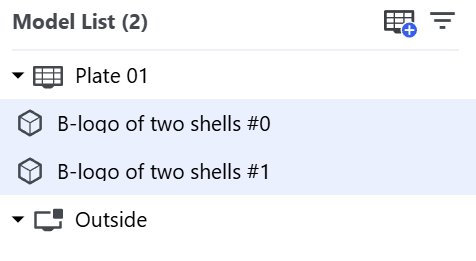
- Model List: Hold the Shift key to select the models one by one; the names turn blue when selected.
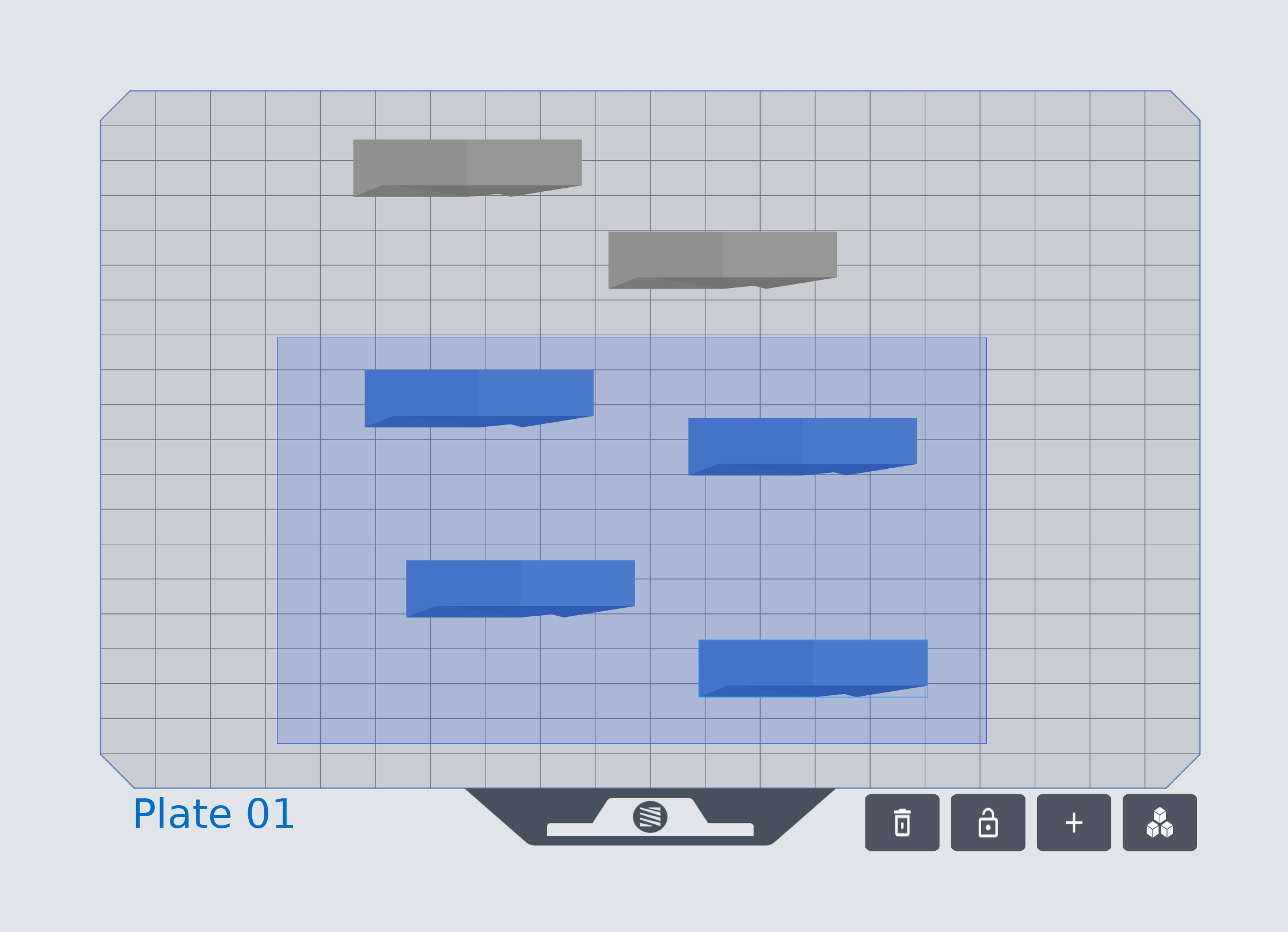
- Work Plane:
- Hold the Ctrl key and left-mouse click the models one by one; the models turn blue when selected.
- Hold the Shift key and drag the mouse to marquee the models; the models turn blue when selected.
¶ 3. Unselect Models
Click an empty space. The models turn grey when unselected.
¶ 4. Adjust View
¶ 4.1 Adjust with the Mouse
- Orbit the View: hold down the right mouse and drag; the view orbits along the moving track of the cursor.
- Move the View: hold down the left mouse at an empty space and drag; the view moves along the track of the cursor.
¶ 4.2 View Components - Switch View
The view components are in the upper right corner.
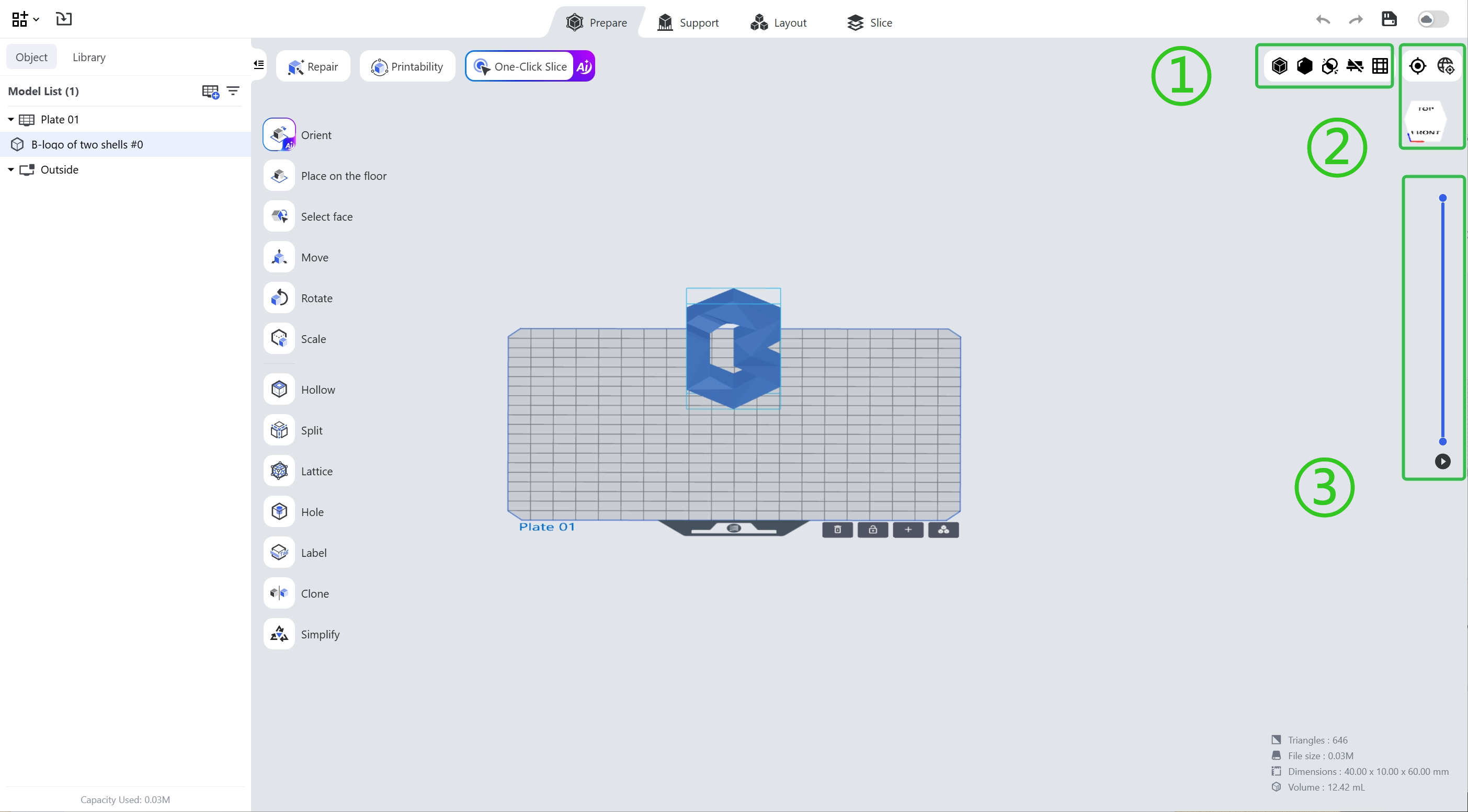
① Basic Tools (from left to right): display the model as solid or in X-Ray perspective.
-
Show/Hide Edge Line: show or hide the edge lines (black).
-
Overlap Detection: if turned on, overlaps are detected automatically and shown in red.
-
Hide the Build Platform: show or hide the build platform.
-
Orthographic/Perspective View: switch between views.
② View Adjustment (from left to right): 1. Default View: click to go back to the default view angle.
-
Global View: click and the layout zooms out to the global view.
-
View Cube: select a face to jump to the corresponding view; 6 views are provided, front/back/left/right/top/bottom.
③ Slice Preview
Click the play button to check the slice preview; drag the upper and lower dots to check the slice at different heights.
¶ 5. Group and Ungroup
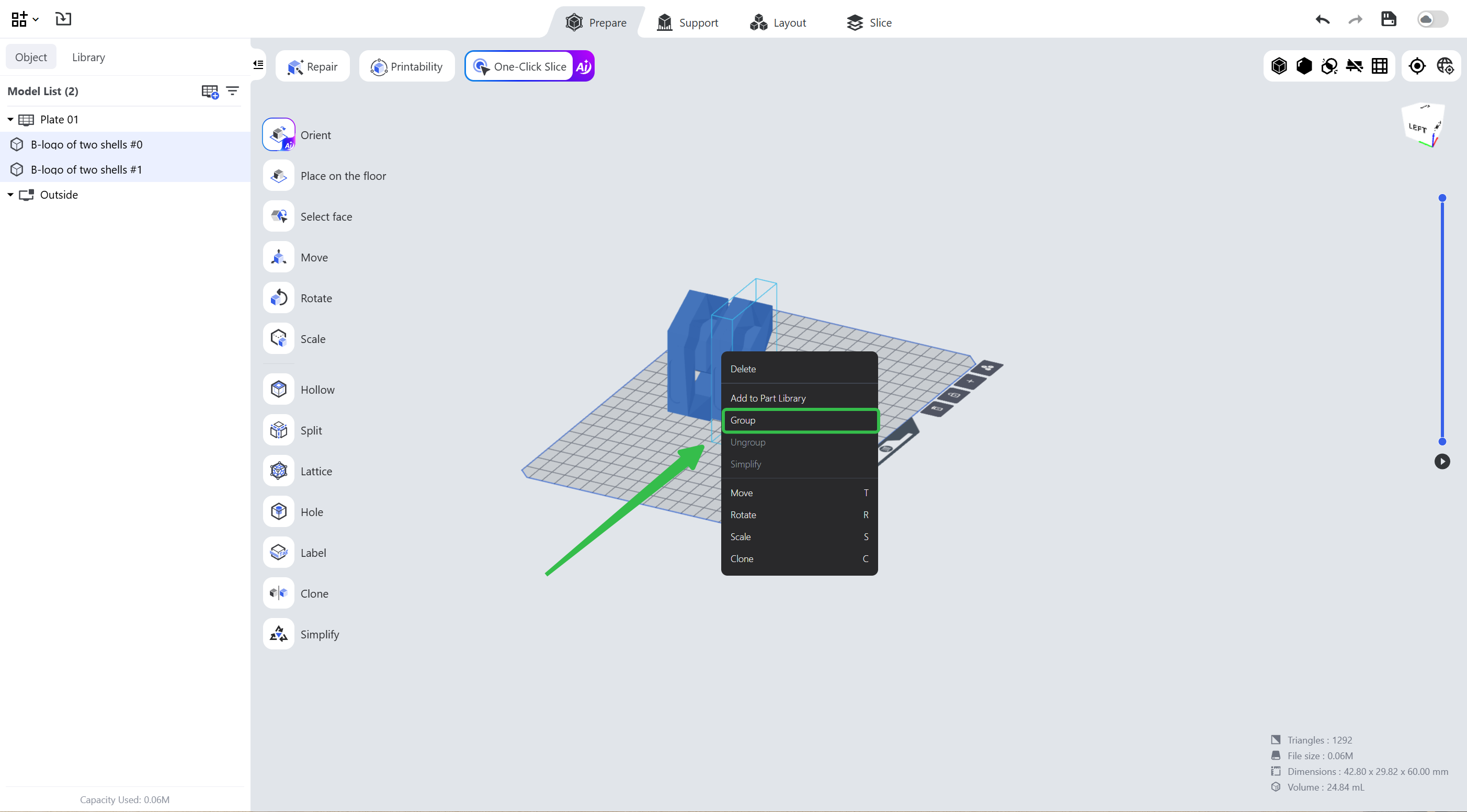
Package multiple models together (into a group) and treat them as a single object. Some functions and operations are not applicable to the group. The group cannot be grouped again.
- Group
- Select multiple models, right-click and choose <Group> in the pop-up menu.
- Or select multiple models and then use the corresponding shortcut key (see Shortcut Table).
- After checking multiple models in the <Model List>, click <...> to pop up the menu and choose <Group> to group the selected models into a group.
- Ungroup
The reverse operation of grouping. Restore the group to multiple independent models.
- Select the group, right-click and choose <Ungroup> in the pop-up menu.
- Or select the group and then use the corresponding shortcut key (see Shortcut Table).
- In the <Model List>, check the group, click <...> to pop up the menu and choose <Ungroup> to restore the selected group to the multiple models before grouping.
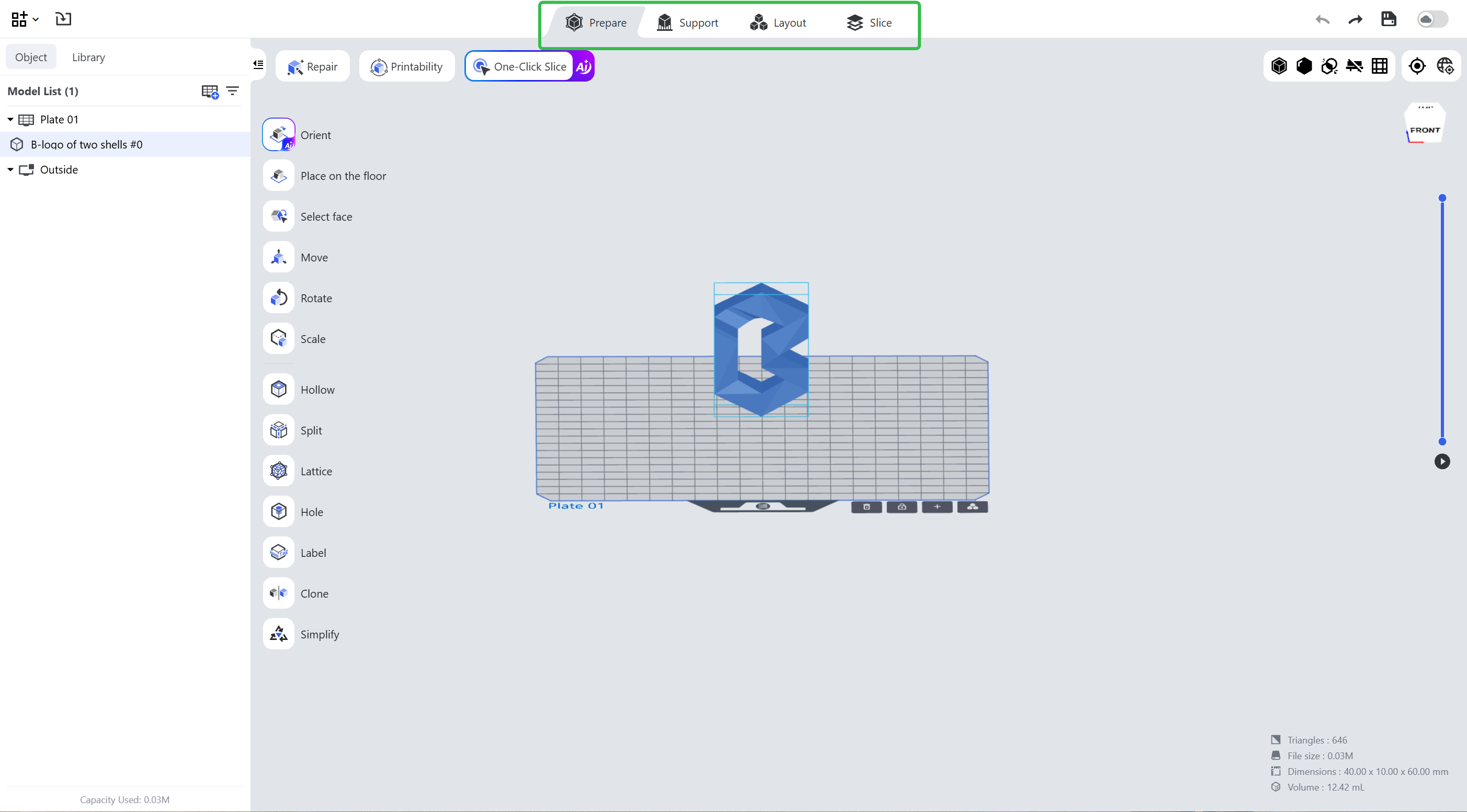
¶ 6. Feature Pages
Click the corresponding icon or text on top to switch to the corresponding feature pages.
¶ Update History
| Version | Date |
|---|---|
| 1.0 | 2026-10-26 |