¶ 1. Common Troubleshooting
¶ 1.1 Forgot Password
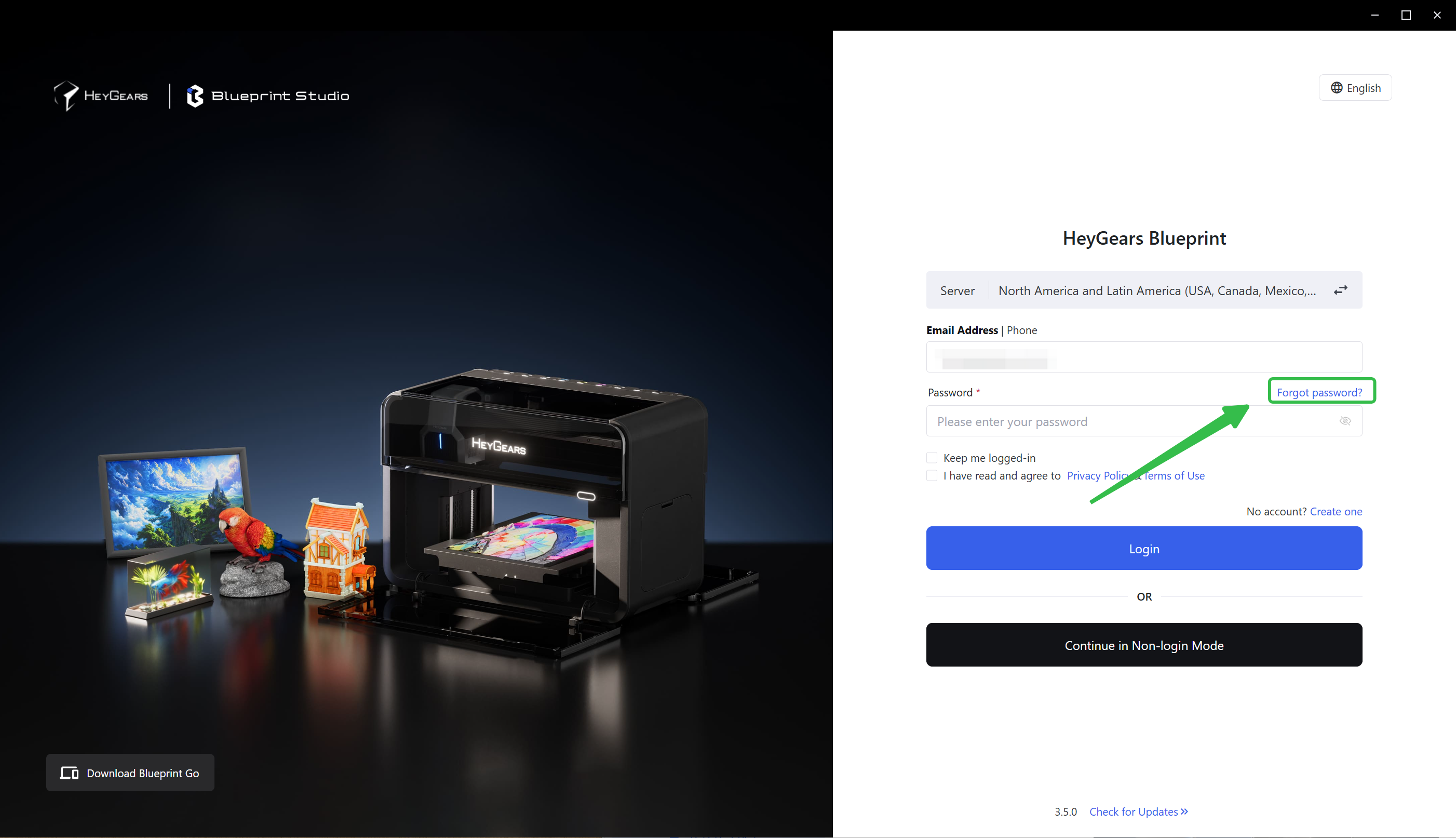
If you forget the password of your account, hit <Forgot password>.
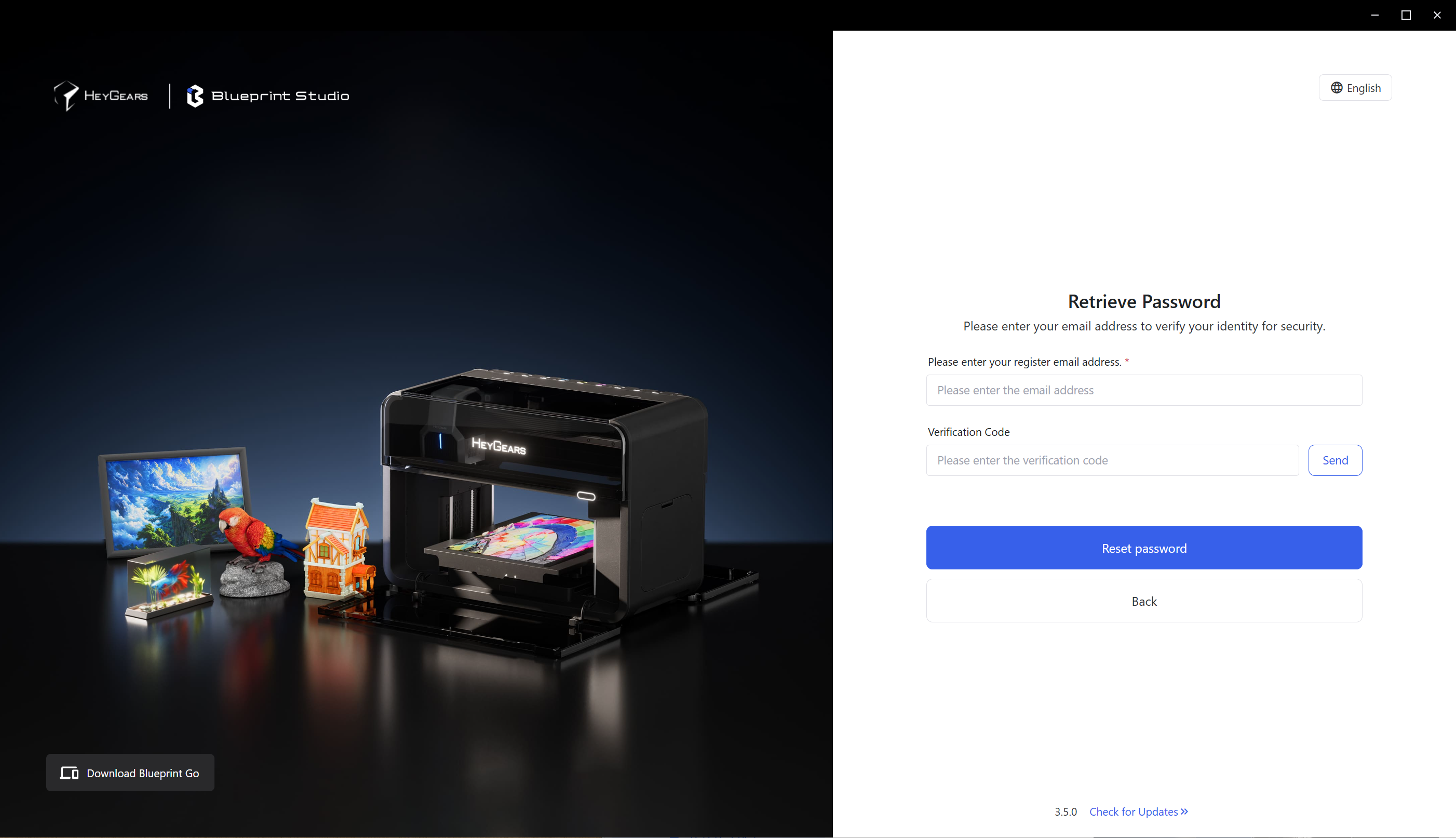
And then you can reset your password after security verification via register email.
¶ 1.2 Failed to Bind Devices to Blueprint Studio
If a device fails to bind to the software, first check whether the binding code is entered correctly. If it still fails to bind with the correct code, please contact the customer service staff.
¶ 2. Common Questions
2.1 3D Model File Formats for Import
Blueprint Studio supports the following common 3D model file formats:*.stl, *.obj, *.glb, *.step, *.stp, *.igs, *.iges, *.3mf, *.bpsx etc. You may check them in the model import interface of the software.
¶ 2.2 Whether It Will Be Charged in the Future
Blueprint Studio is free of charge at present, and users may use its basic features for free, including model import, slicing and print settings, etc. To meet the needs of different users, we plan to launch some advanced features in the future, which will require a paid unlock. We guarantee that the price of these paid features will be very reasonable, and promotional offers will be provided. Importantly, even if you choose not to subscribe to these advanced features, you can still use all the pre-processing features of the software without any hindrance.
¶ 2.3 How Long Slice Files are Stored
In Blueprint Studio, slice files are usually stored persistently, unless the user actively performs the following operations:
-
- Manually delete the slice file;
-
- Uninstall the software. Without the operations above, the slice files will not be deleted automatically, and the users may keep these files for long-term use or reference.
¶ 2.4 Whether the Build Platform Speed Can be Adjusted
The platform speed in Blueprint Studio is set already and cannot be changed, which is to ensure the printing quality and stability.
¶ 2.5 Binding Multiple Software Accounts to the Same Device
One printing device can only be bound to one Blueprint Studio account, while one account can be bound to multiple printers. If it is used by a company, the Blueprint Studio account may be turned into a shared account with the login name and password published, so that everyone can log in on their own computer according to the shift schedule. This makes it convenient for several people to share the same device.
¶ 2.6 Changing the Software Account Bound to a Printer
If you need to change the Blueprint Studio account bound to the printer, you may do it in the device details card: first you need to unbind the device, and then it can be bound to the new account.
¶ 3. Look for Help
¶ 3.1 Submit Feedback
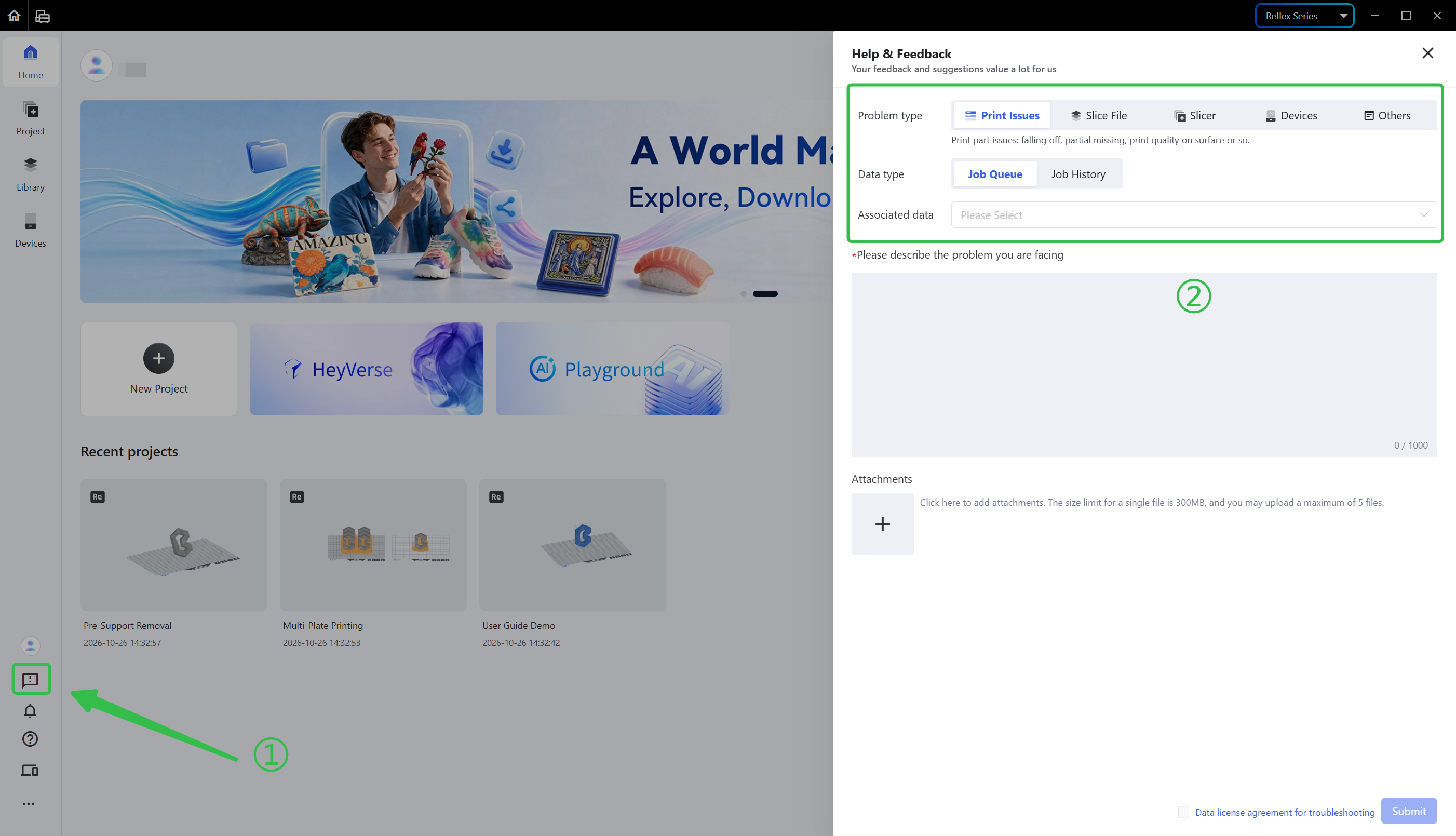
If you come up with any job problem, you may do the following:
-
Click the exclamation mark icon at the bottom of the left corner to enter the [Help & Feedback] page.
-
Select the problem type according to the problem you encountered, select the specific data type, click the Associated Data box and select the corresponding job.
-
Describe the specific problem you encountered; if there are attachments, you may upload them to help the technical support staff troubleshoot.
-
Tick <Data license agreement for troubleshooting> and click <Submit>.
If it is a device problem, you also need to select the time of malfunction and choose failed device as the associated data.
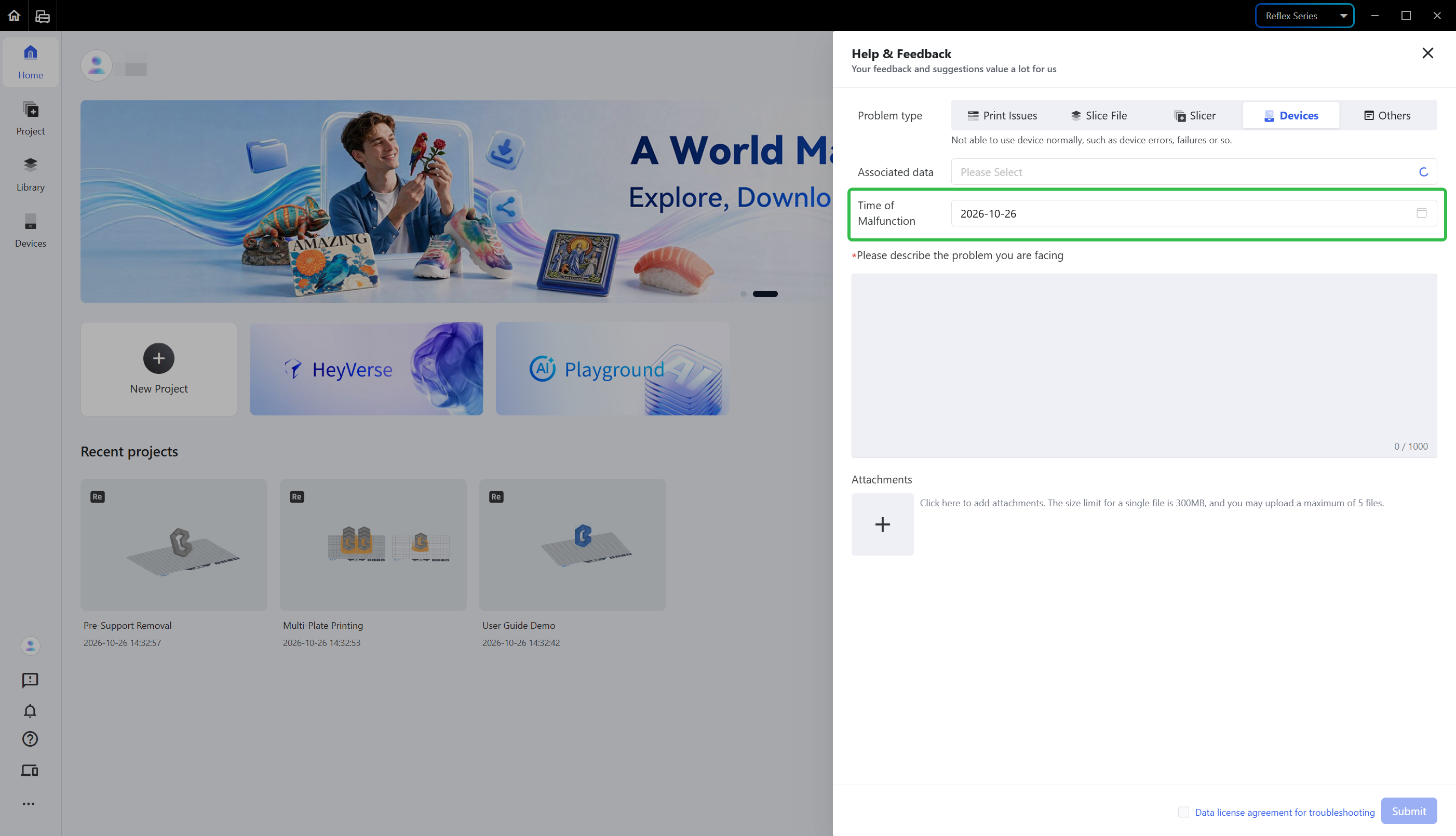
To help the technical support staff locate the issue more efficiently, it is recommended to submit feedback with the corresponding type for print issues, slice file, slicer, and devices.; if the problem type is hard to determine, you may select <Others> and describe the problem in detail.
¶ 3.2 Check Feedback List
After the problem is submitted, please pay attention to the <Help & Feedback List> and wait for the reply; you may find the entry by clicking the ellipsis icon<...> at the end of the left navigation bar, and check the status through the list.
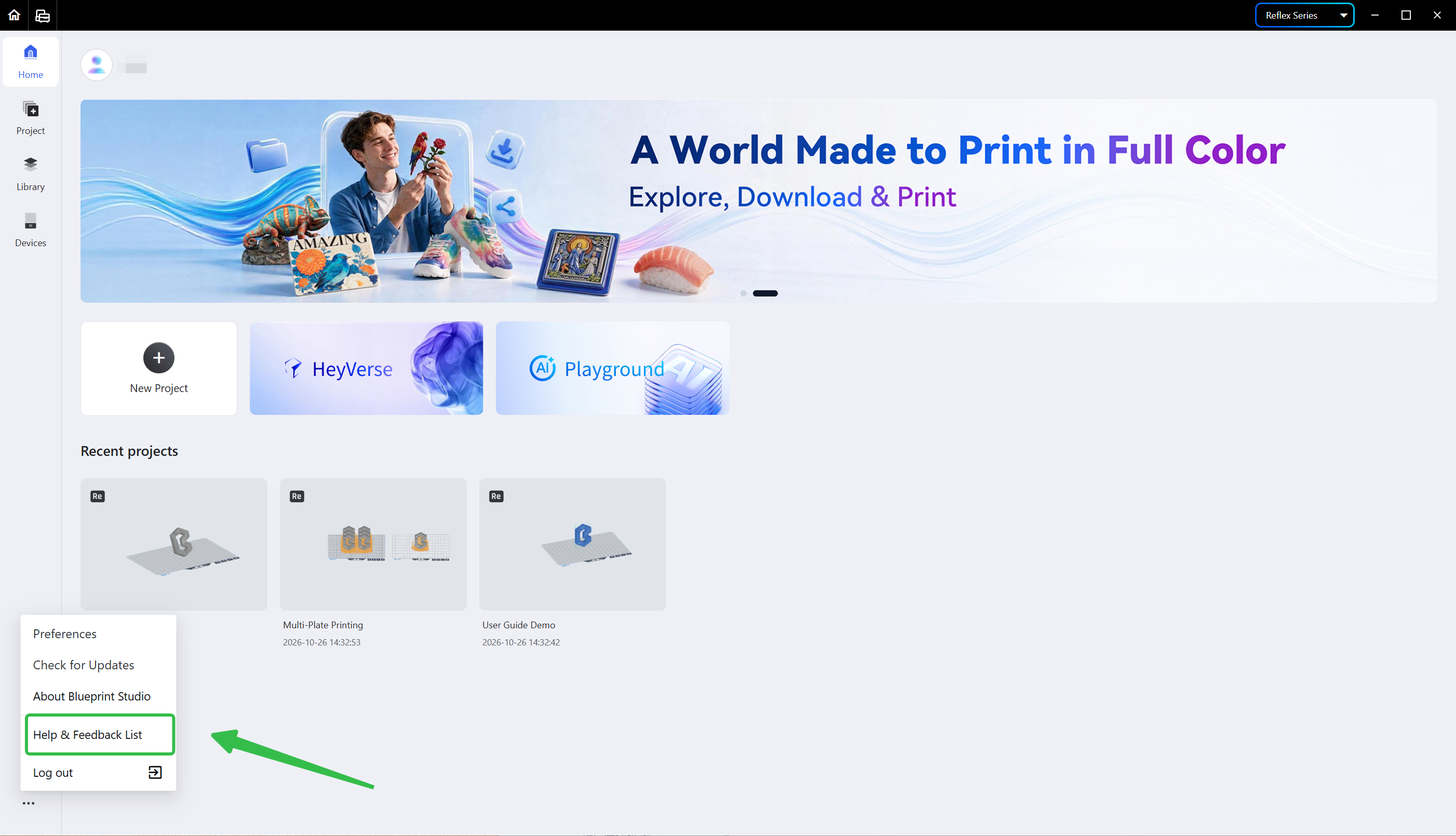
When there is progress, our technical support staff will contact you, and a red dot appears on the <Help & Feedback List> and on the corresponding service order. You may also leave further messages under the same feedback order or upload more attachments.
¶ 4. Contact Us
-
Guangzhou HeyGears Intelligent Manufacturing Technology Information Co., Ltd.
-
Office address: B2 Building, Floors 5-6, Science and Technology Enterprise Accelerator, Development Zone, Huangpu District, Guangzhou, Guangdong, China
-
Tel: +86 020-22042035
-
Email: info@heygears.com
¶ Update History
| Version | Date |
|---|---|
| 1.0 | 2026-10-26 |