If you come up to any problem during use, including pre-processing and printing problems, you may send feedback via the built-in feedback entry of the Blueprint Studio desktop client, so that our technical support can look into it and help. Before submitting, please check the troubleshooting data authorization agreement to authorize HeyGears to help with problem investigation, analysis and after-sales service.
¶ 1. Submit Feedback
-
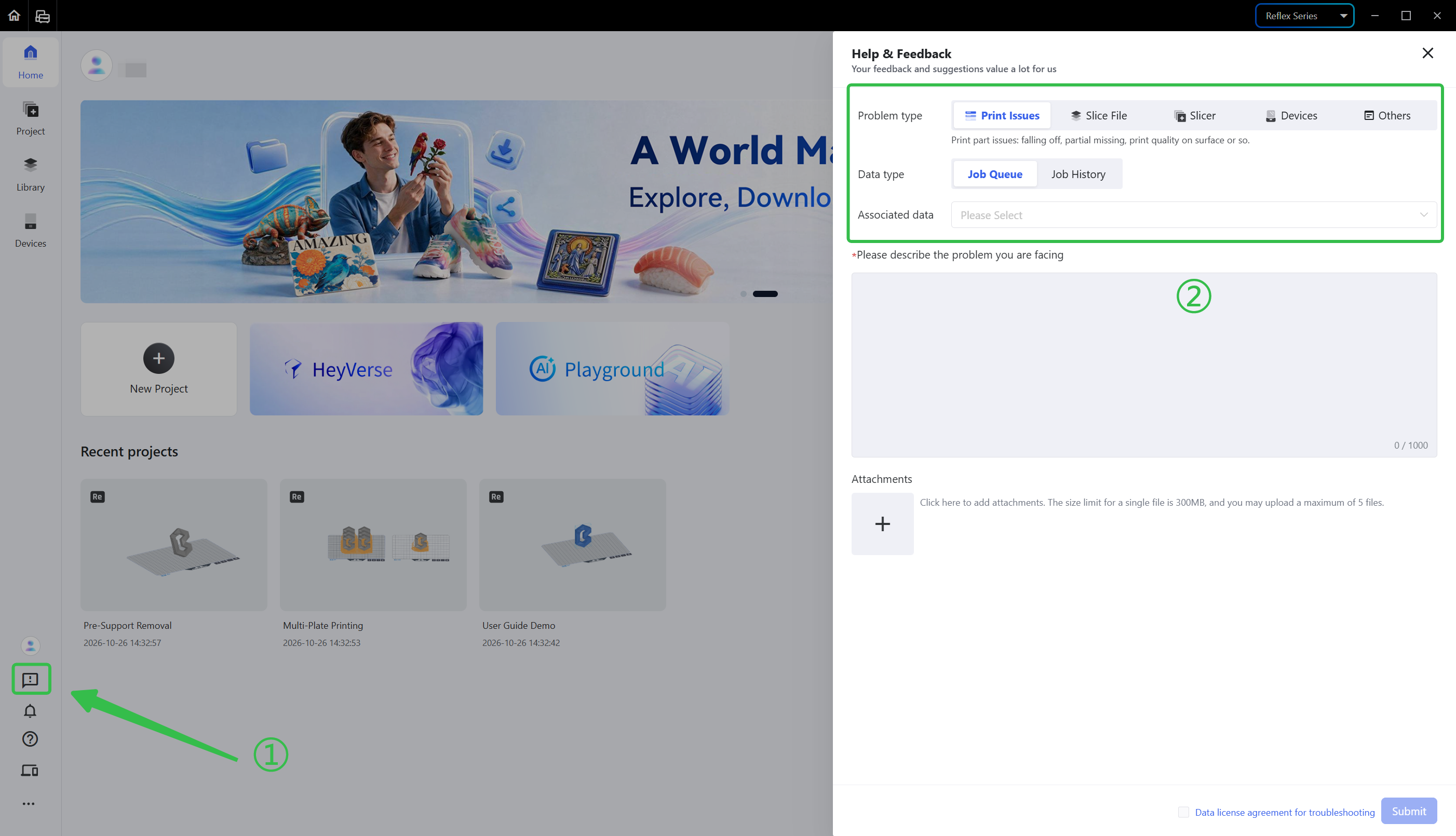
Click the exclamation mark icon at the bottom of the left navigation bar to enter the help and feedback page.
-
Choose the <Problem type> according to the problem, choose the specific <Data type>, click the <Associated Data> box and select the corresponding job.
-
Describe the specific problem and scenario you came up against. You may upload attachments if any, so that our technical support can look into it and help.
-
Check the troubleshooting data authorization agreement and hit Submit.
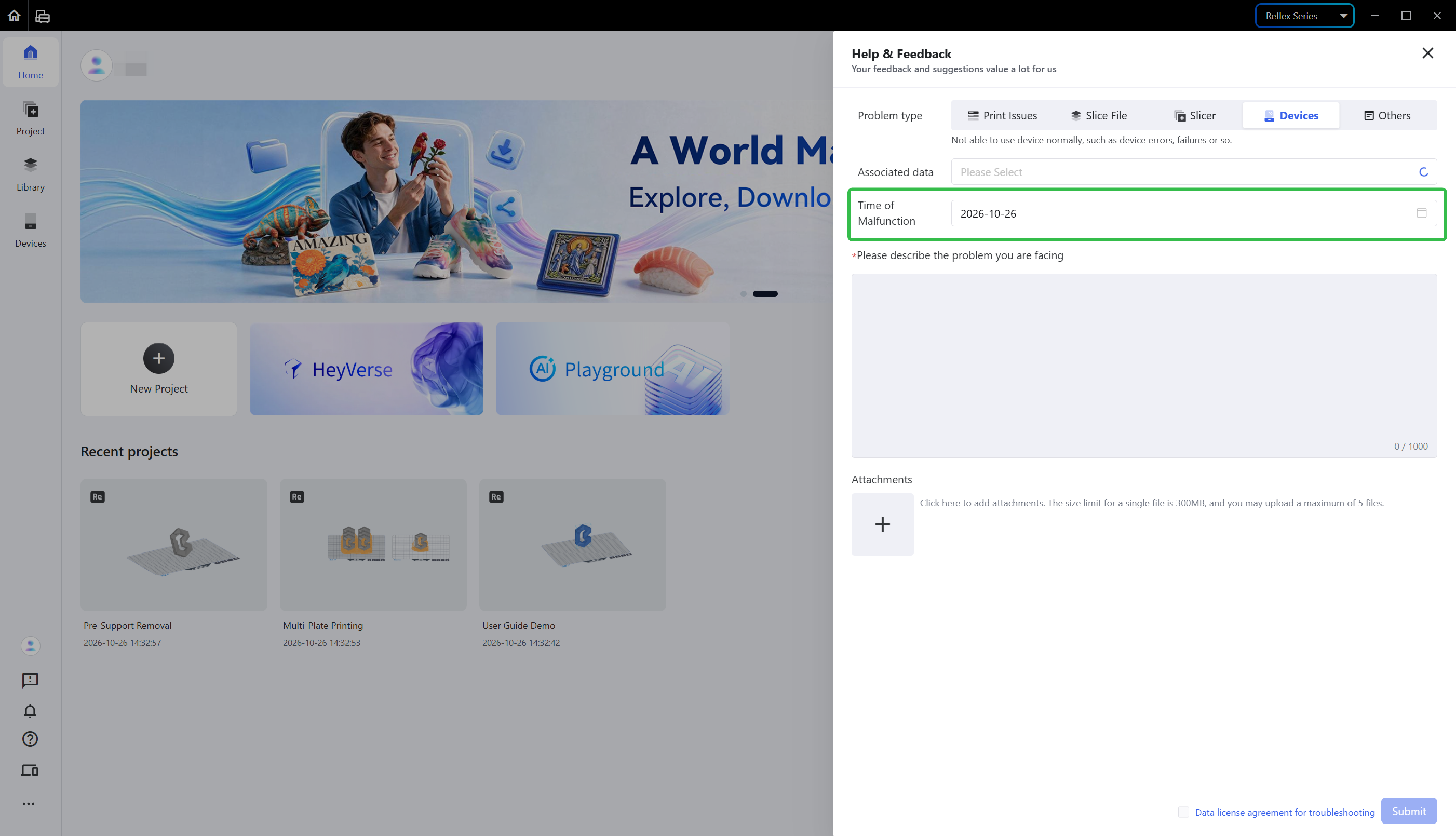
For a device problem, you also need to choose the time of malfunction and select faulty device as the associated data.
To help our technicians locate the problem more efficiently, for printing, slice file, pre-processing and device problems, it is recommended to choose the corresponding problem type when submitting feedback. If it is hard to decide the problem type, choose <Others>; and describe your problem and scenario in detail.
¶ 2. Check Feedback List
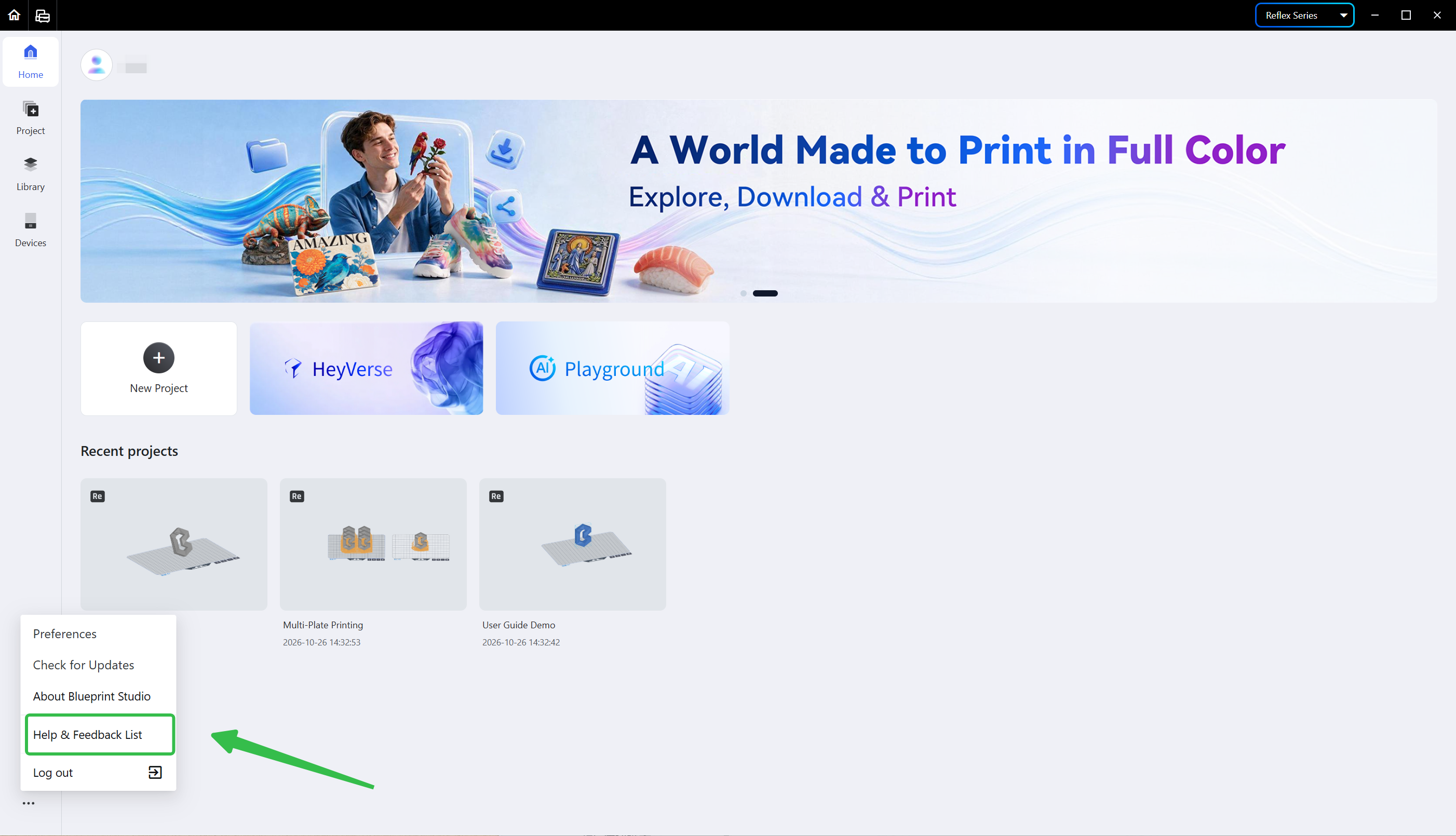
After you have submitted feedback, please check the help and feedback list and wait for the reply. Hit the ellipsis icon at the end of the left function bar to find the entry, where you can check the status of the feedback order. If there is any progress, our technical support will contact you, and a red dot will appear on the help and feedback list option and on the corresponding feedback order.
¶ Update History
| Version | Date |
|---|---|
| 1.0 | 2026-10-26 |