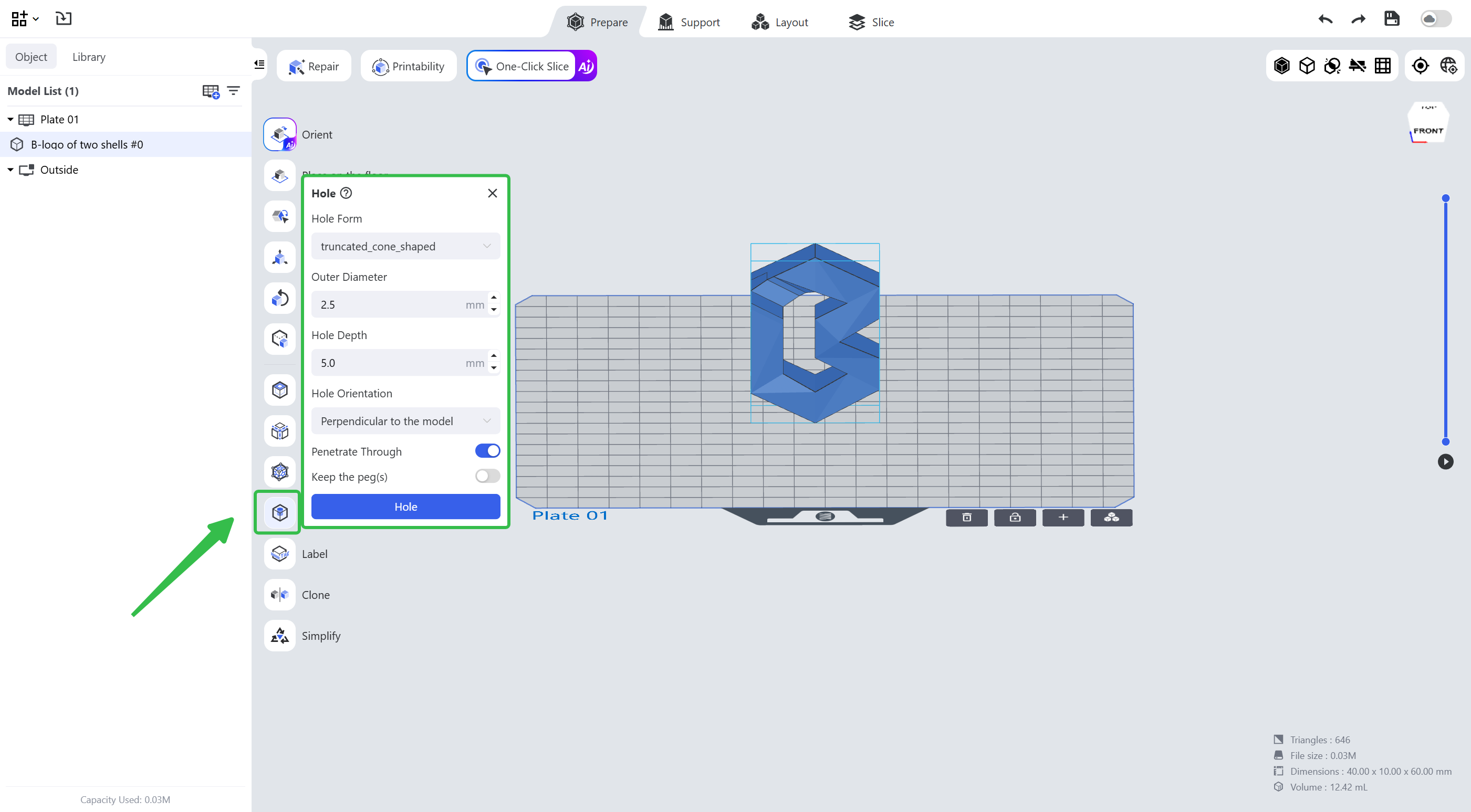
You can add a hole at the selected position, and the hole parameters are customizable.
¶ 1.1 Add a Hole
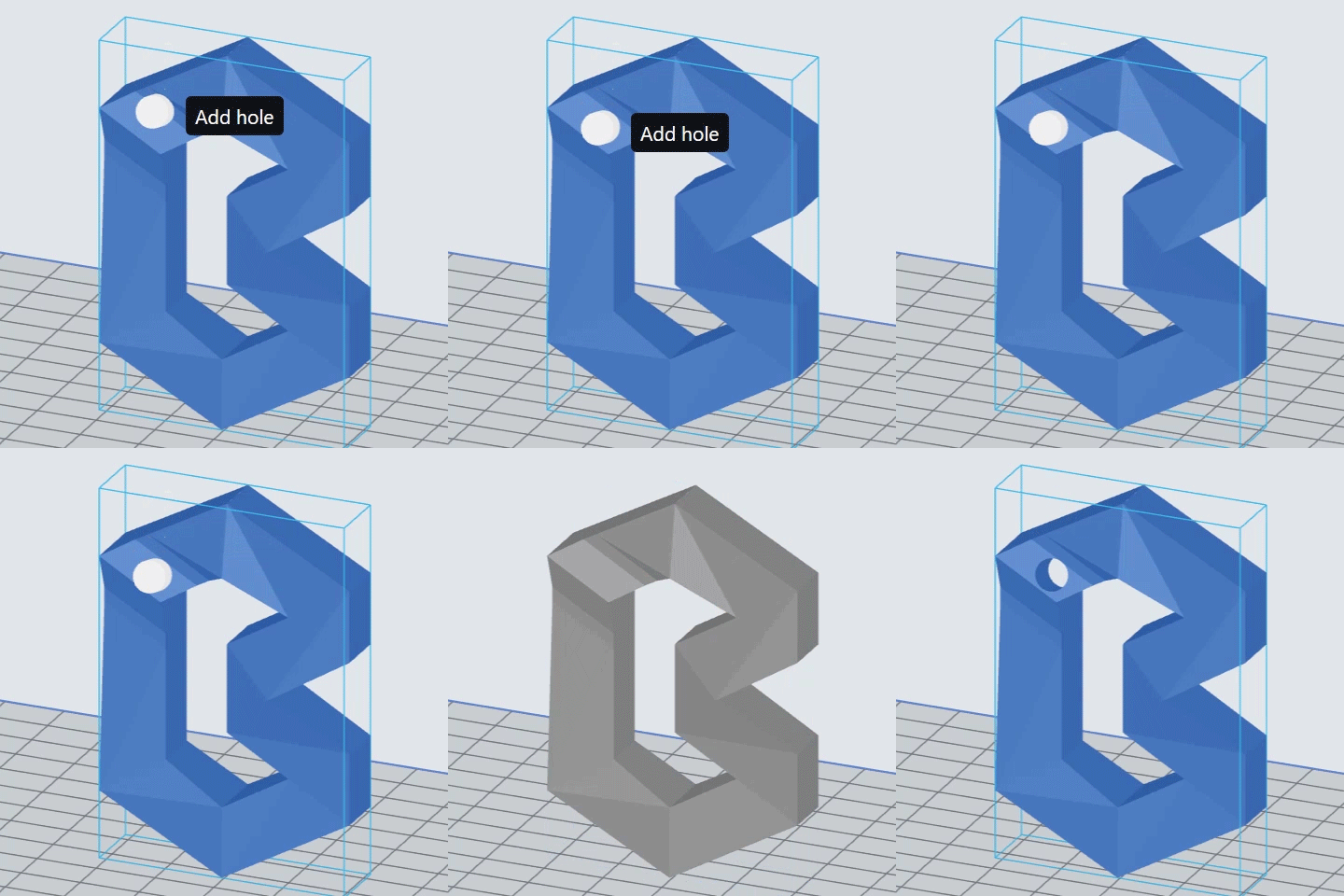
Enter the editing interface and select Hole. Set the hole parameters and click Hole, then move the mouse to the position where the hole is needed and click the left mouse button to add the hole.
¶ 1.2 Delete a Hole
Move the add-hole tool to the position of an added hole; when the tool turns red and the "Delete Hole" prompt appears, click to delete the hole.
¶ 2. Principles
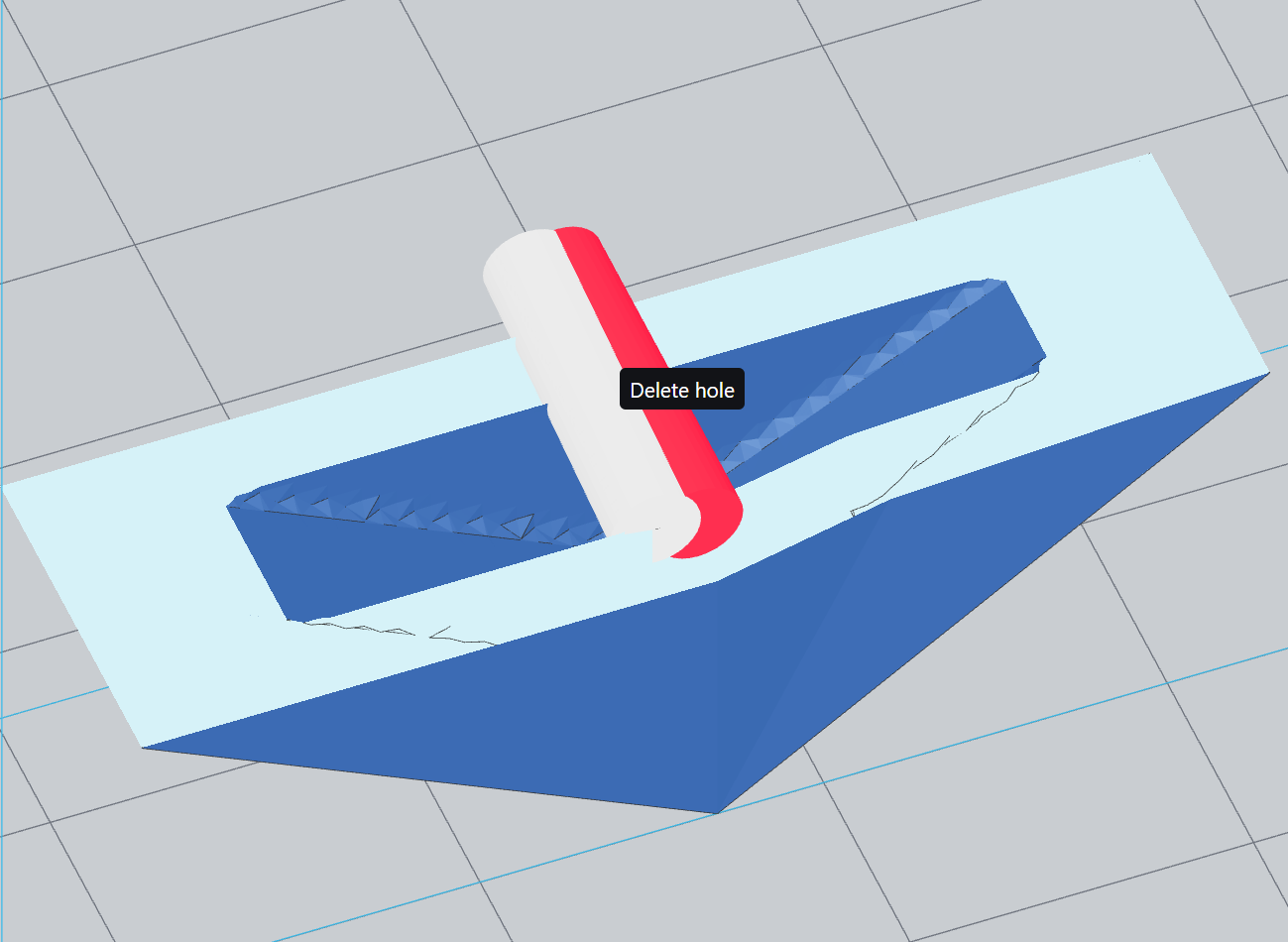
Usually make holes where cavities first appear in the model, which avoids the impact of inverted cup structures on printing.
¶ 3. Parameters
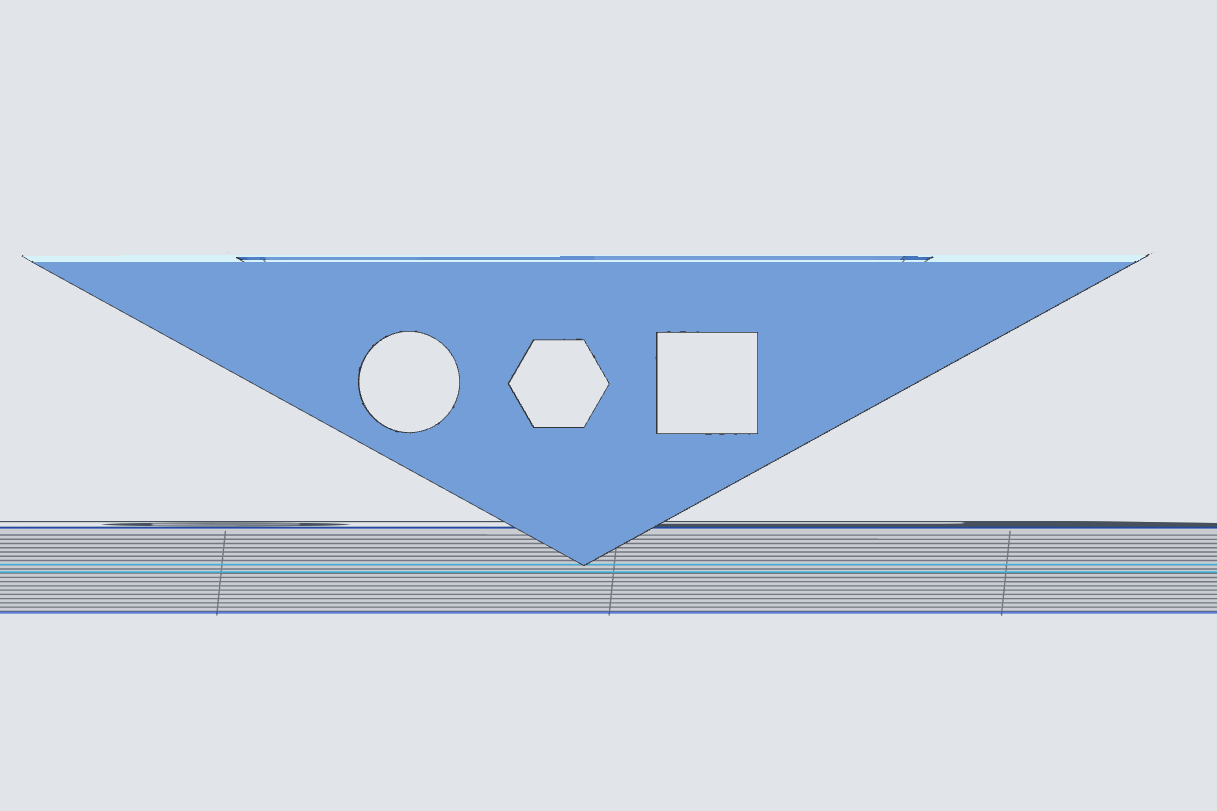
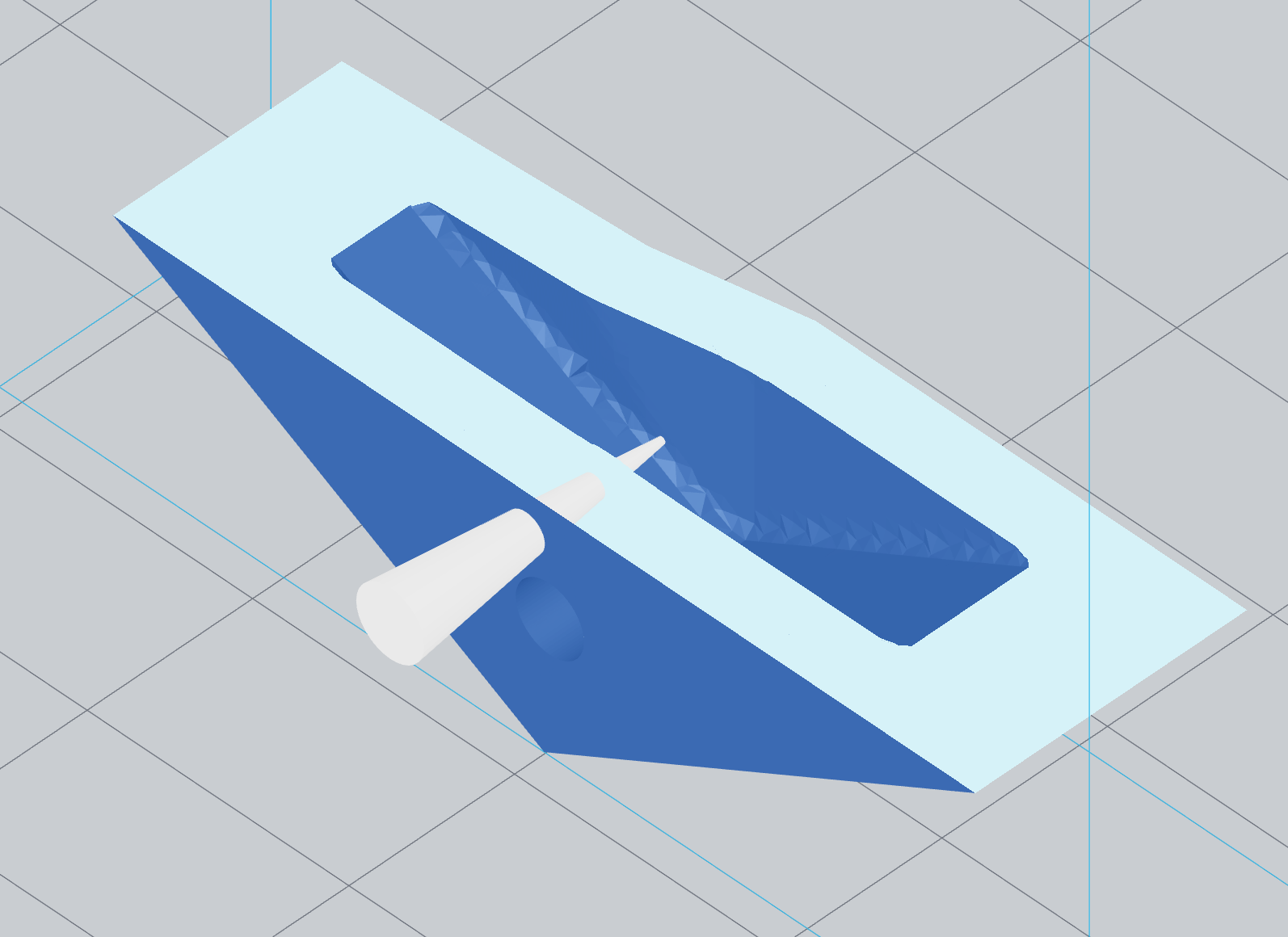
- Hole Shape: <round>, <square>, <hexagon>, <truncated cone shaped>.
| Circular, Hexagonal, Square | Truncated Cone Shaped |
|---|---|
 |
 |
- Hole Diameter: the circumscribed circle's diameter of the hole, 2.5mm by default.
- Hole Depth: the depth of the hole, 5.0mm by default.
- Hole Orientation: the orientation of the hole, including: <perpendicular to the model>, <perpendicular to the screen>.
- Penetrate Through: if turned on, the hole will penetrate through the model.
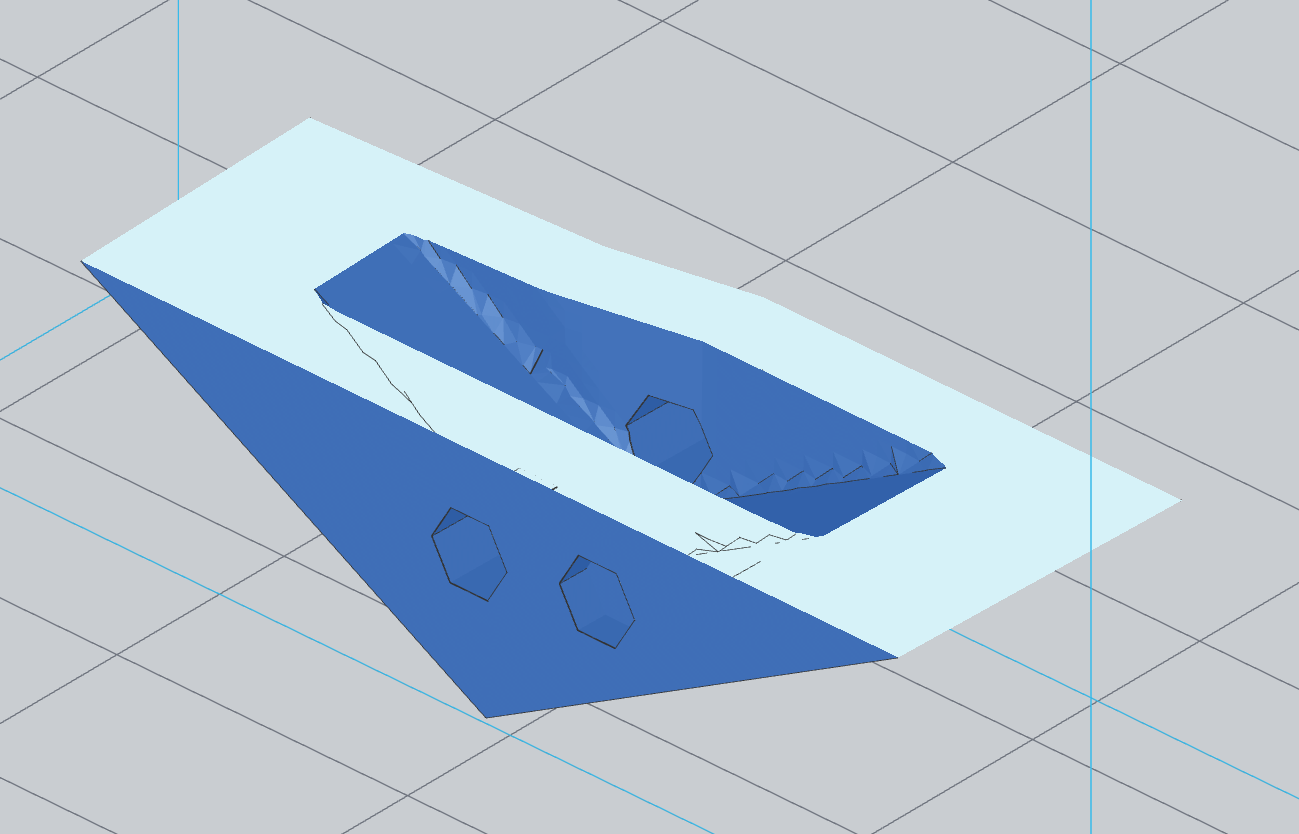
Right: Not Through Model
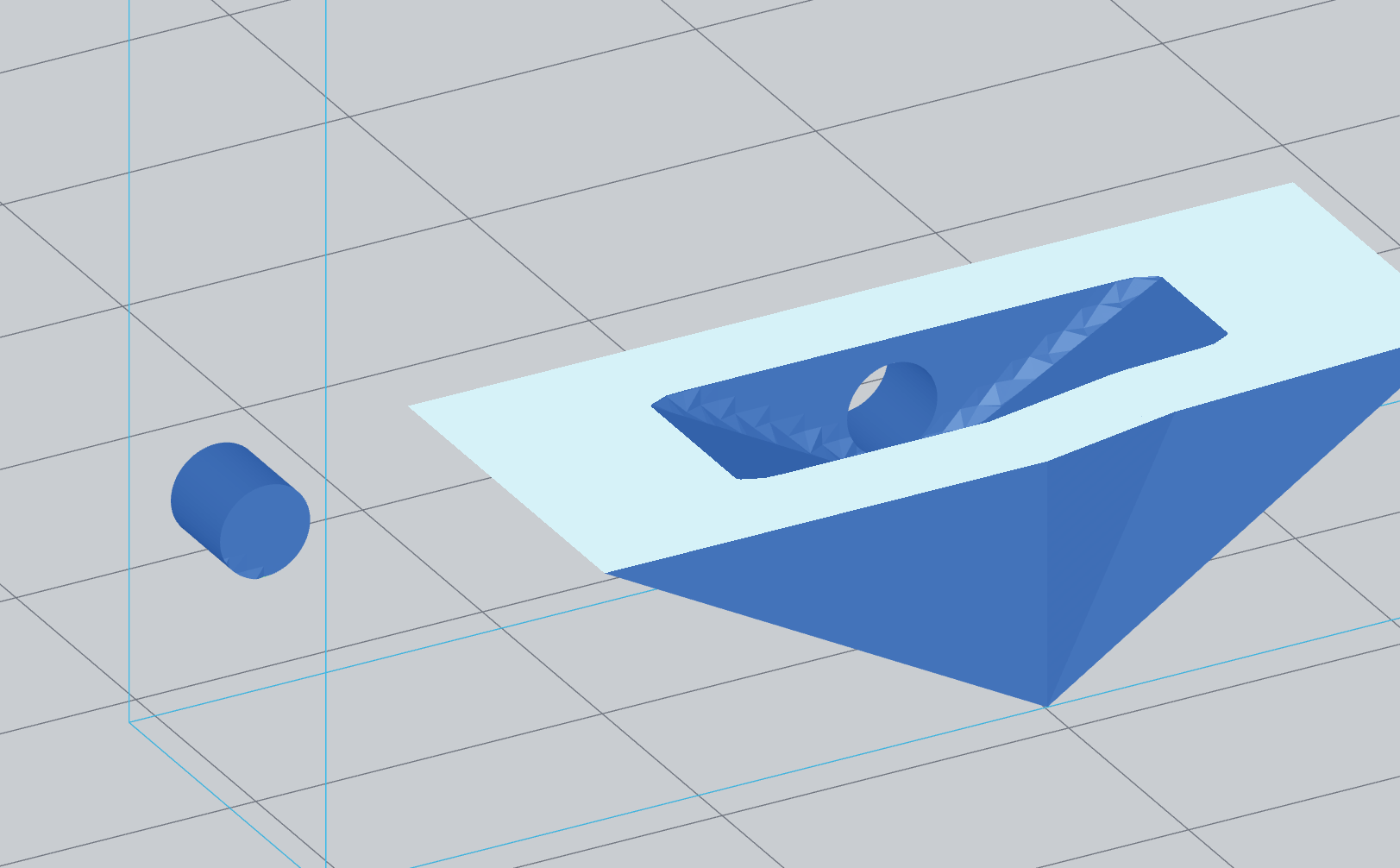
- Keep the Peg(s): if turned on, the original part inside the hole is kept.
¶ Update History
| Version | Date |
|---|---|
| 1.0 | 2026-10-26 |