Logged in, you'll see the homepage as follow:
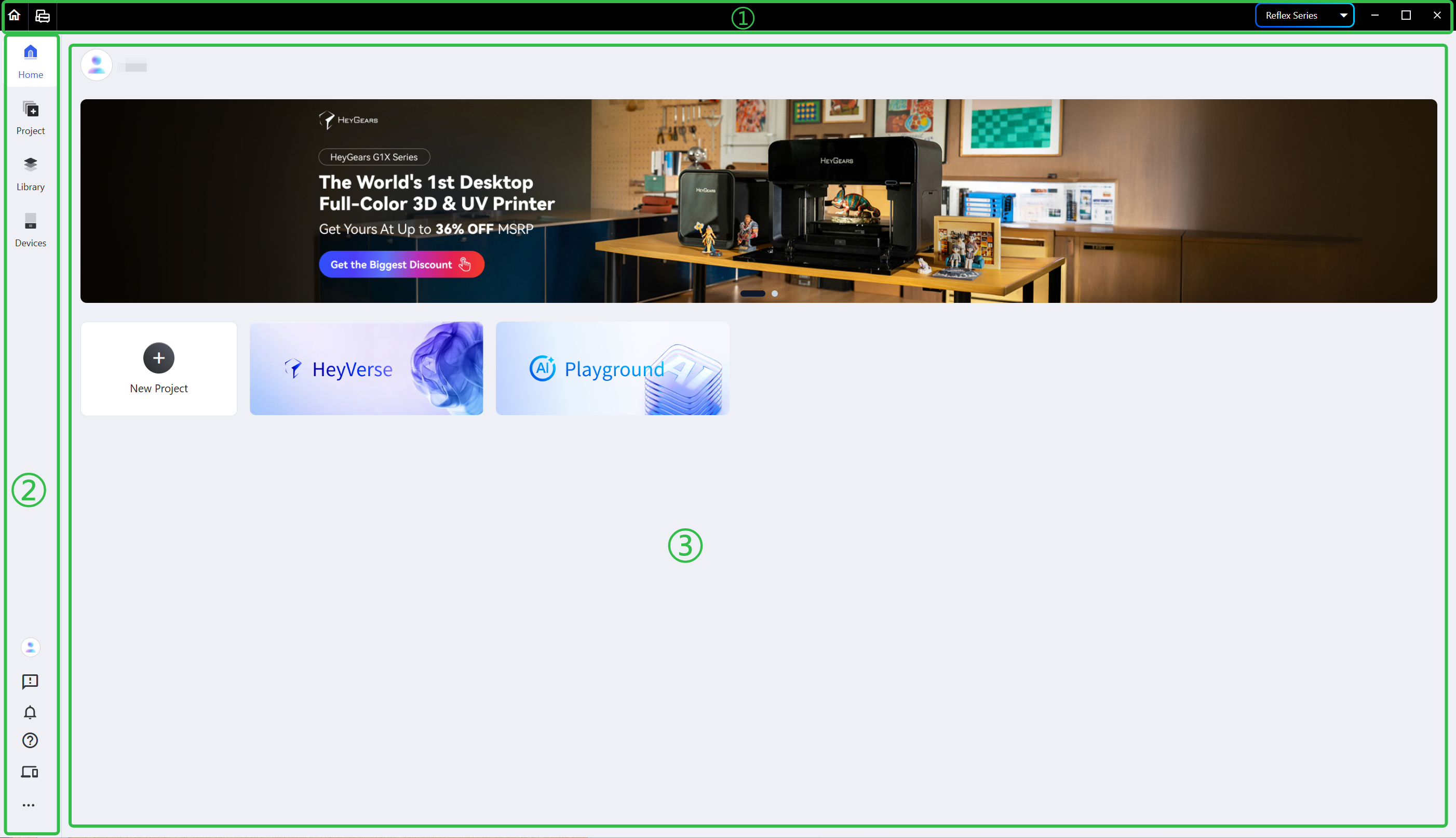
There are 3 main sections.
¶ Top: Navigation Bar
- There are 2 icons on the left of the navigation bar, which quickly jump to <Homepage> and <Devices> respectively.
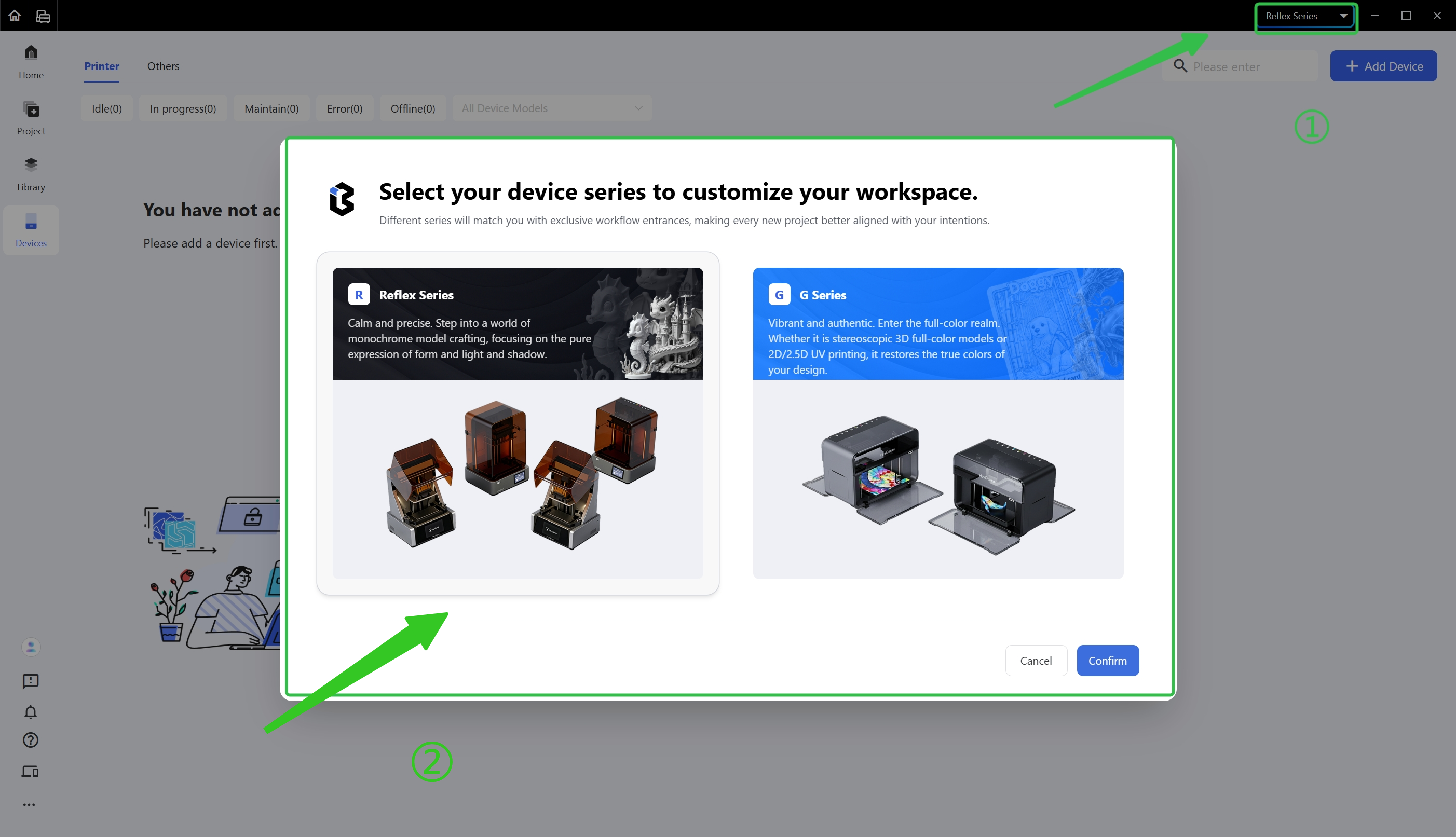
- The box on the right of the navigation bar switches the device series, entering the workflow respectively for the <R Series> or <G Series> devices.
¶ Left: Page Navigation and Function Bar
-
There are 4 icons at the top, click them to enter the corresponding page:
- <Home>: home page
- <Projects>: project list
- <Library>: check and manage slice files and the Parts Library
- <Devices>: add, check and manage devices
-
There are 6 icons at the bottom, from top to bottom:
- <Profile>: edit account information, create and manage team
- <Help & Feedback>: submit problems to get help
- <Notifications>: check notifications
- <Wiki>: get more core guides of HeyGears products and software
- <Download APP>: scan the code to obtain the mobile app Blueprint Go
- <More>: open the settings, check for updates, view details about Blueprint Studio, enter the help and feedback list and exit the software
¶ Center: Body
Recent projects are displayed here. Double-click a project card to jump to the pre-processing interface quickly. You may also create a project; the banners jump to the HeyGears store and Kickstarter respectively.
¶ HeyVerse
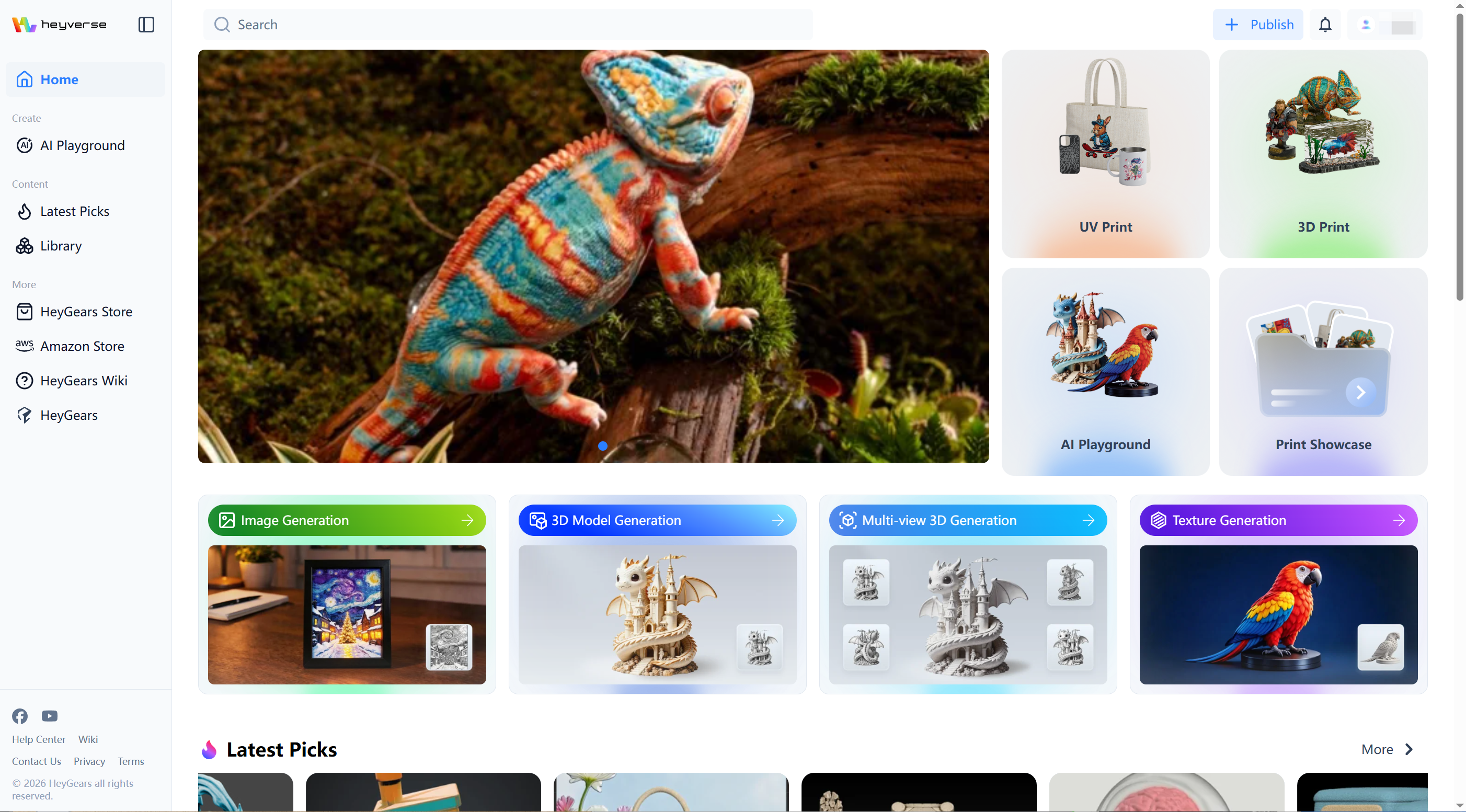
Click the HeyVerse card on the homepage to jump to the HeyVerse platform, which offers abundant 3D assets that can be used for printing directly, as well as a matrix of AI generation tools covering the whole workflow from idea creation to model output.
¶ AI Playground
After entering HeyVerse, click AI Playground in the left navigation bar. AI Playground is the AI creative generation area, providing four types of AI creation capabilities - image generation, 3D model generation, multi-view 3D reconstruction and texture generation - to meet creative needs from idea to deliverable content in one stop and lower the barrier to creation.

¶ Update History
| Version | Date |
|---|---|
| 1.0 | 2026-10-26 |