Manually add or delete supports to the selected model one by one. You'll do this by adding or removing support contact.
Select Manual Support on the left of the support function panel; the pop-up panel on the left allows you to set the specific parameters, and the top toolbar provides the support-adding tools and the display-effect adjustment tools.
| Function Entry | Function Panel |
|---|---|
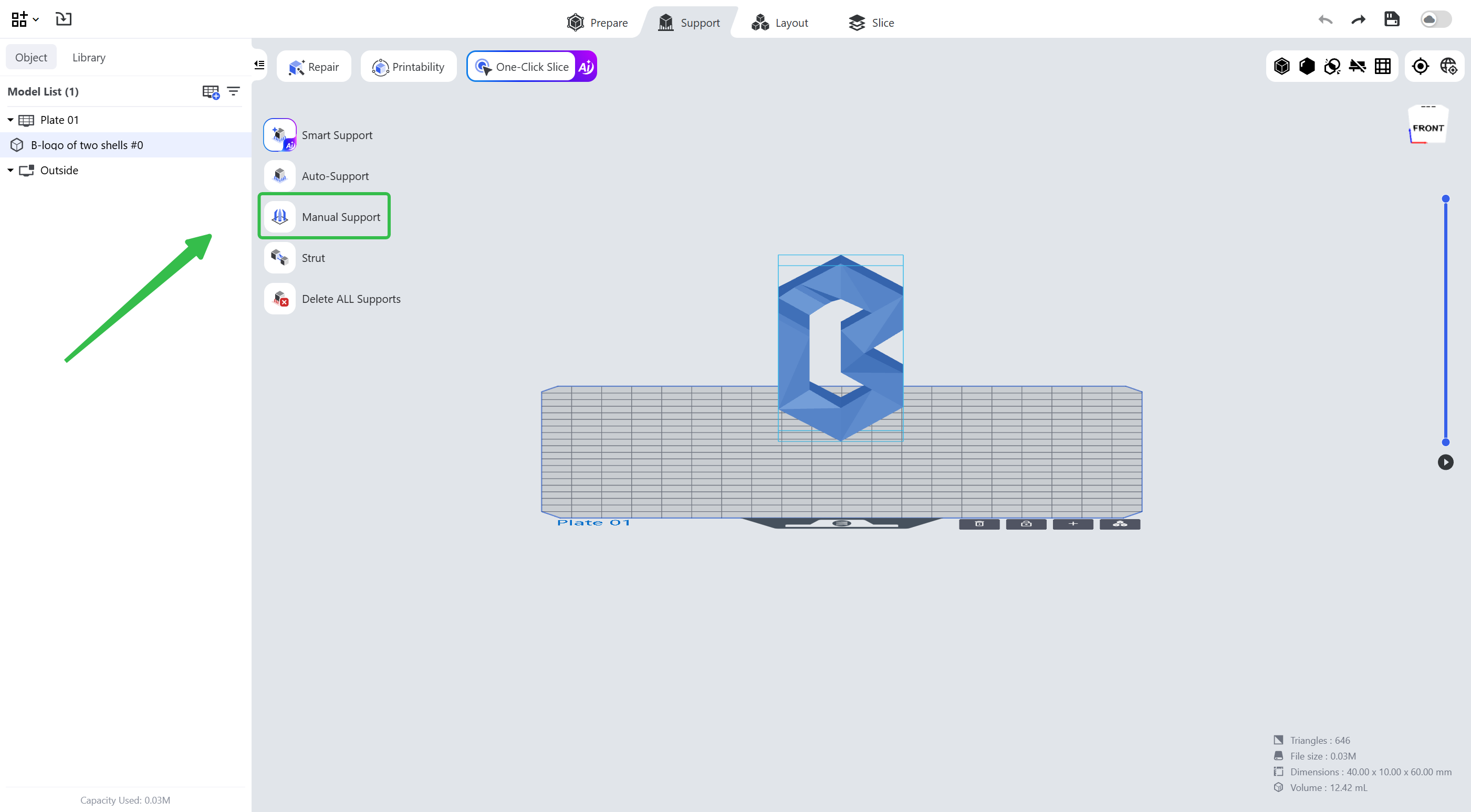 |
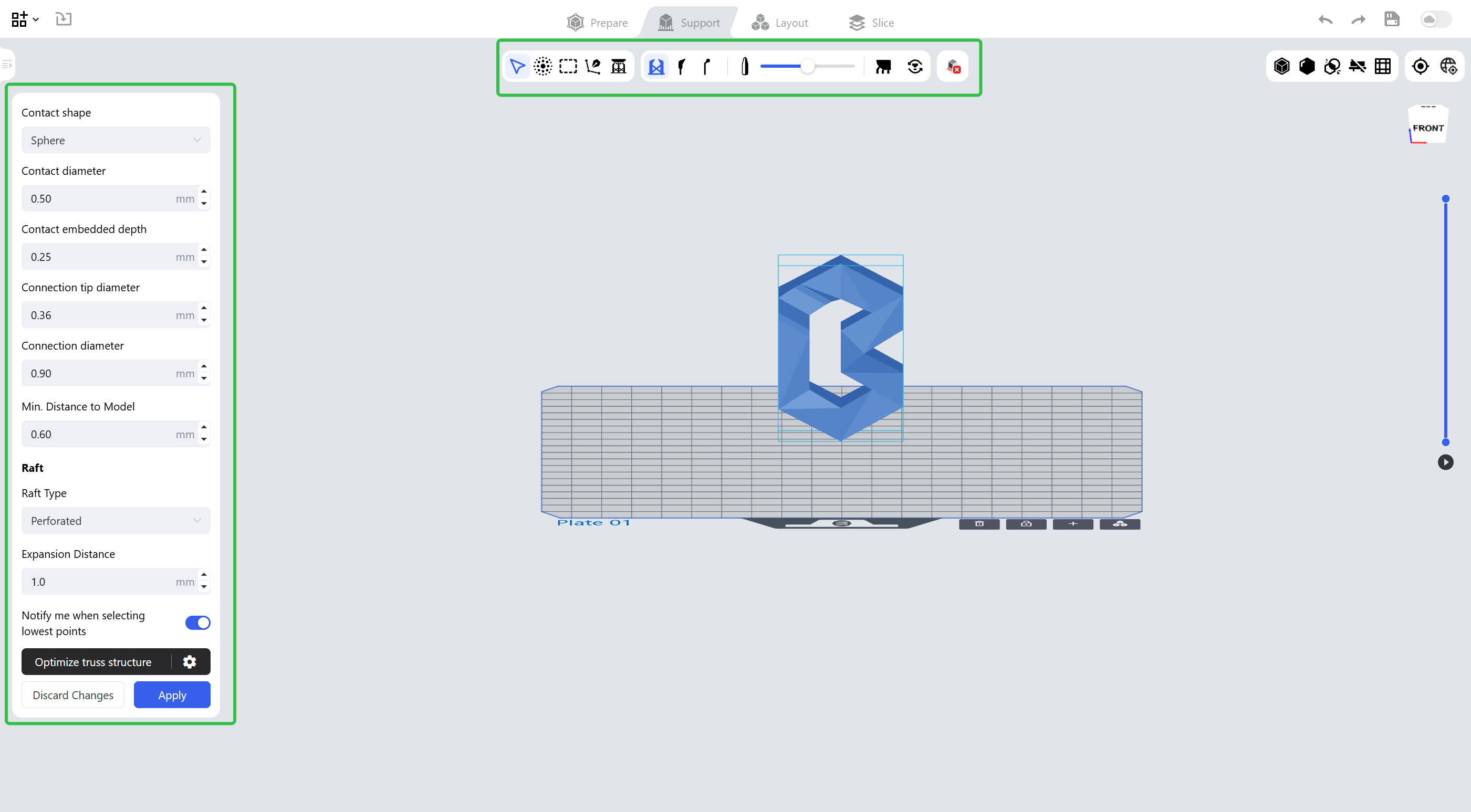 |
¶ 1. Support Parameters
Blueprint Studio provides a variety of manual support parameter settings.
¶ 1.1 Support Structure
You may adjust the parameters of the support contact and the connection.
| Contact Shape as None | Contact Shape as Sphere |
|---|---|
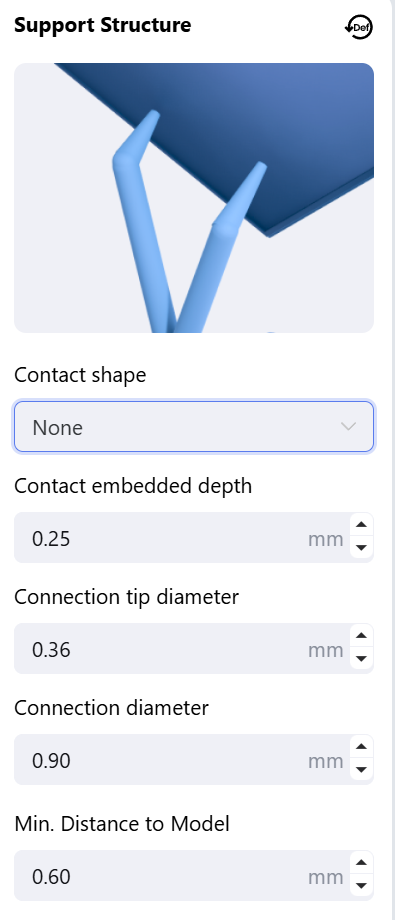 |
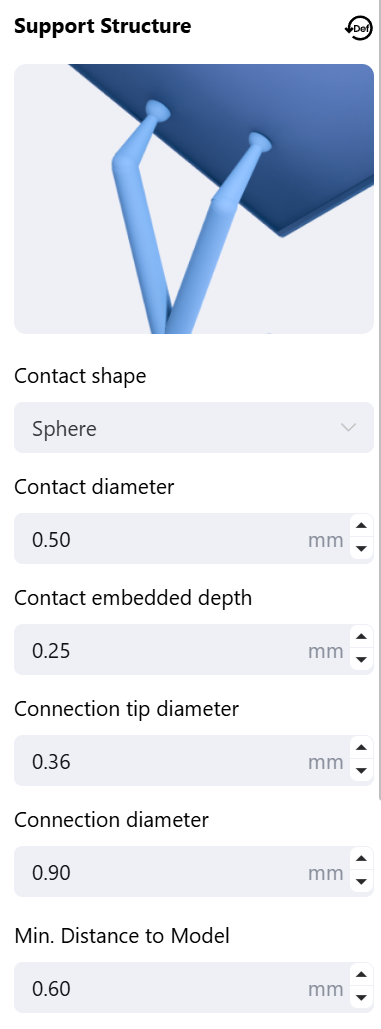 |
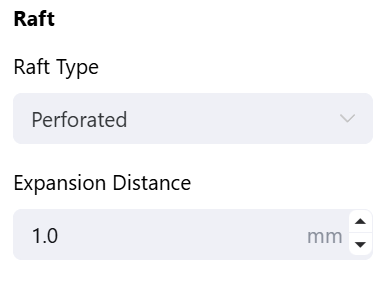
¶ 1.2 Raft
You may set the raft type and the outward expansion distance.
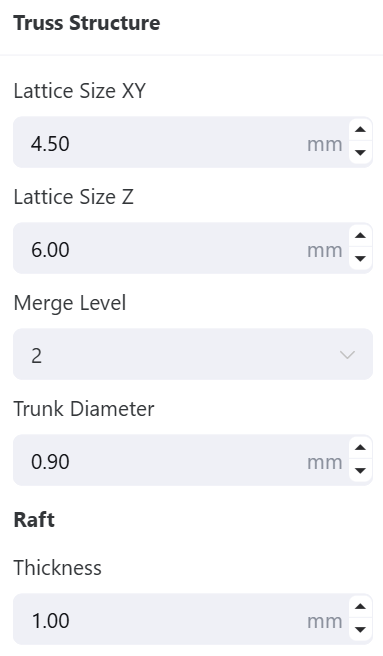
¶ 1.3 Optimize Truss Structure
You may set the truss size and other parameters.
¶ 1.4 Lowest Point Reminder
When it is turned on, a pop-up reminder appears if the lowest point is selected on the model. It is enabled by default.

¶ 2. Tools
The top toolbar is divided into three sections from left to right:
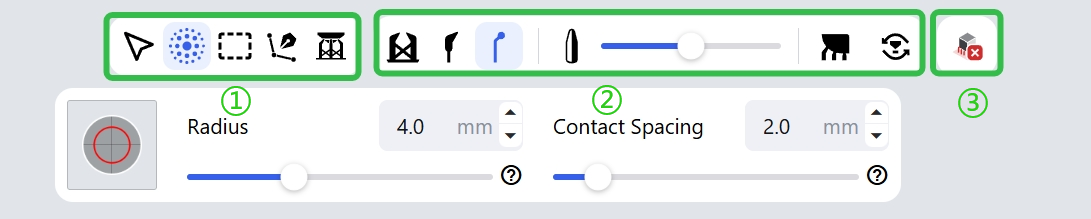
Section ①: you may select the way to add supports; five adding tools are available: Point, Brush, Box, Polyline and Contour.
- Click: add a single support point.
- Brush: set the brush radius; multiple support points are generated within the radius after clicking.
- Marquee: click and drag to form a rectangular selection; multiple support points may be generated within the selection.
- Polyline: set multiple points on the model to form a polyline; multiple evenly distributed support points may be generated along the polyline.
- Contour Line: generate multiple evenly distributed support points along the contour.
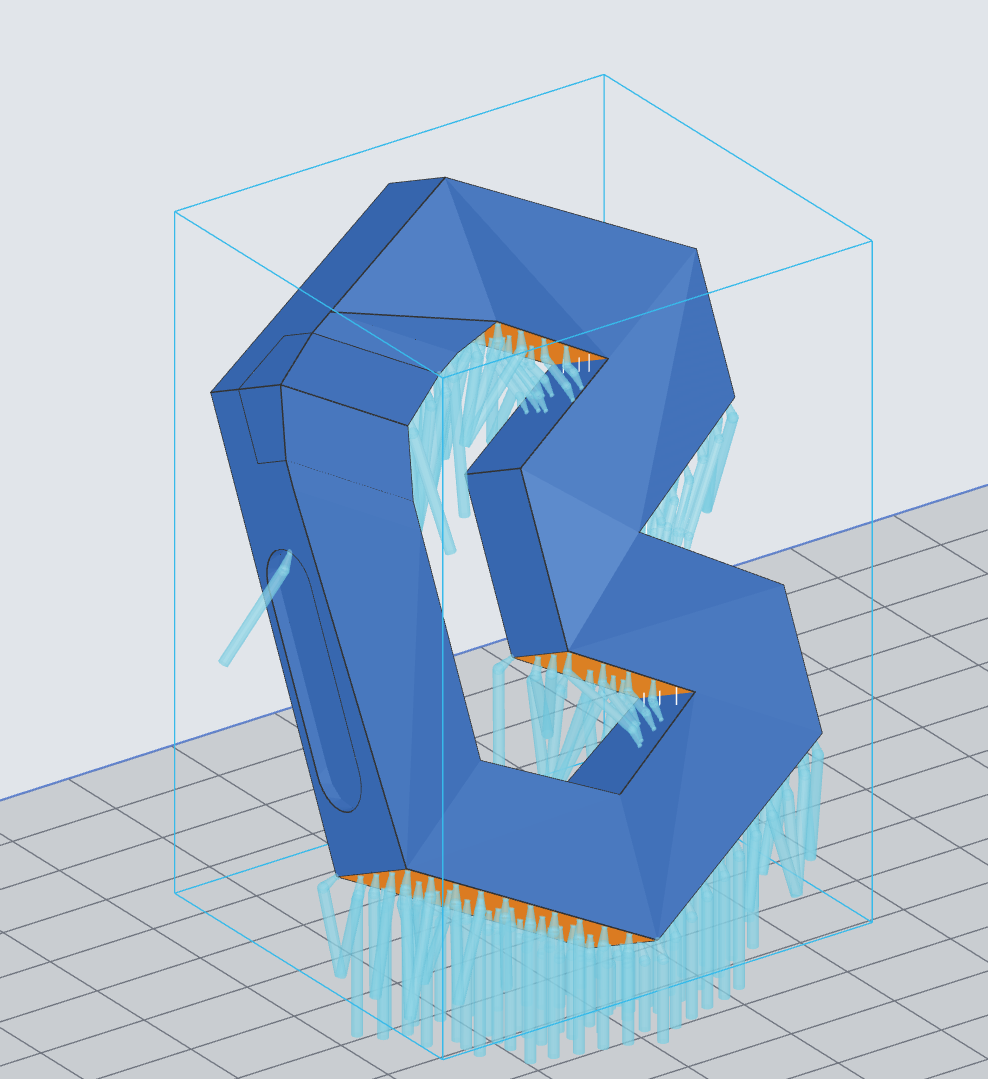
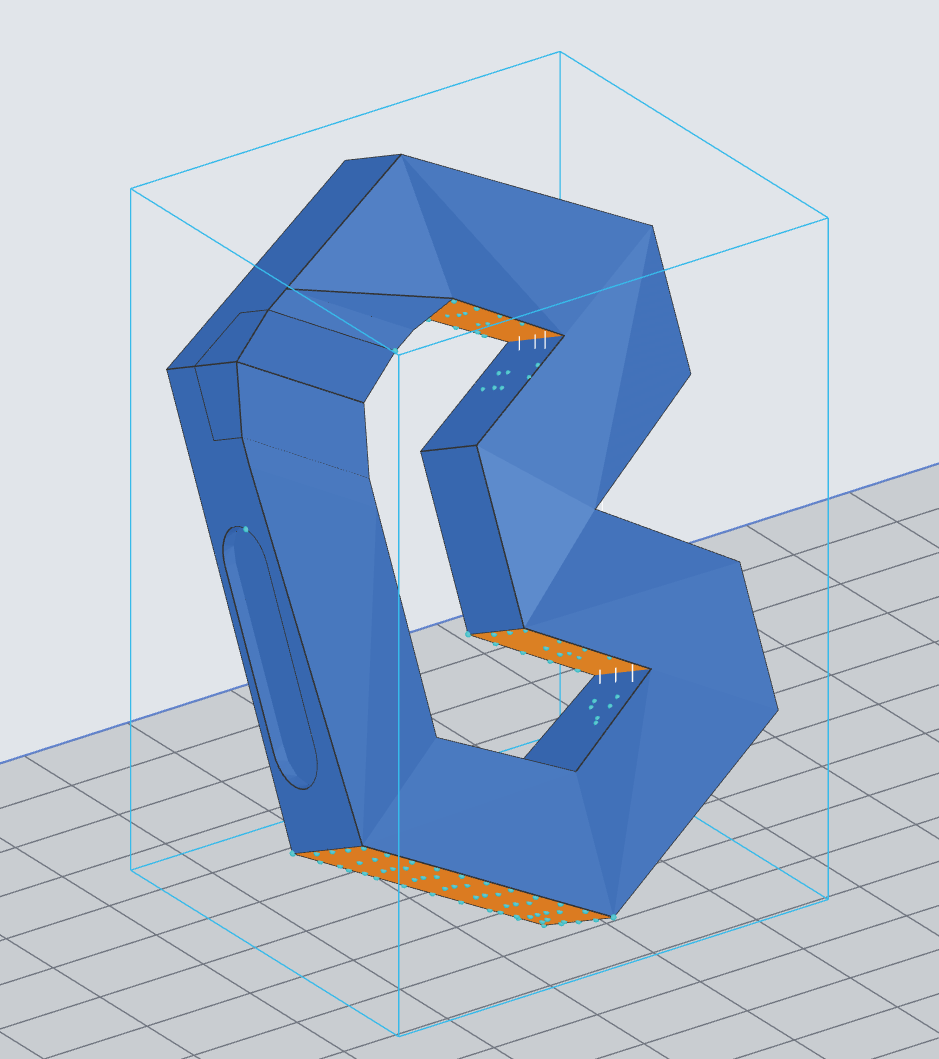
Section ②: you may set the support display effect, the support opacity, and show the overhang area and detect the island.
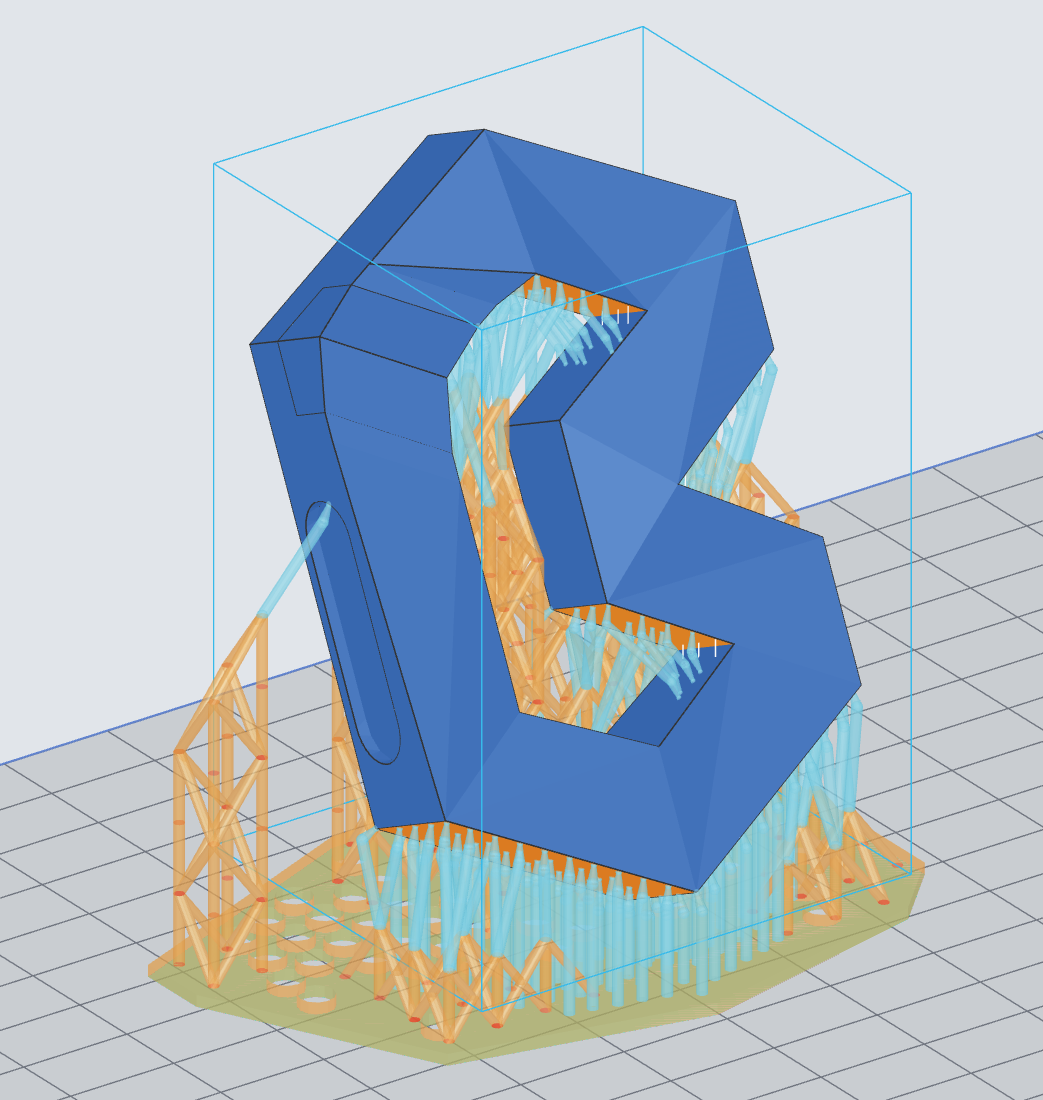
Support Display
| Entire Supports | Connections | Contacts |
|---|---|---|
 |
 |
 |
Section ③: delete all the added supports with one click.
¶ Update History
| Version | Date |
|---|---|
| 1.0 | 2026-10-26 |