<Parts Library> is used to manage and store design elements.
You may use the preset parts provided by Blueprint Studio, or add models to the Parts Library and import them later for pre-processing and editing.
¶ 1. Default Models
Blueprint Studio provides default models that can be imported and used directly.
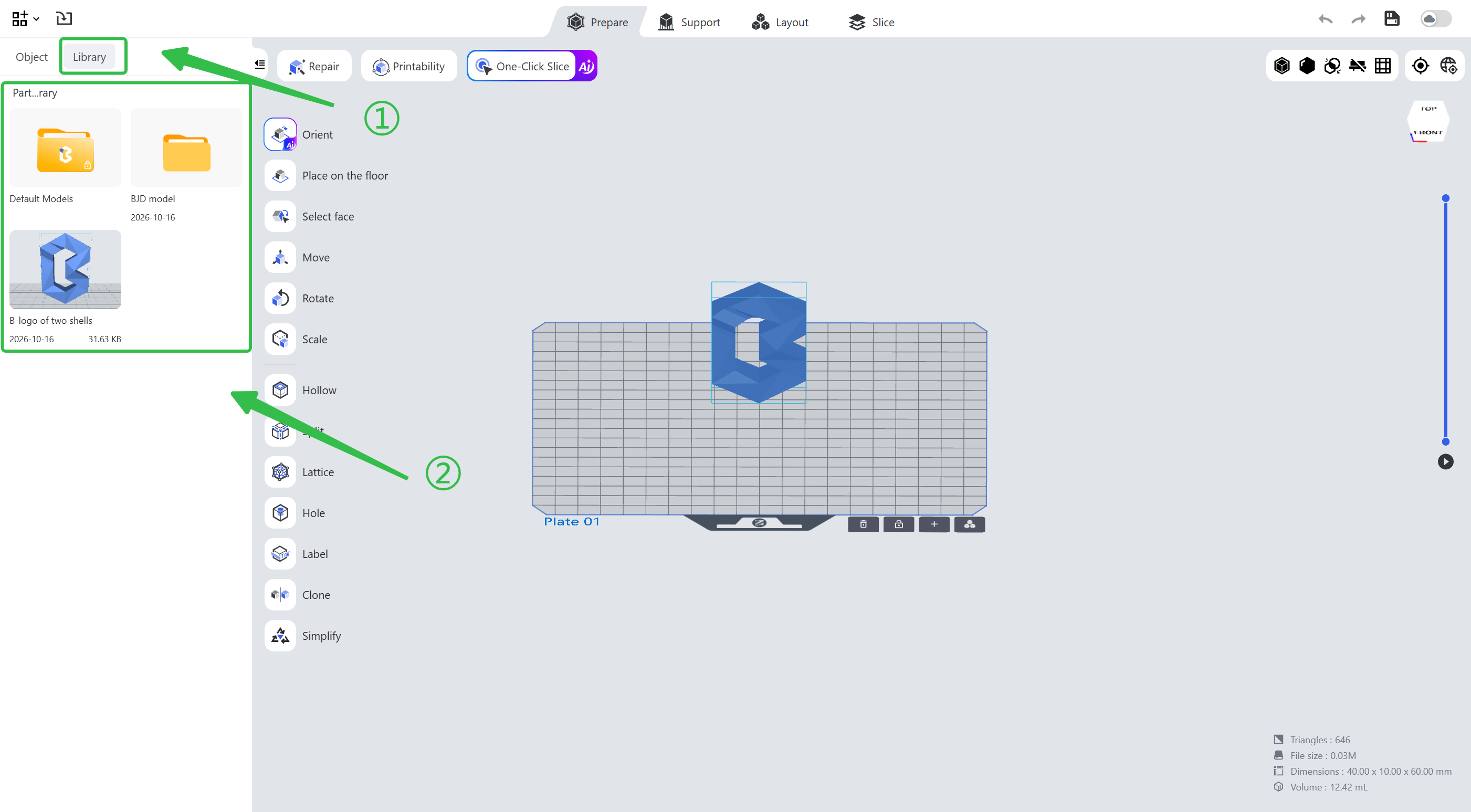
Enter the pre-processing page, click <Parts Library> in the left navigation bar and double-click the <Default Models> folder in the <Library>.
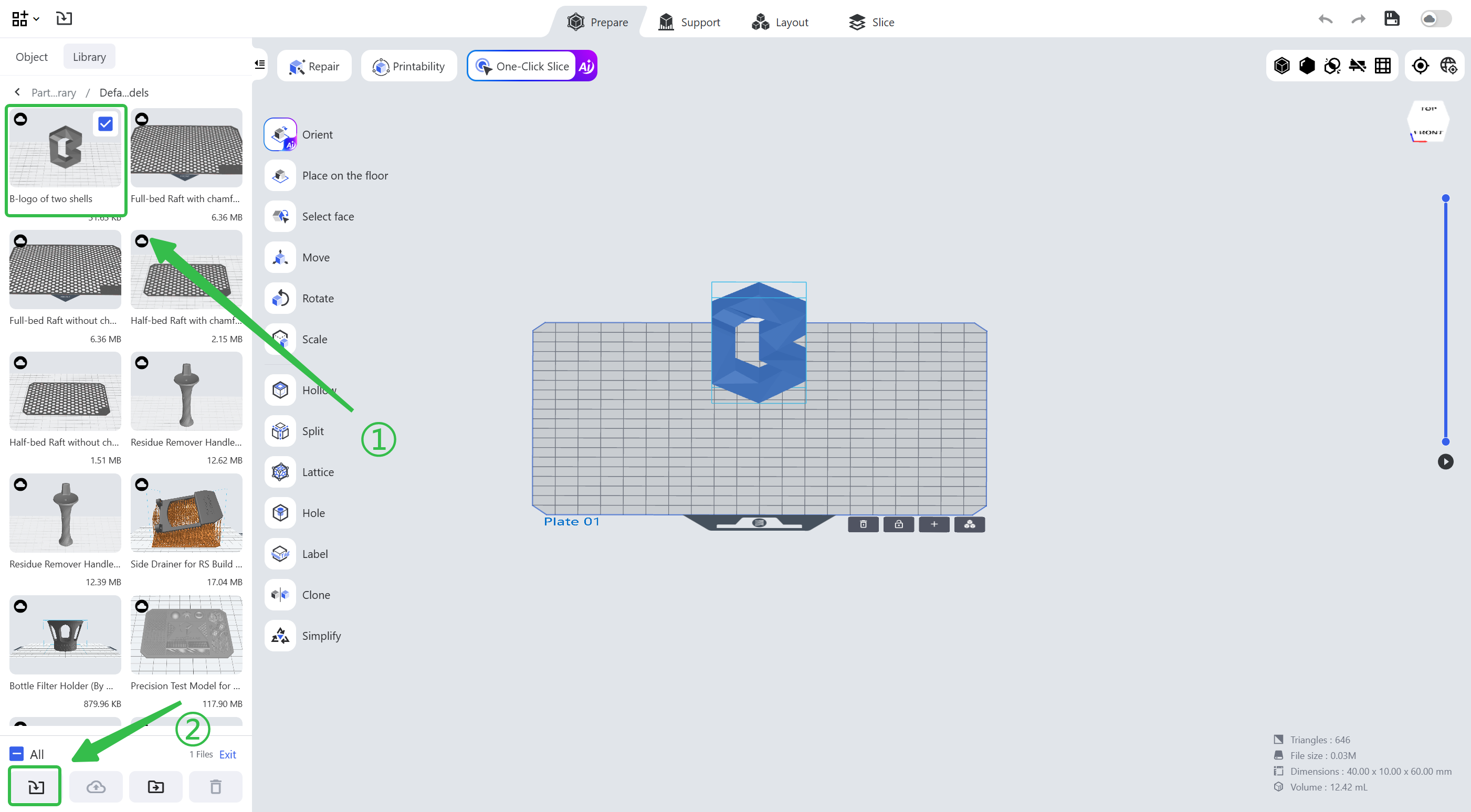
Check the default model to import and click <Import>.
¶ 2. Import Parts
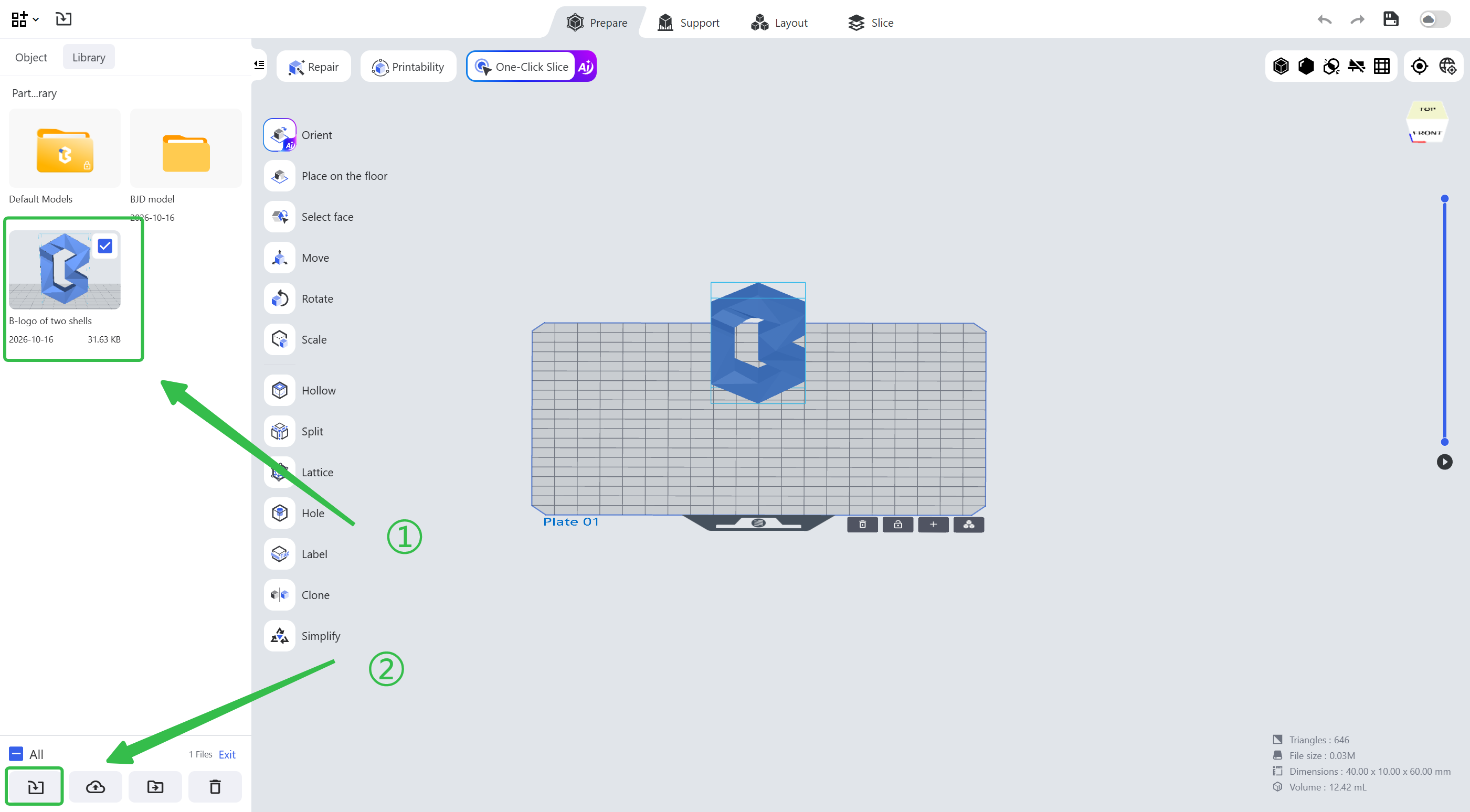
To import other parts, click the <Parts Library> icon in the top menu bar, select the models you want to import in the window and import them onto the plate (multiple models can be imported at the same time).
¶ 3. Add Parts
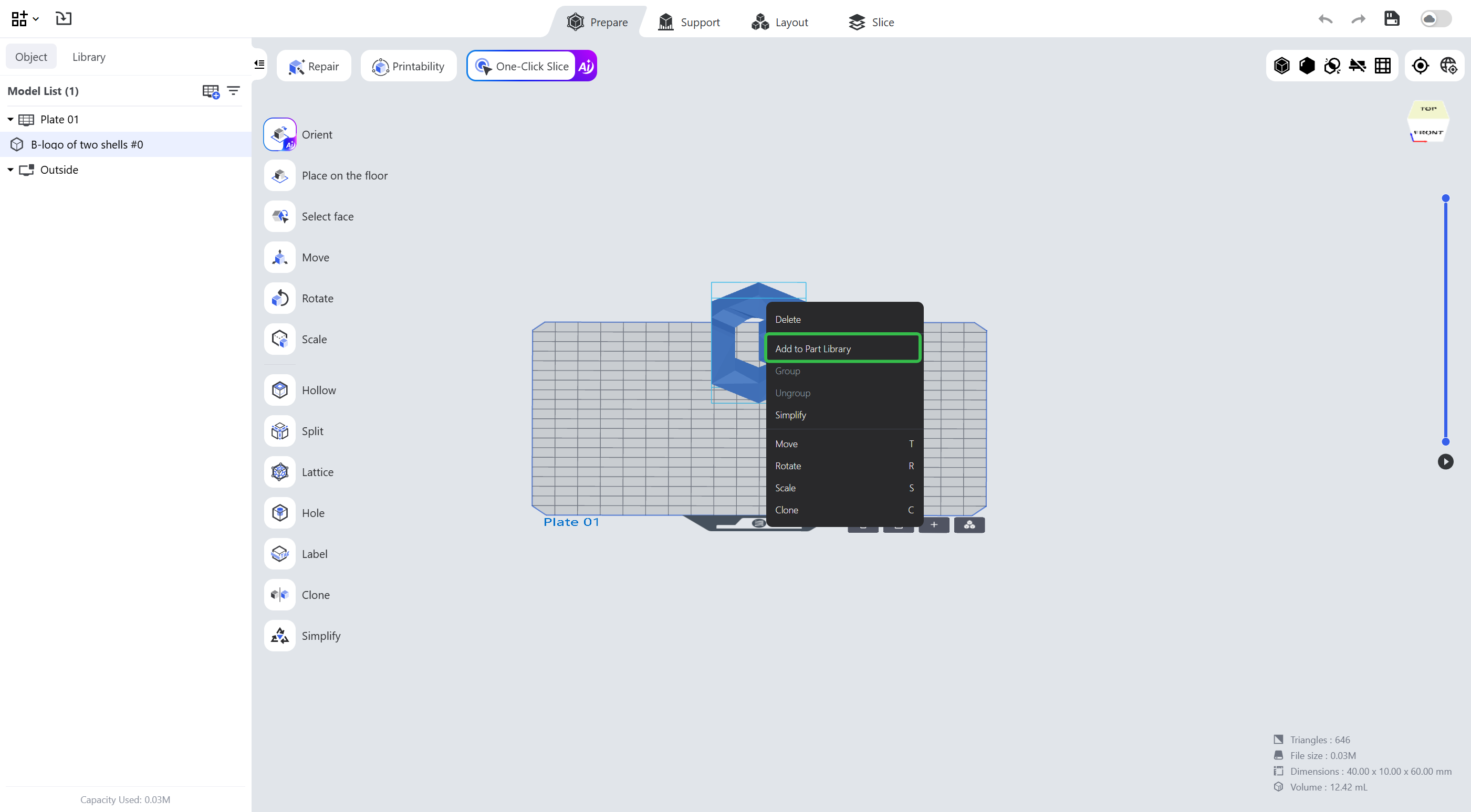
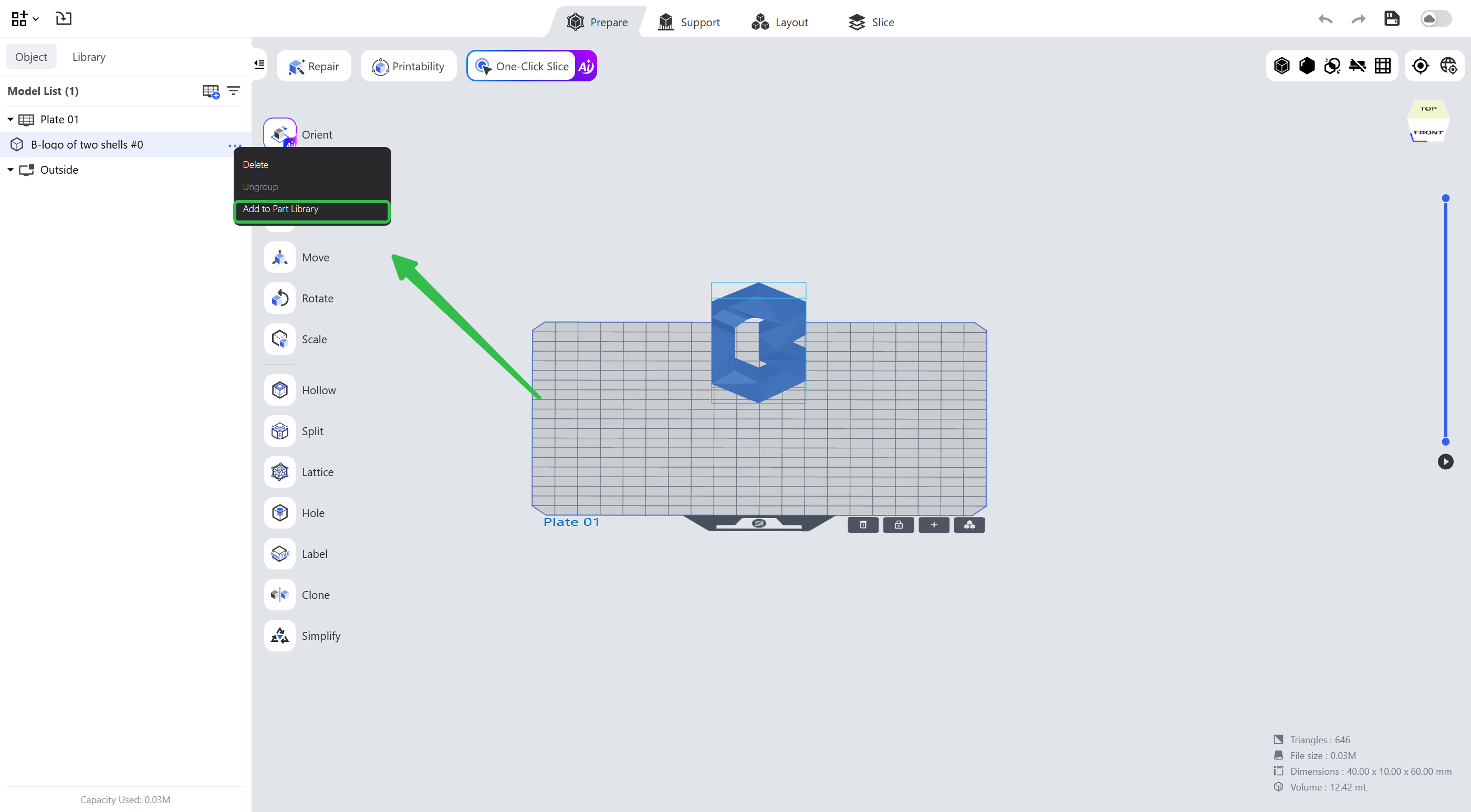
- Select a model, right-click and choose <Add to Part Library> in the pop-up menu.
- Select a model in the Model List, click the ellipsis icon <...> and choose <Add to Part Library> in the pop-up menu.
¶ 4. Manage the Parts Library
¶ 4.1 Manage Folders
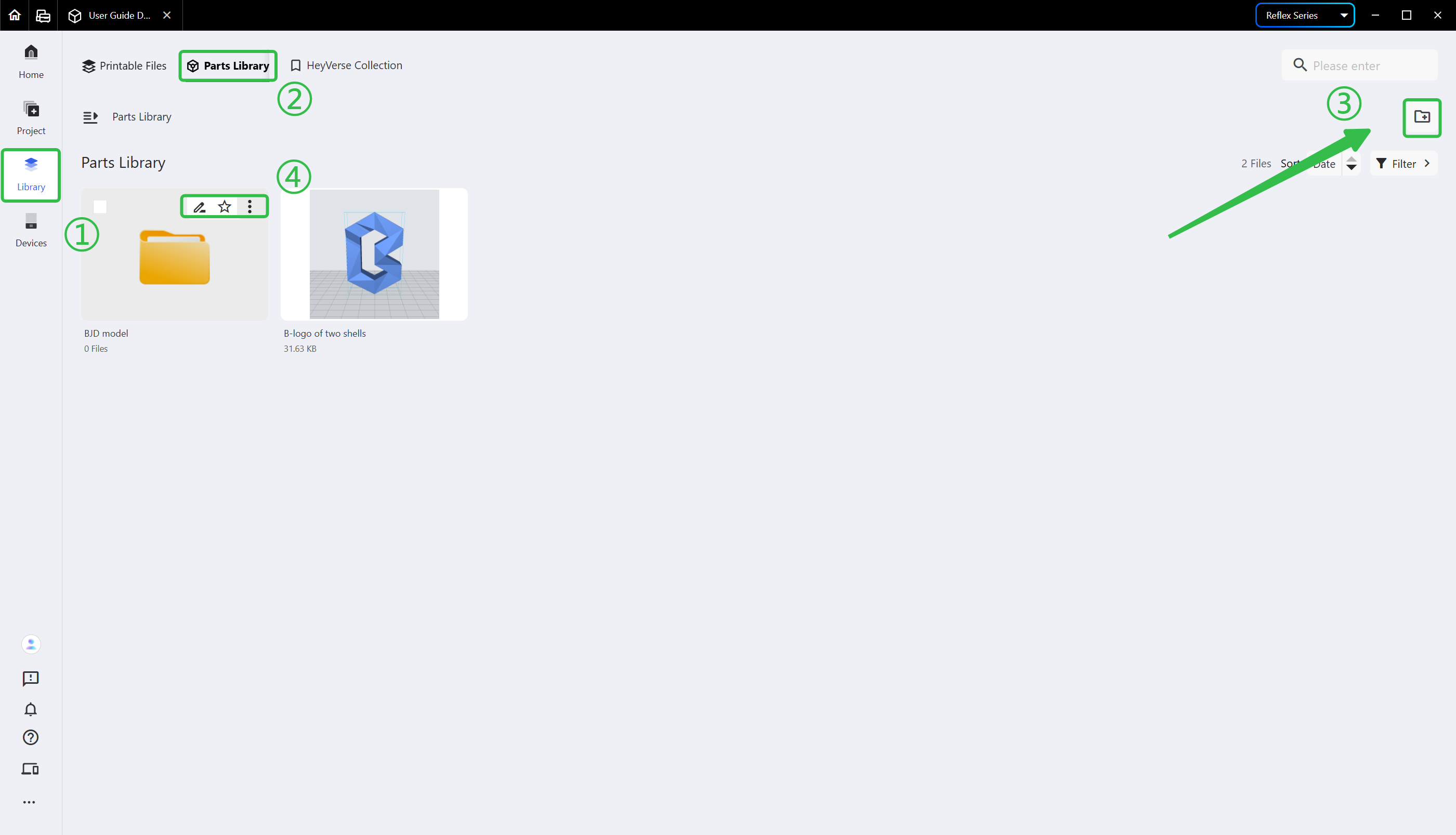
Enter the [Library] page and choose <Parts Library>; click the icon in the upper right corner to create a folder, and click a folder card icon to manage the folder.
Supported operations: create, delete, rename, move a folder and star a folder.
¶ 4.2 Manage Parts
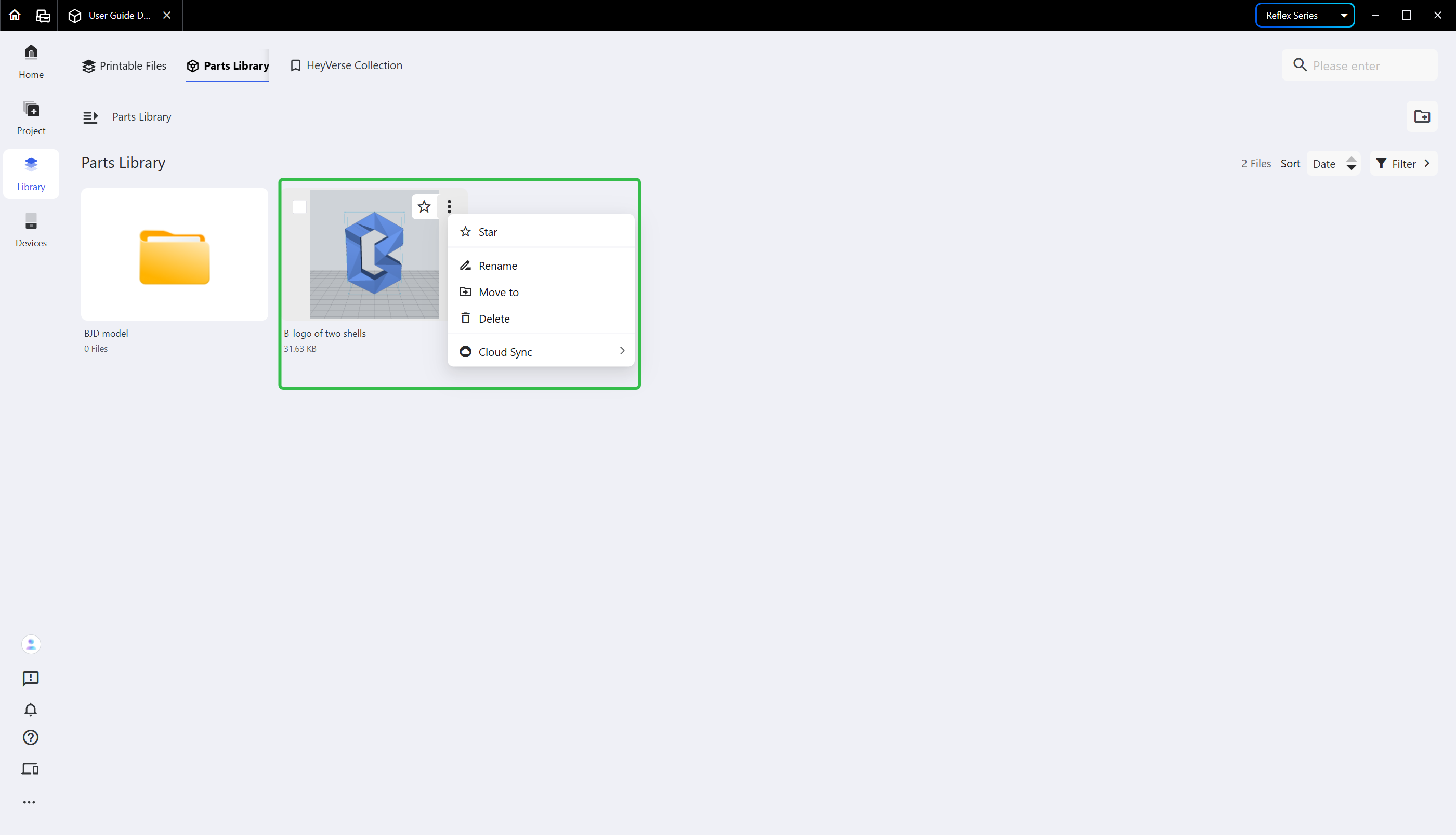
Click a part card icon to manage the part.
Supported operations: rename, move to, delete and enable/disable cloud synchronization.
¶ 4.3 Sort
Folders and parts can be sorted in ascending or descending order by name or date.
Note: folders precede parts.
¶ Update History
| Version | Date |
|---|---|
| 1.0 | 2026-10-26 |