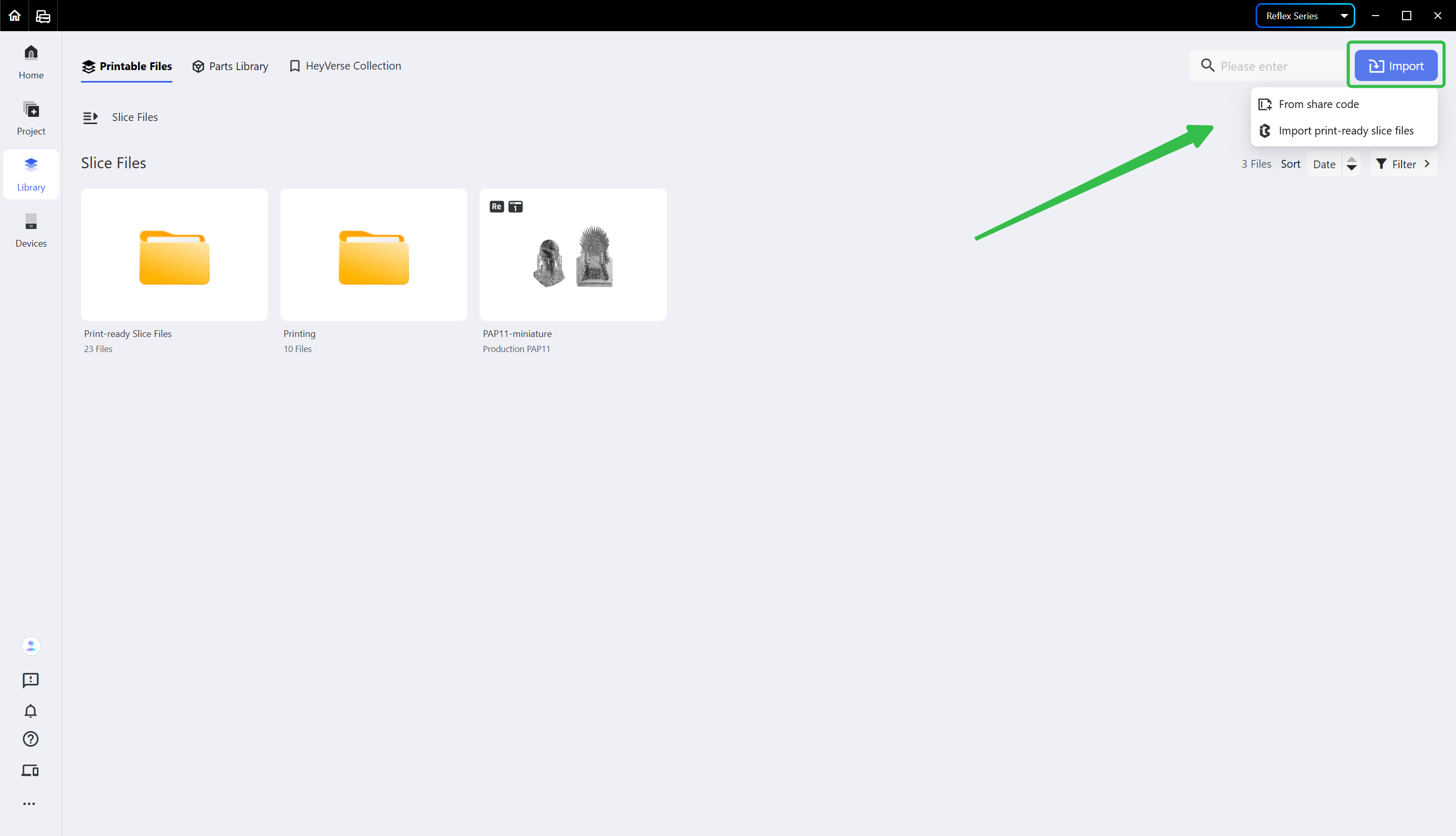
¶ 1. Import Slice Files
Slice files can be imported with a share code; for how to get a share code, see Create a Share Code. You may also import preset slices in bulk.
¶ 2. Send Slice Files to Printer
Select the slice file to send, click the <send> button in the upper right corner of its card, and choose the printer you want to send it to.
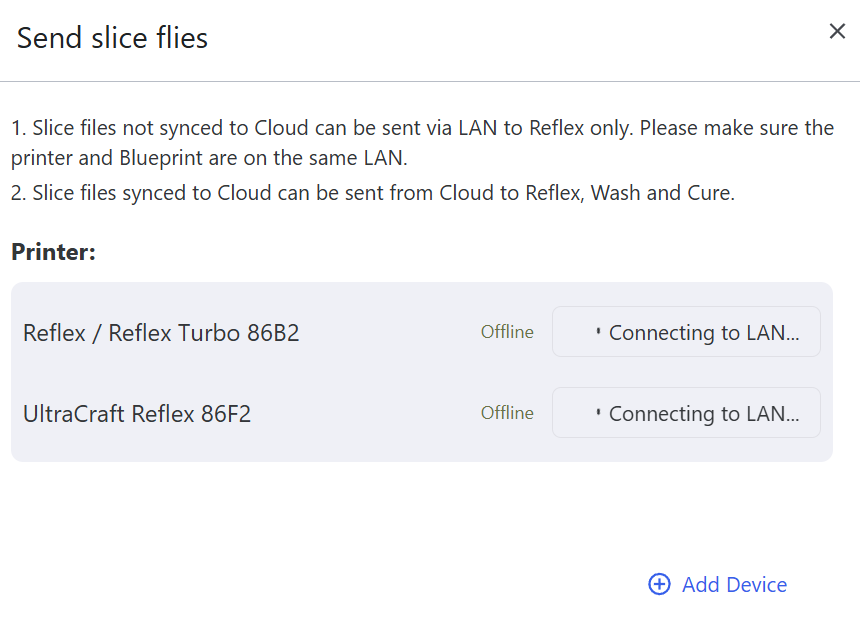
Note: local slice files can only be sent to printers on the same LAN, while cloud slice files can be sent to printers, washing machines and curing machines connected to the Internet.
¶ 3. Download Slice Files
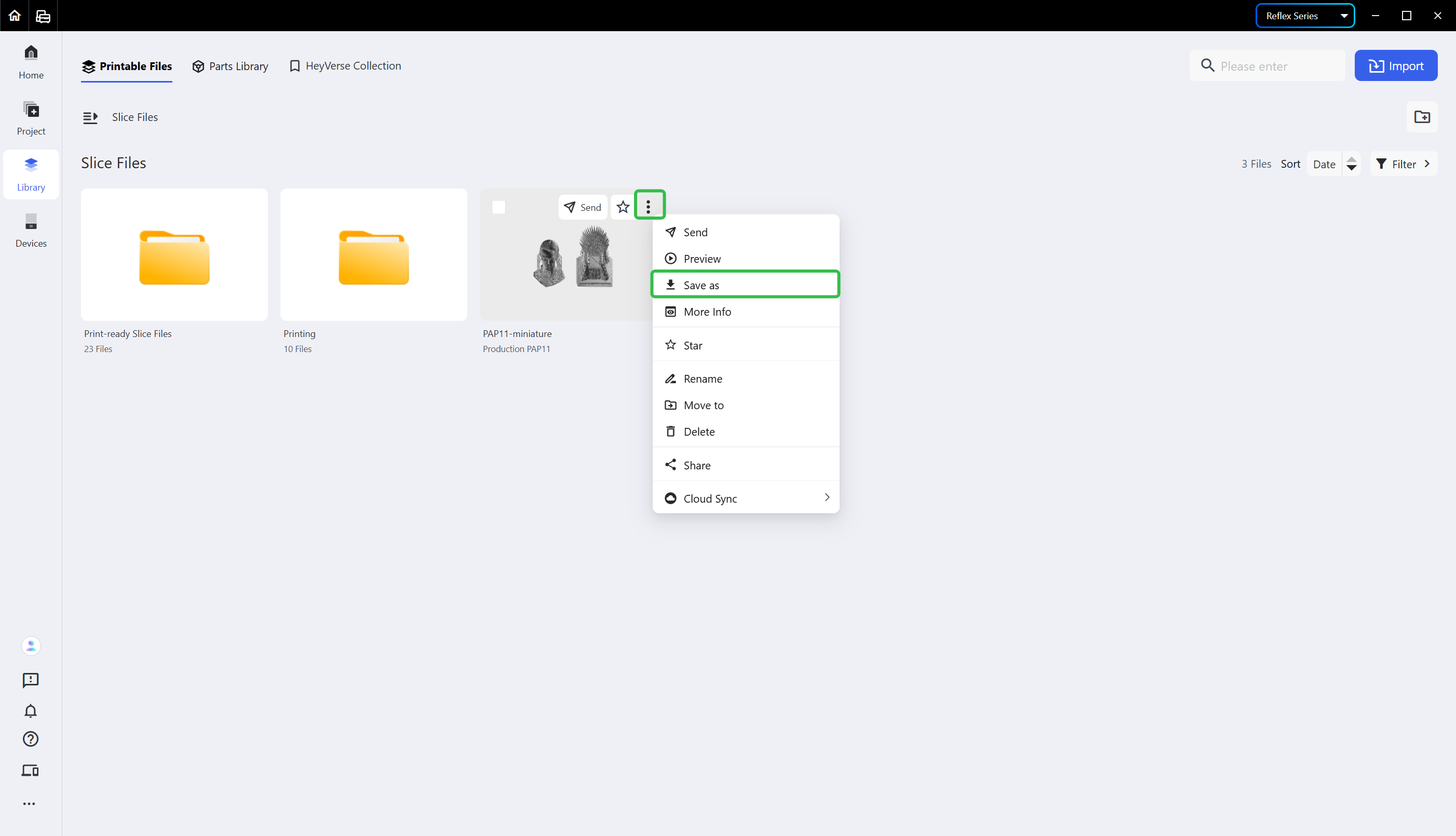
If you'd like to use your printer when it's offline, you may download the slice files to your local USB drive and import them to your printer via the USB drive to print.
Click the ellipsis icon <...> at the rightmost side in the upper right corner of the slice file card and choose <Save As> to download the file:
¶ 4. Check Slice Files
Double-click a slice file card to check the details of the file.
Click the ellipsis icon <...> at the rightmost side in the upper right corner of the slice file card and choose <More Info>.
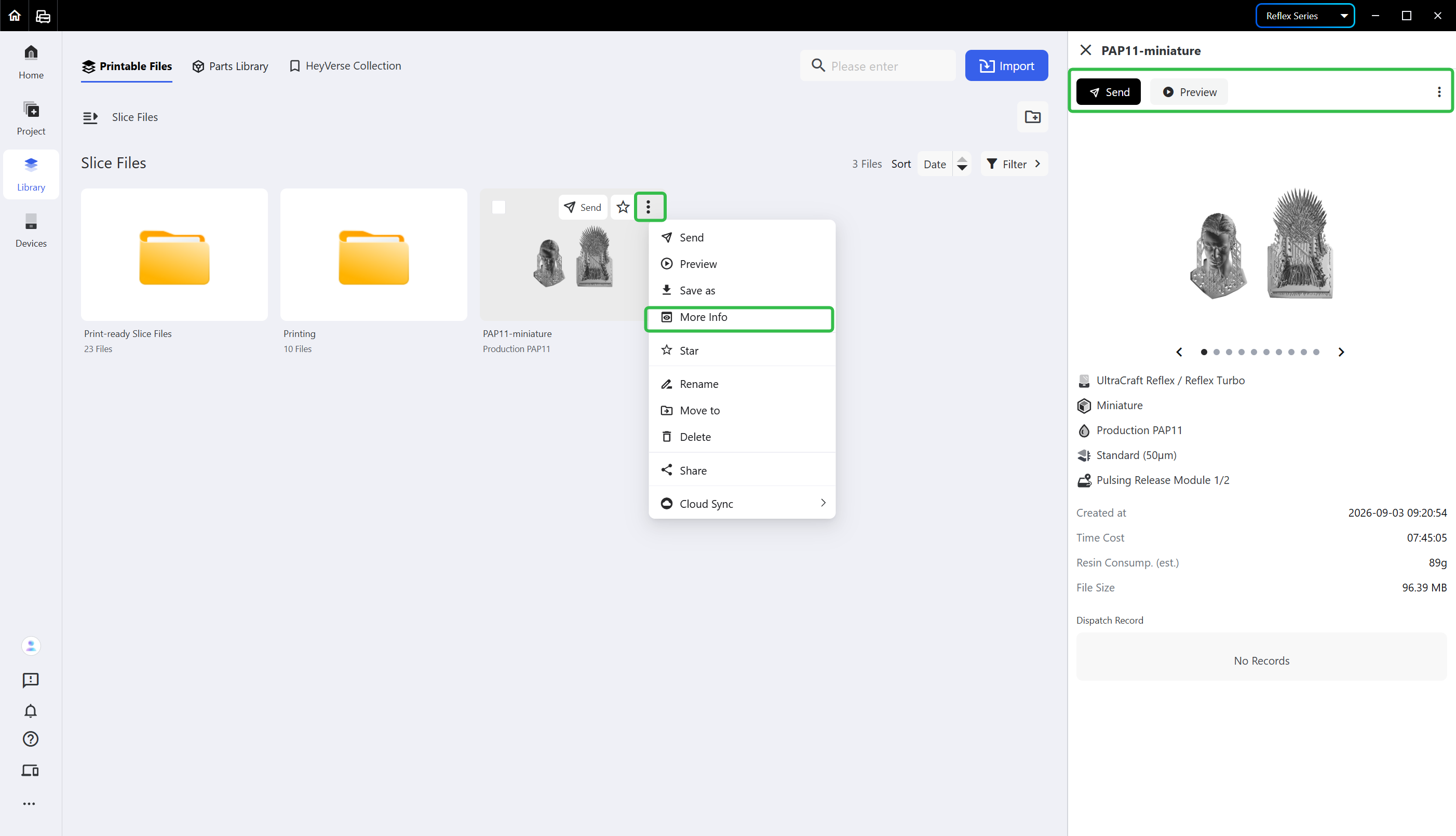
The buttons in the function bar of the info card also allow you to send, share and delete the file, as well as preview the slice file.
¶ Update History
| Version | Date |
|---|---|
| 1.0 | 2026-10-26 |