The team feature helps you remotely access and use the devices owned by your current team (including printers and post-processing devices), for example to send jobs, check job status and perform OTA updates.
Team data sharing (to be released): pre-processing projects, parts library and slice files are shared within the team to further enhance team collaboration.
Click the profile icon below the left navigation bar to enter the page.
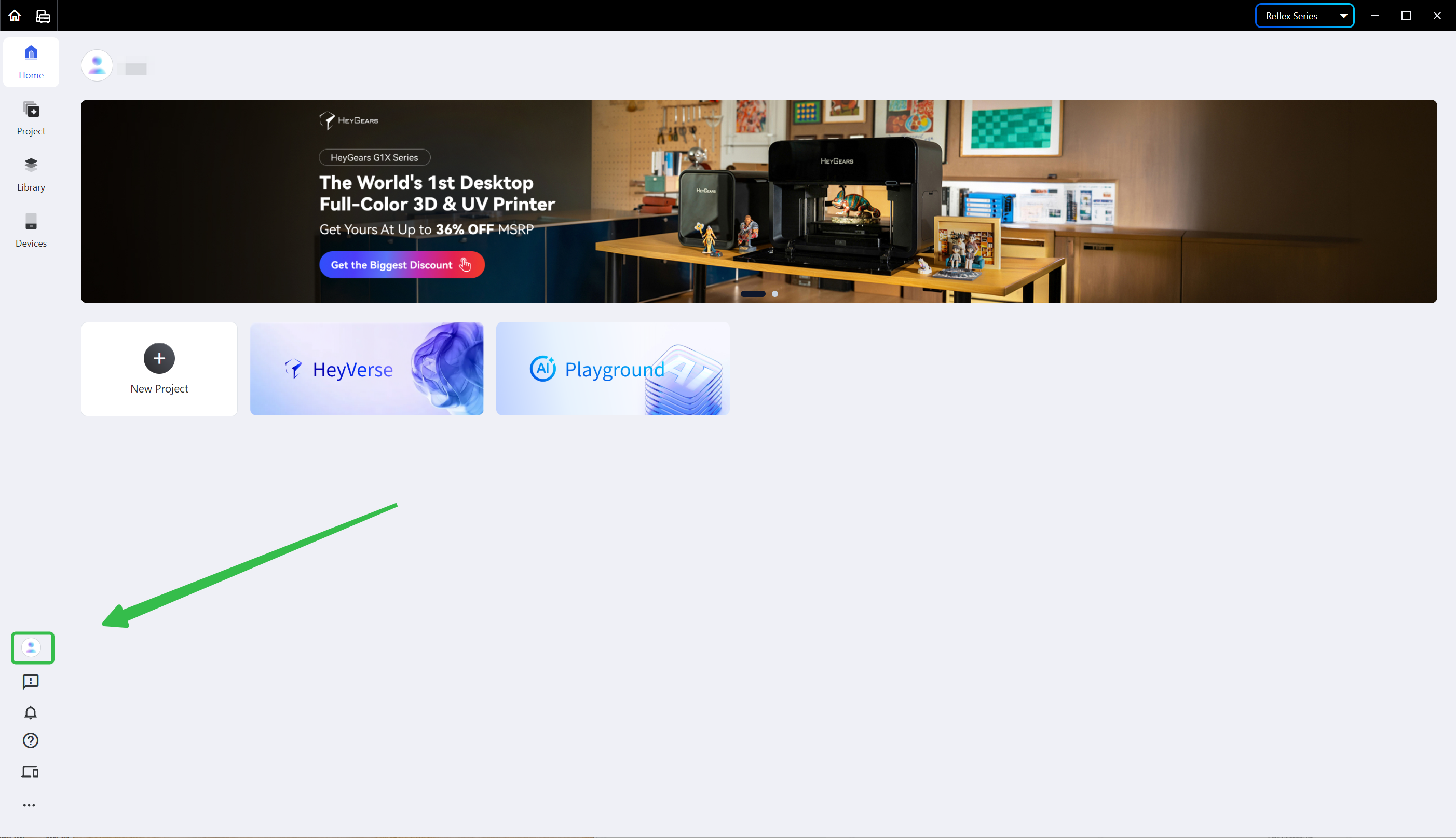
¶ 1. Create a Team
- Enter the [Team] page and click <Create a team>.

-
Enter the team name and the entity it belongs to, then click <Create>.
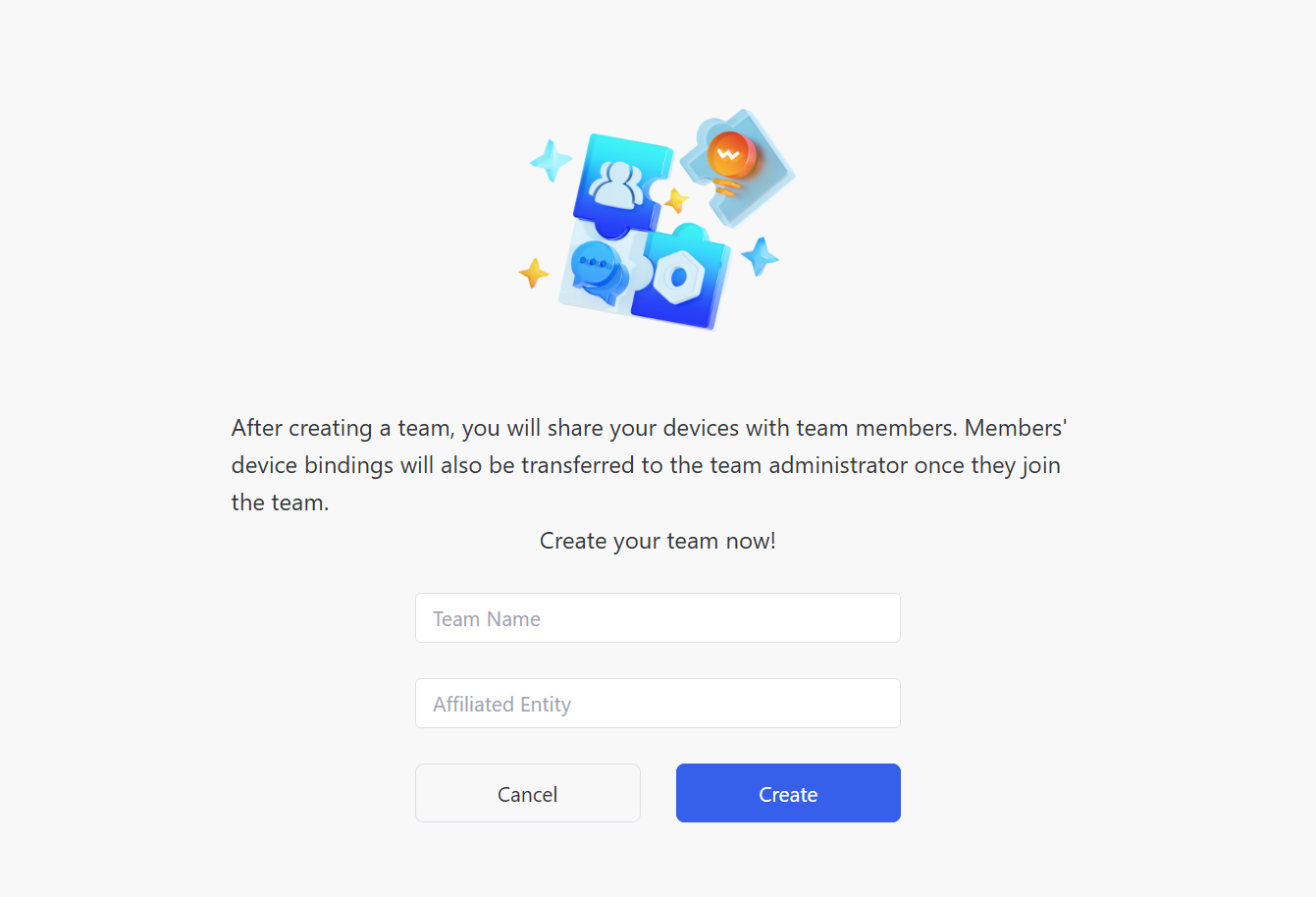
Note: after a team is created, your devices will be shared with team members. Once a member joins, the member's device binding will be transferred to the administrator.
¶ 2. Join a Team
¶ 2.1 Before You Join
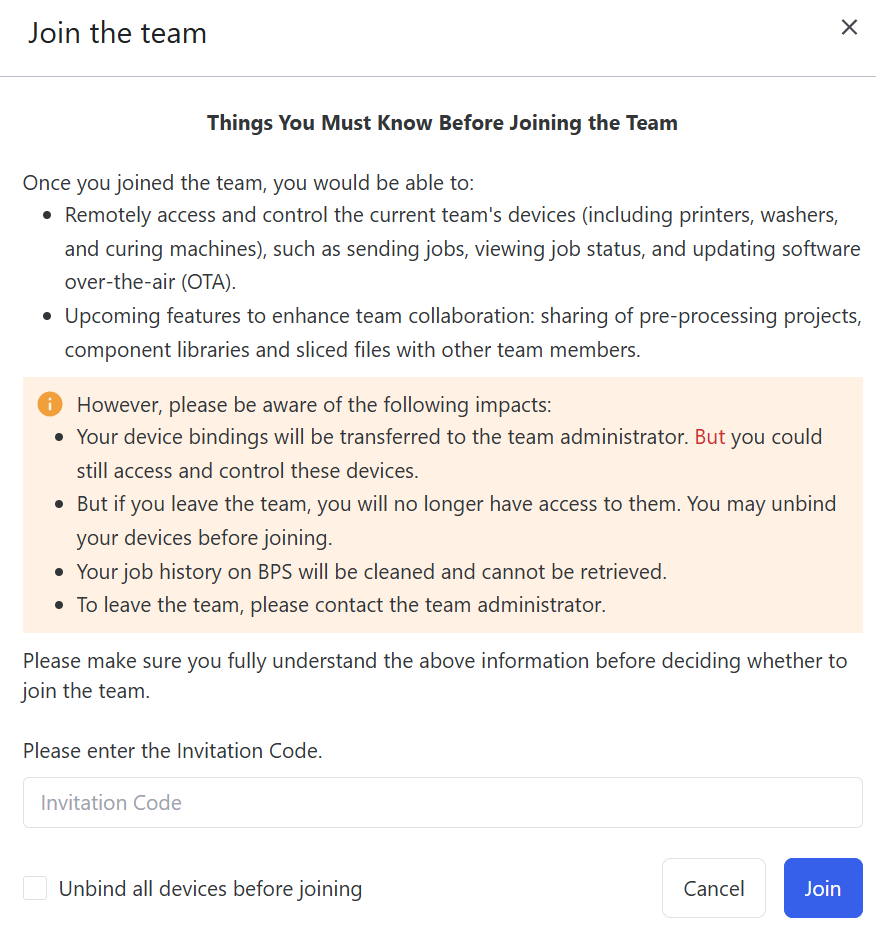
Make sure you fully understand the following impacts:
- The binding of your existing devices will be transferred to the team administrator, but you can still access and use them.
- After you leave the team, you will no longer be able to access these devices.
- You may unbind your devices before joining. Your job history on BPS will be cleaned and cannot be retrieved.
¶ 2.2 Join Process
-
Enter the [Team] page and click <Join a team>.
-
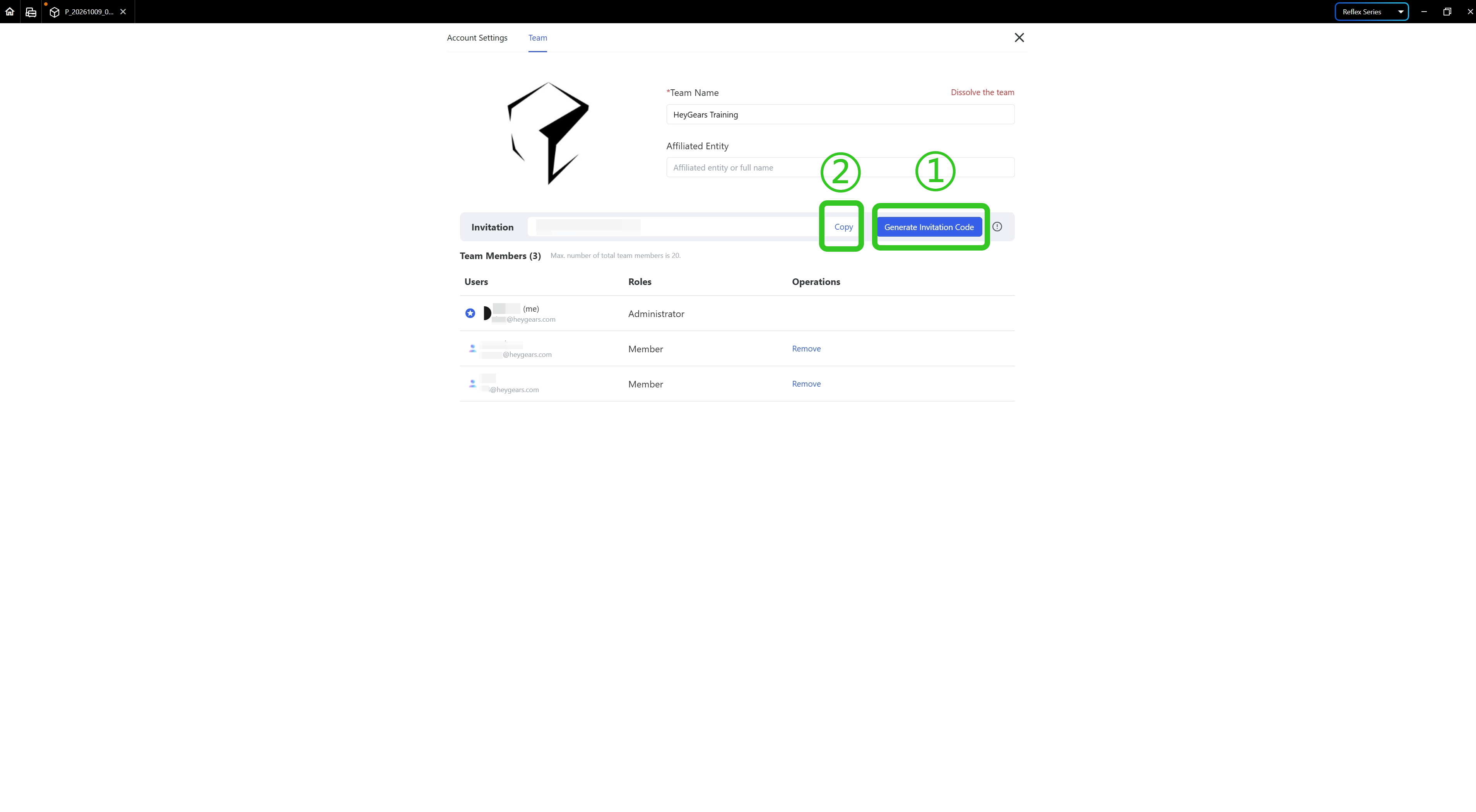
Confirm the team invitation code with the team administrator.
Note: the team invitation code is on the administrator's [Team] page. Click the Generate Invitation Code button and click Copy to get the code.
- Enter the team invitation code and click <Join>.
To leave the team, please contact the team administrator.
¶ 3. Team Management
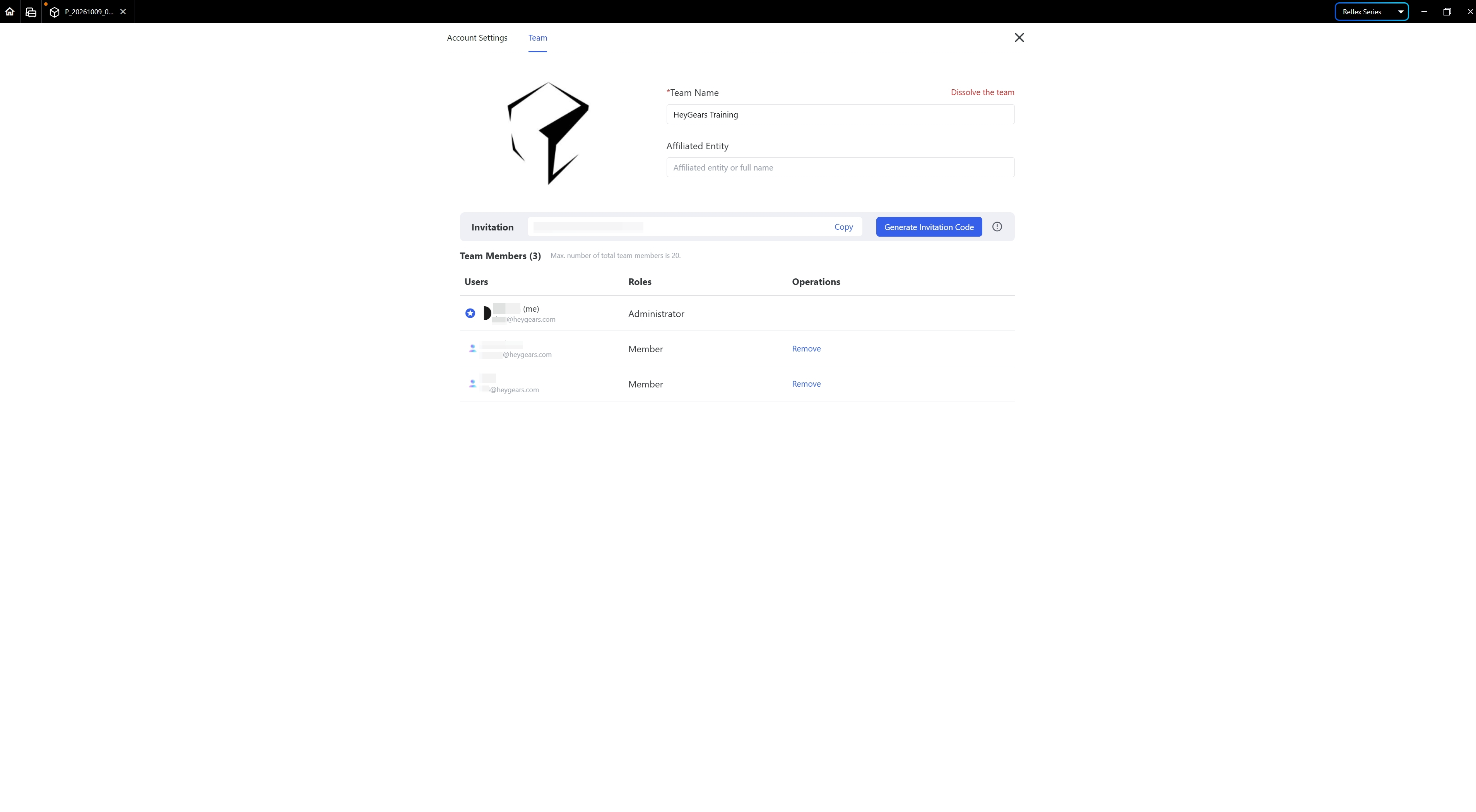
The team administrator can set and modify the team name and the entity it belongs to, and can also manage members, invite or remove members, and disband the team.
¶ Update History
| Version | Date |
|---|---|
| 1.0 | 2026-10-26 |