¶ 1. Add Devices
To access all the features of Blueprint Studio, at least one device must be added first.
Go to the <devices> page and click <add Device>:
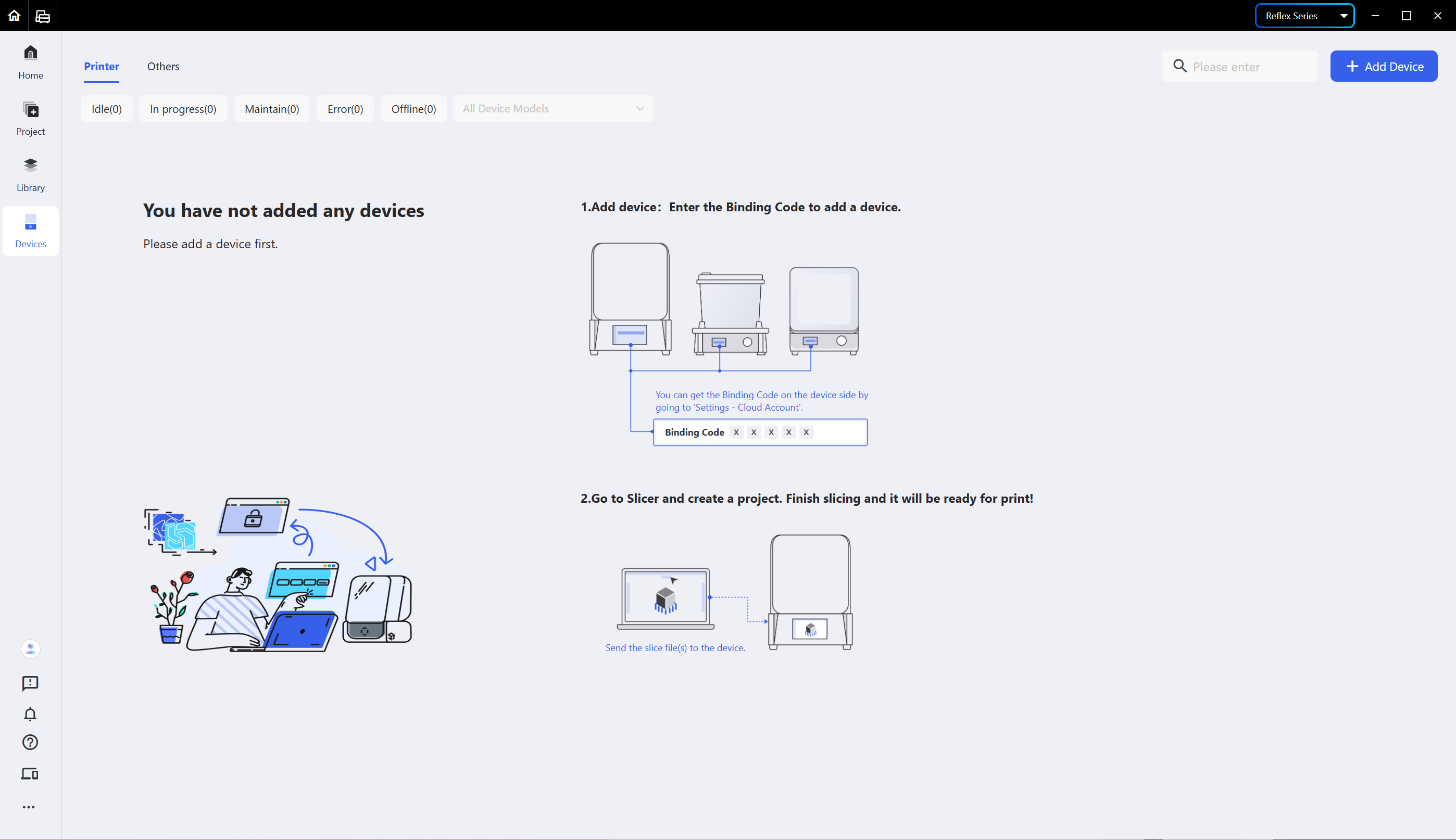
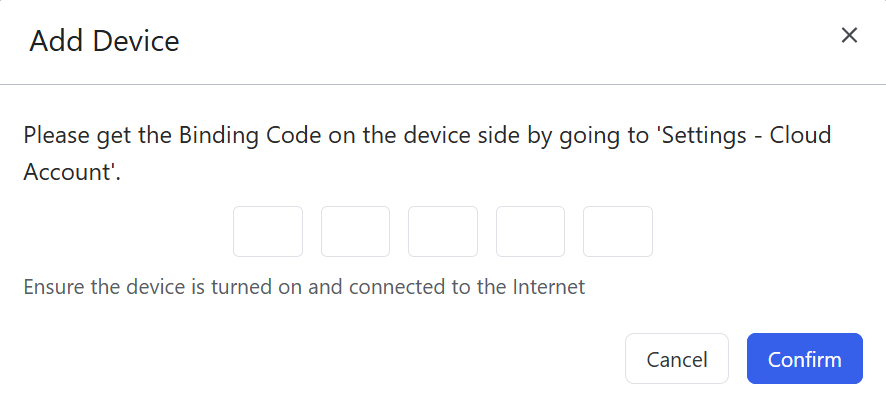
Once the device is connected to the Internet, get the device binding code at <settings> > <cloud Account> on the device. Enter the <device Binding Code> in the pop-up window to finish adding.
If your device cannot provide the device binding code, you may upgrade the software version with Check for Updates.
Once added, the device card will show up on the <devices> page and all the features of Blueprint Studio will be available.
¶ 2. Manage Devices
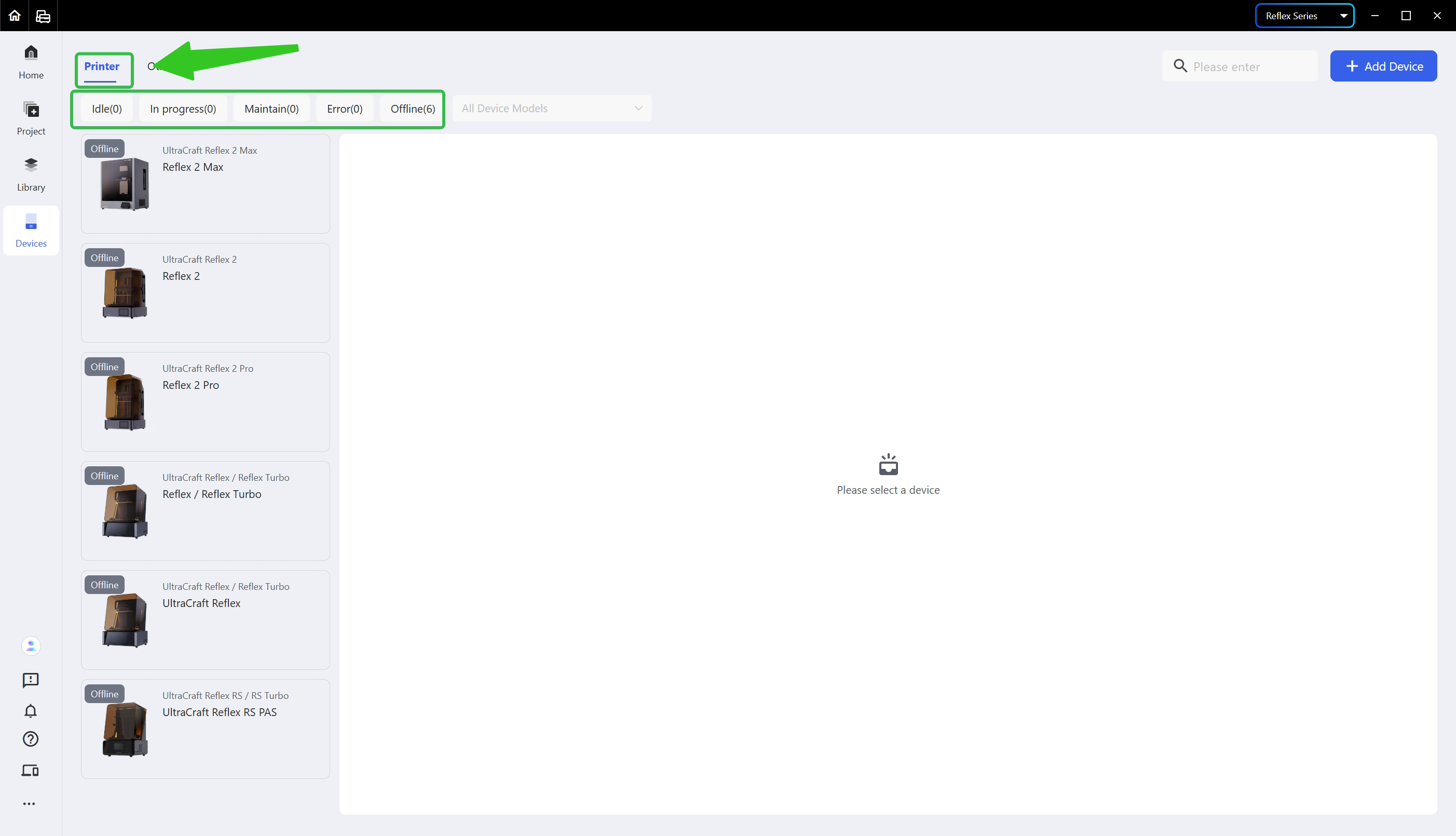
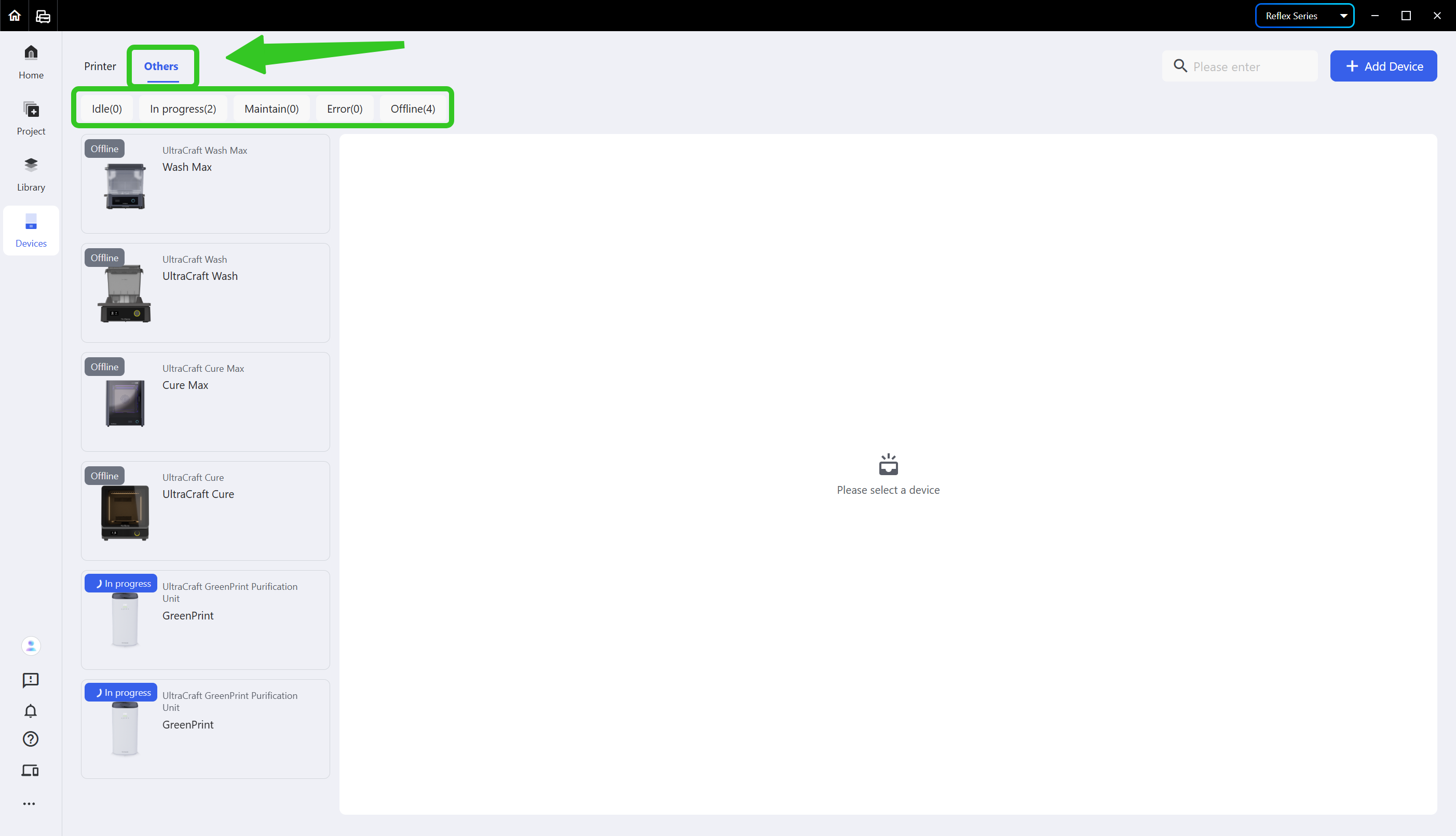
You may check the list of added devices on the <Devices> page:
| Printer Device List | Other Devices List |
|---|---|
 |
 |
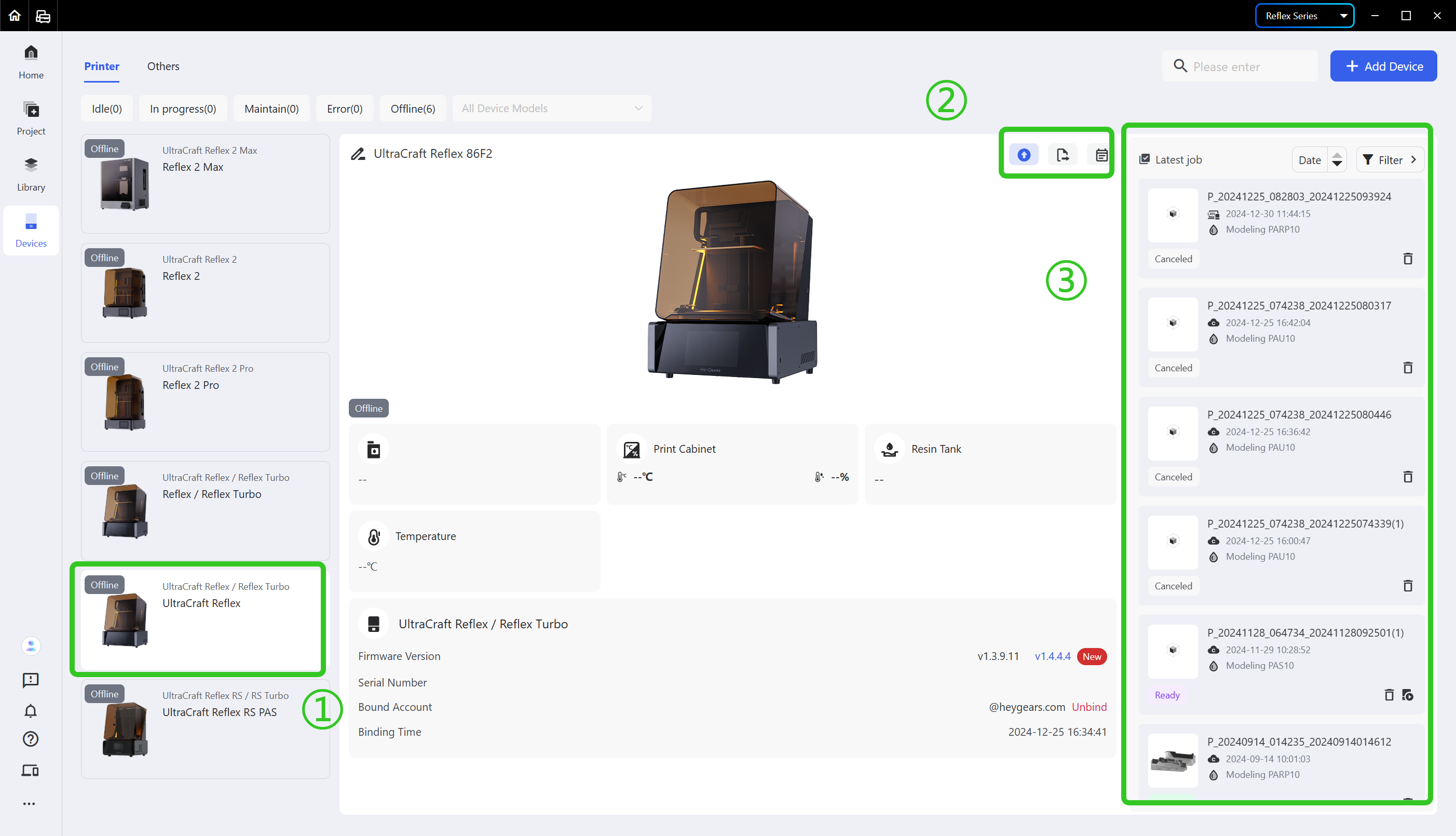
- Click a device card to check its status details, monitor its sensors, export its logs, update its software and check notifications about it:
-
The icons in the upper right corner of the device card are, from left to right, <Software Update>, <Export Logs> and <Notifications>.
-
The <Latest Jobs> shows the recent print jobs; you can click a job to check its details.
¶ 3. Unbind a Device
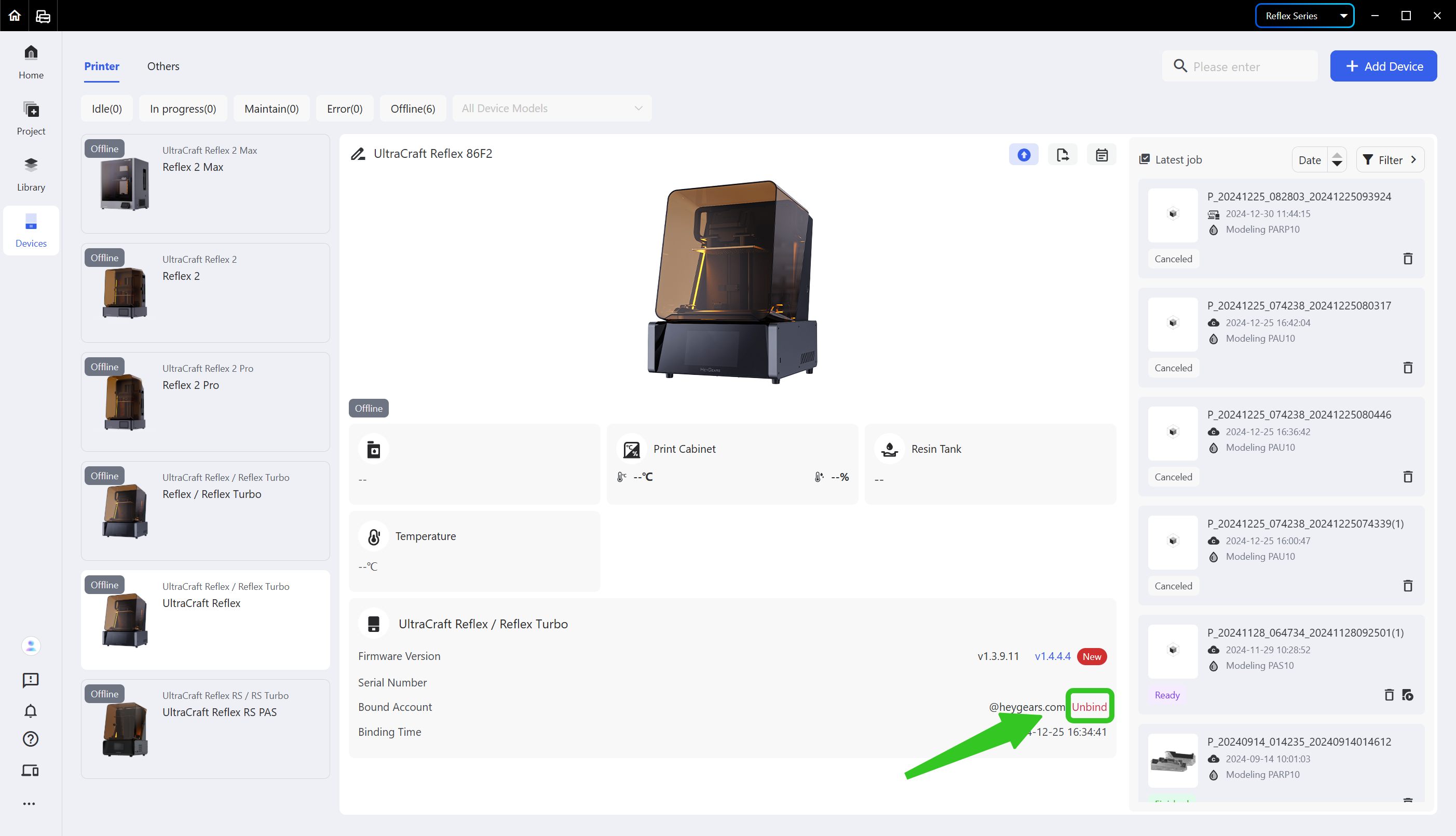
To unbind a device, go to the <Devices> page, click its device card and then click <Unbind>.
¶ Update History
| Version | Date |
|---|---|
| 1.0 | 2026-10-26 |