With an account created, you may login it to use the app now.
¶ 1. Create Account
Hit <Create One>.
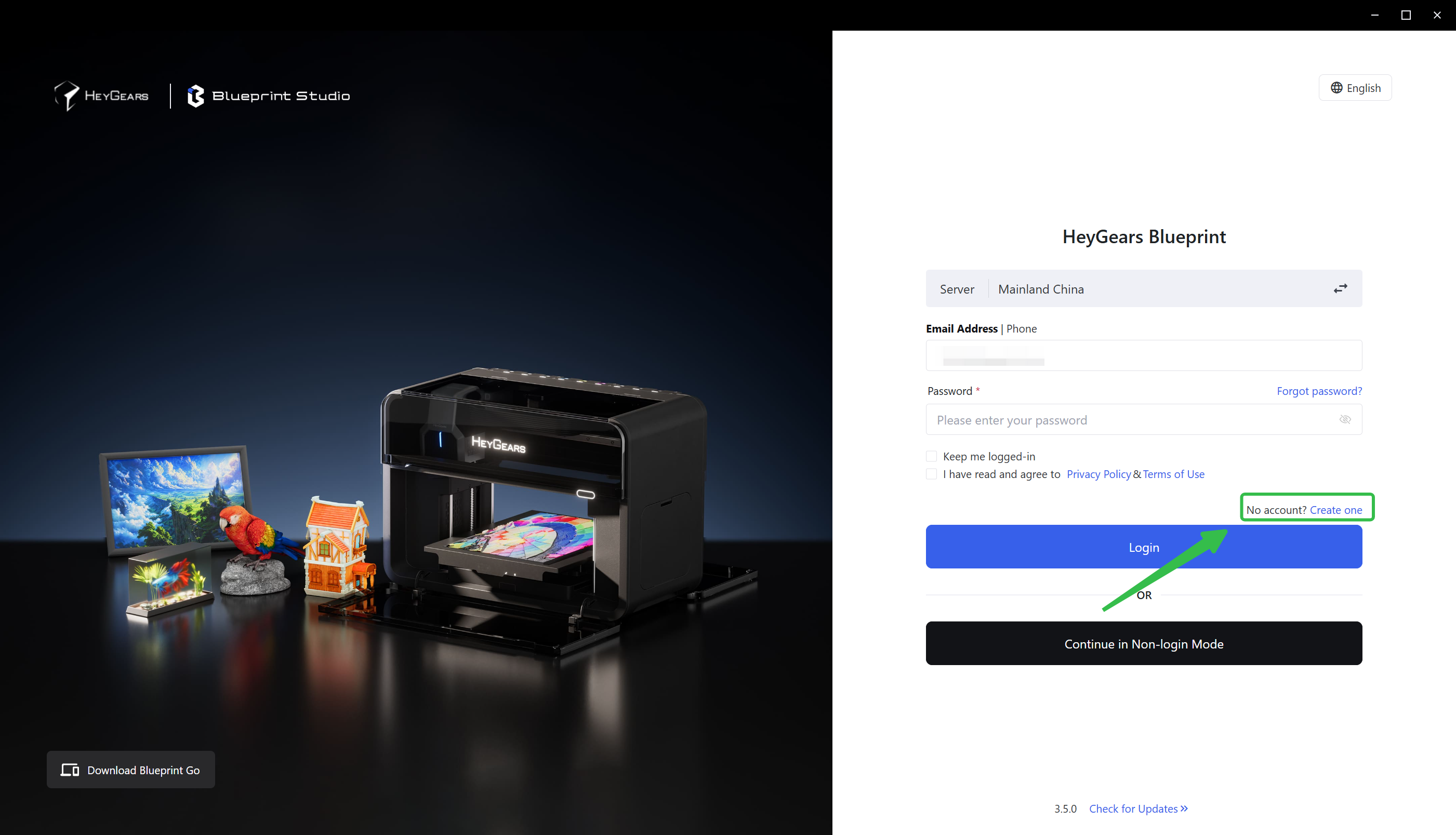
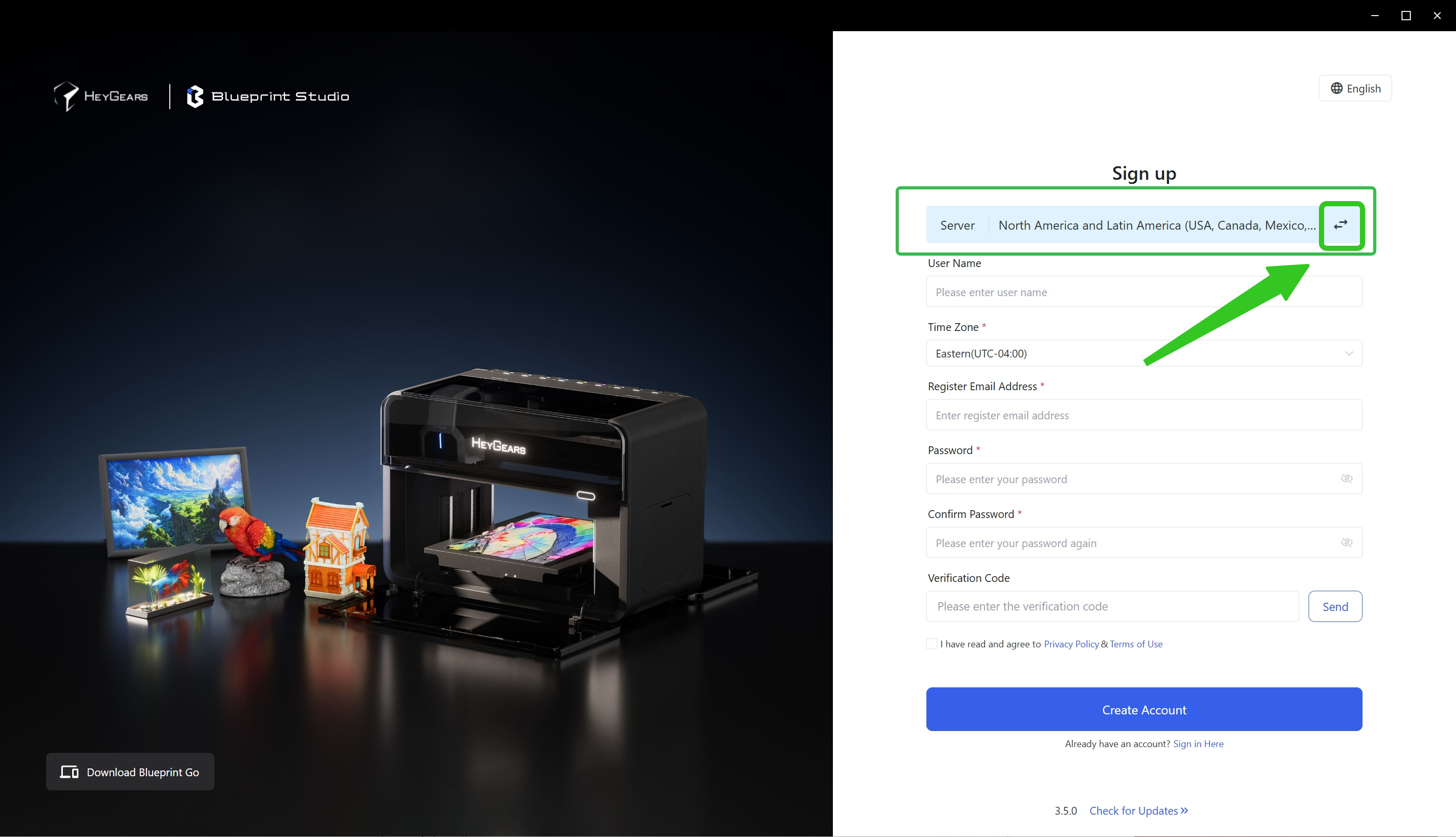
Choose a server accordingly and fill in your information. There are four options:
- Mainland China
- North America and Latin America (USA, Canada, Mexico, Argentina, Brazil, etc.)
- Asia-Pacific and Southeast Asia (Australia, Hong Kong SAR, Macao SAR, Taiwan Region, Japan, South Korea, Vietnam, Thailand, Singapore, etc.)
- Europe, Mideast and Africa
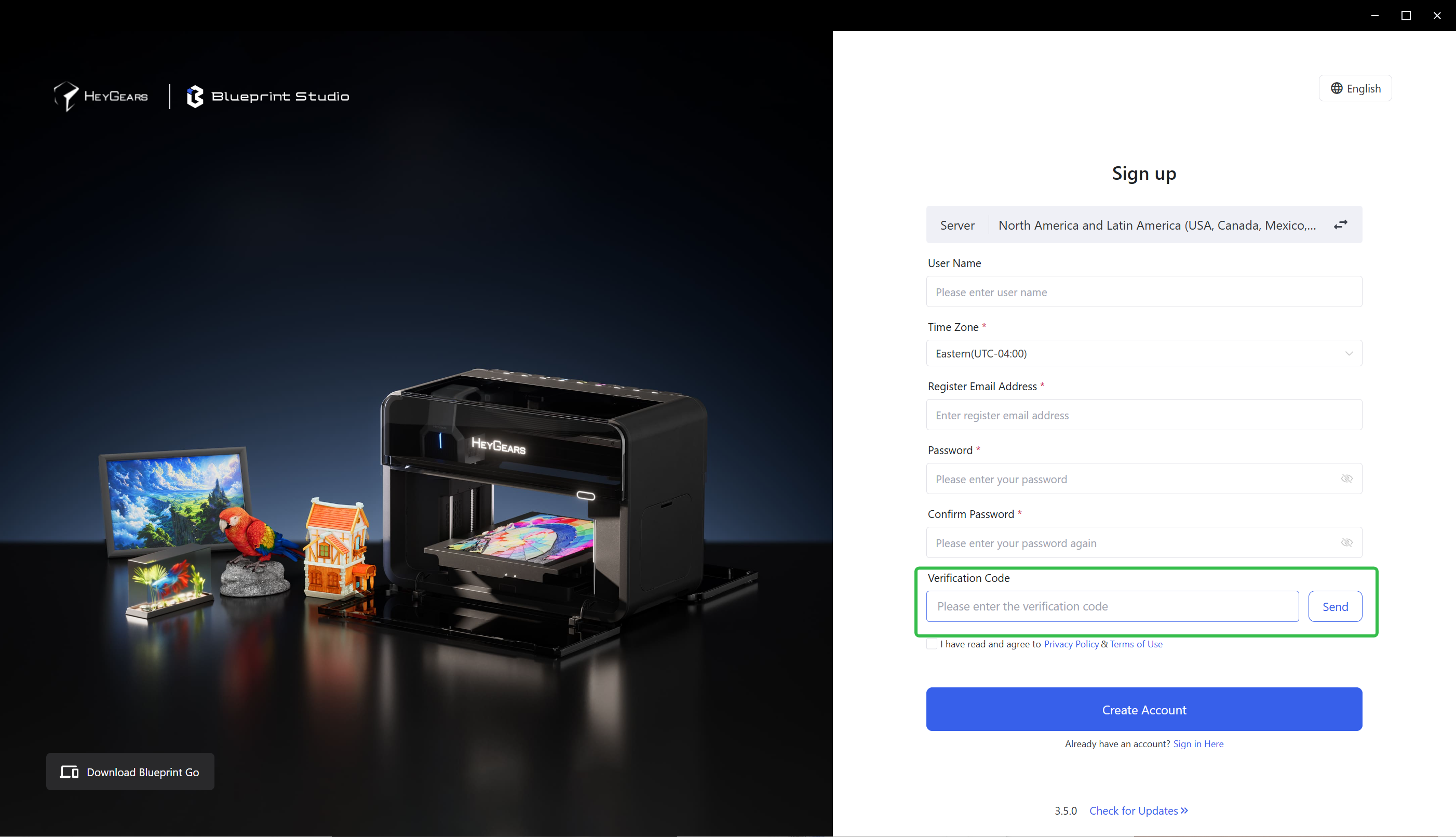
Fill in your account information and click <Send> to send a verification code to your registered email. Get the code and enter it in the corresponding input box.
Read and check the box to agree to Privacy Policy & Terms of Use, then hit \
.
You may modify your account information in <Account Settings>. For detailed steps, see Account Settings.
¶ 2. Log in to Blueprint Studio
With an account created, you may log in to use the app now.
- Auto-login: By checking <Auto-login>, you'll automatically log in with the same account next time you open the app without entering passwords again.
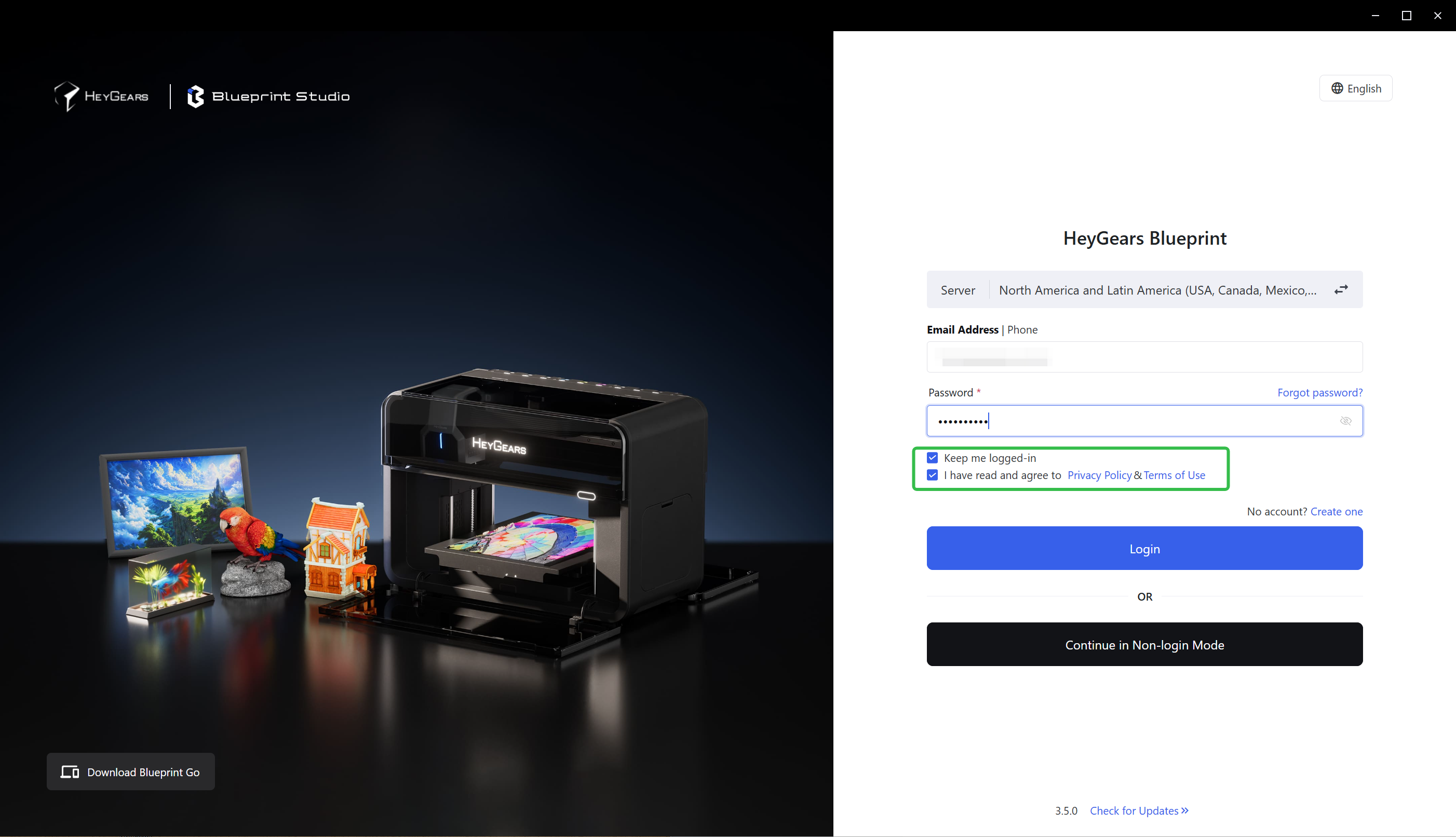
- Login with Phone Number: Once you bind your phone number with your account, you may log in with your phone number. Bind your phone at <Account Settings>.
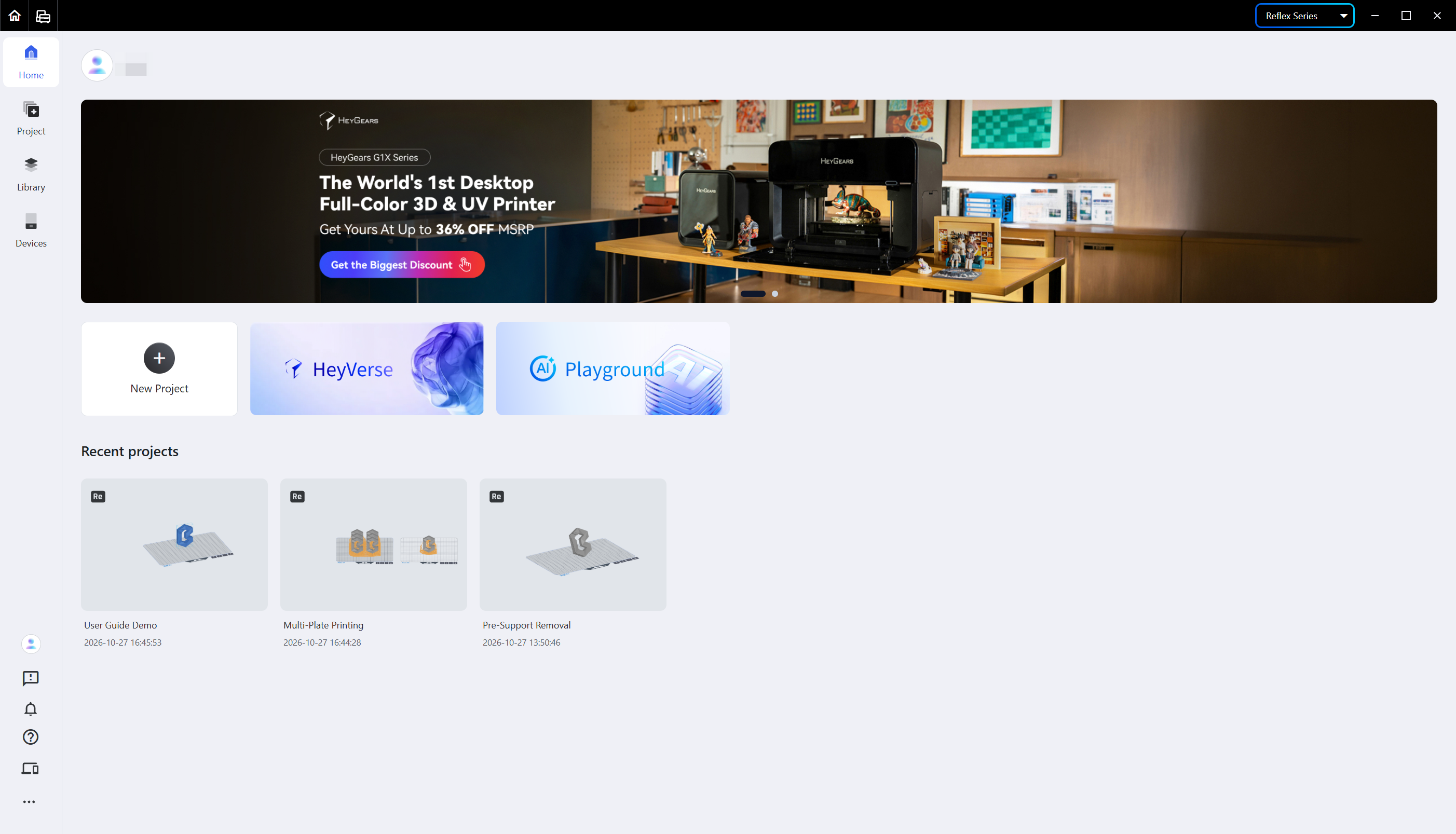
Once you've successfully logged in, you'll enter the homepage:
¶ 3. Switch Language
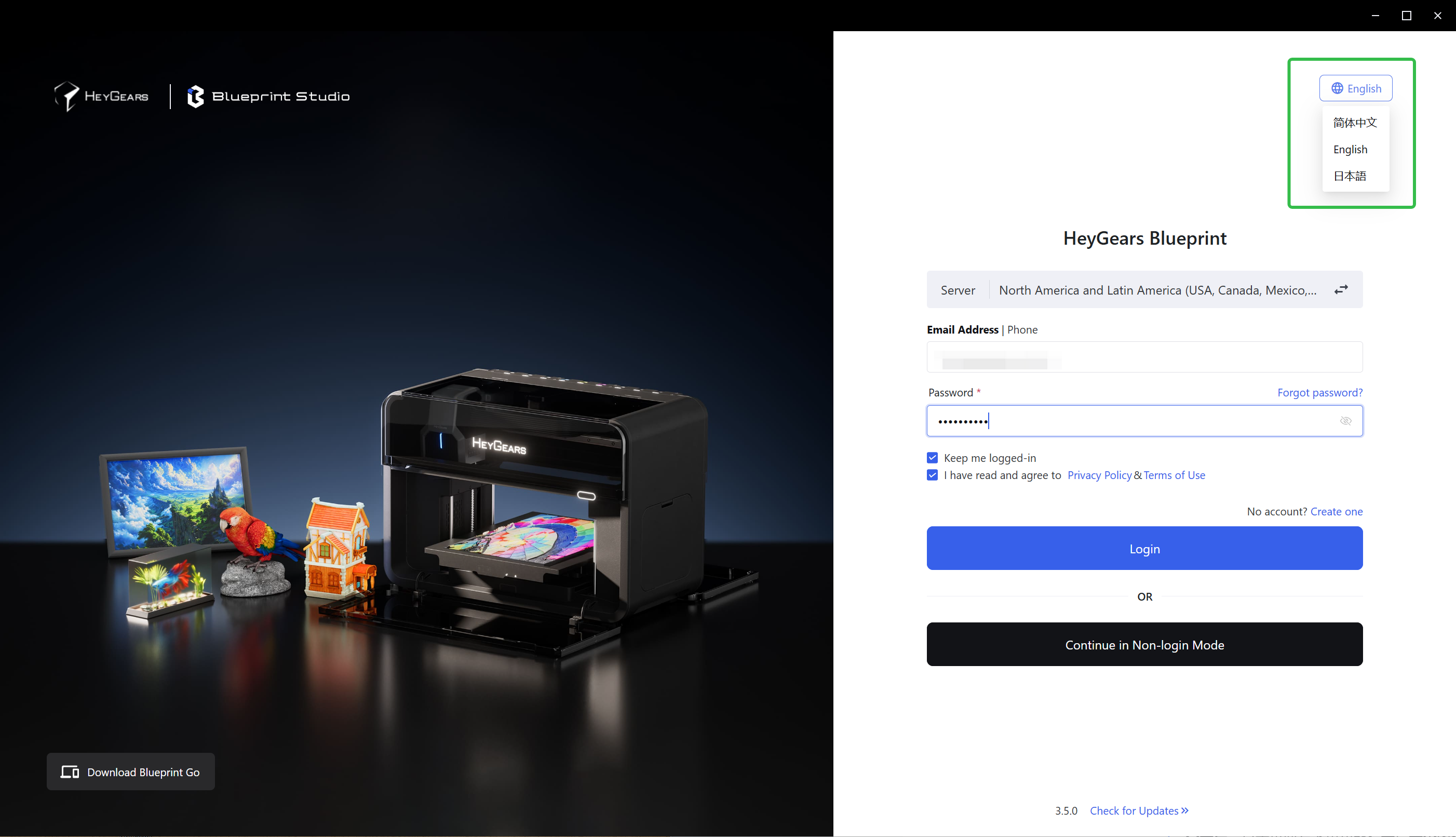
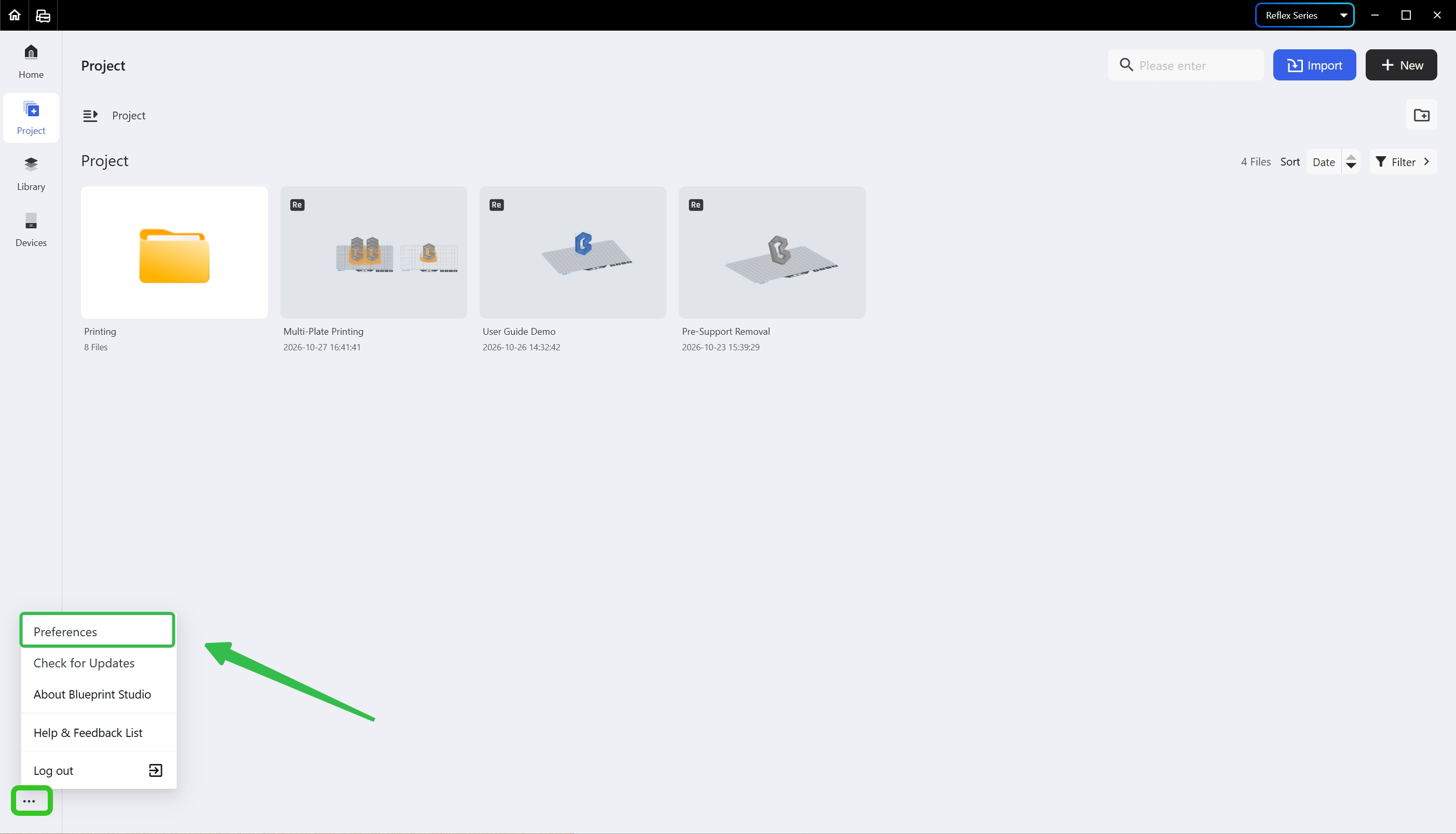
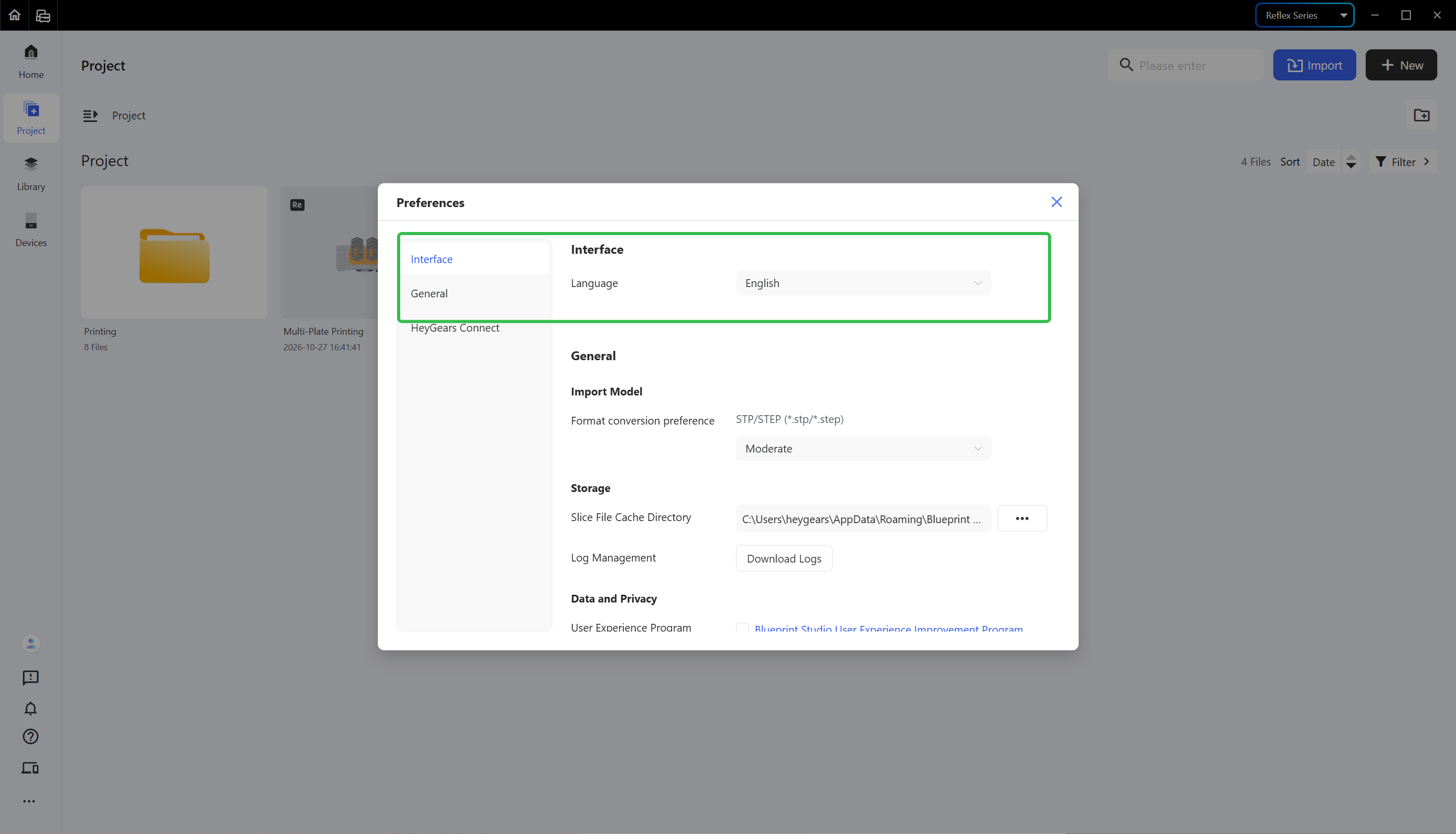
Blueprint Studio provides three language modes: <Simplified Chinese>, <English>, and <Japanese>. You may switch between them in the following two ways:
- Before login: Hit the icon on the upper right corner of the login page to switch to the language mode you need.
- After log-in: Hit the last icon in the function bar at the bottom left of the page, click <Preferences>, and switch the language under <Interface>.
 |
 |
¶ Update History
| Version | Date |
|---|---|
| 1.0 | 2026-10-26 |