Blueprint Studio allows you to use the slicer without logging in, and you can complete the pre-processing and export the sliced file in a completely offline environment.
Note: When using the software in Non-login mode, all data are stored on the current computer only. Those data are accessible only in Non-login mode.
¶ 1. Enter the Non-login Mode
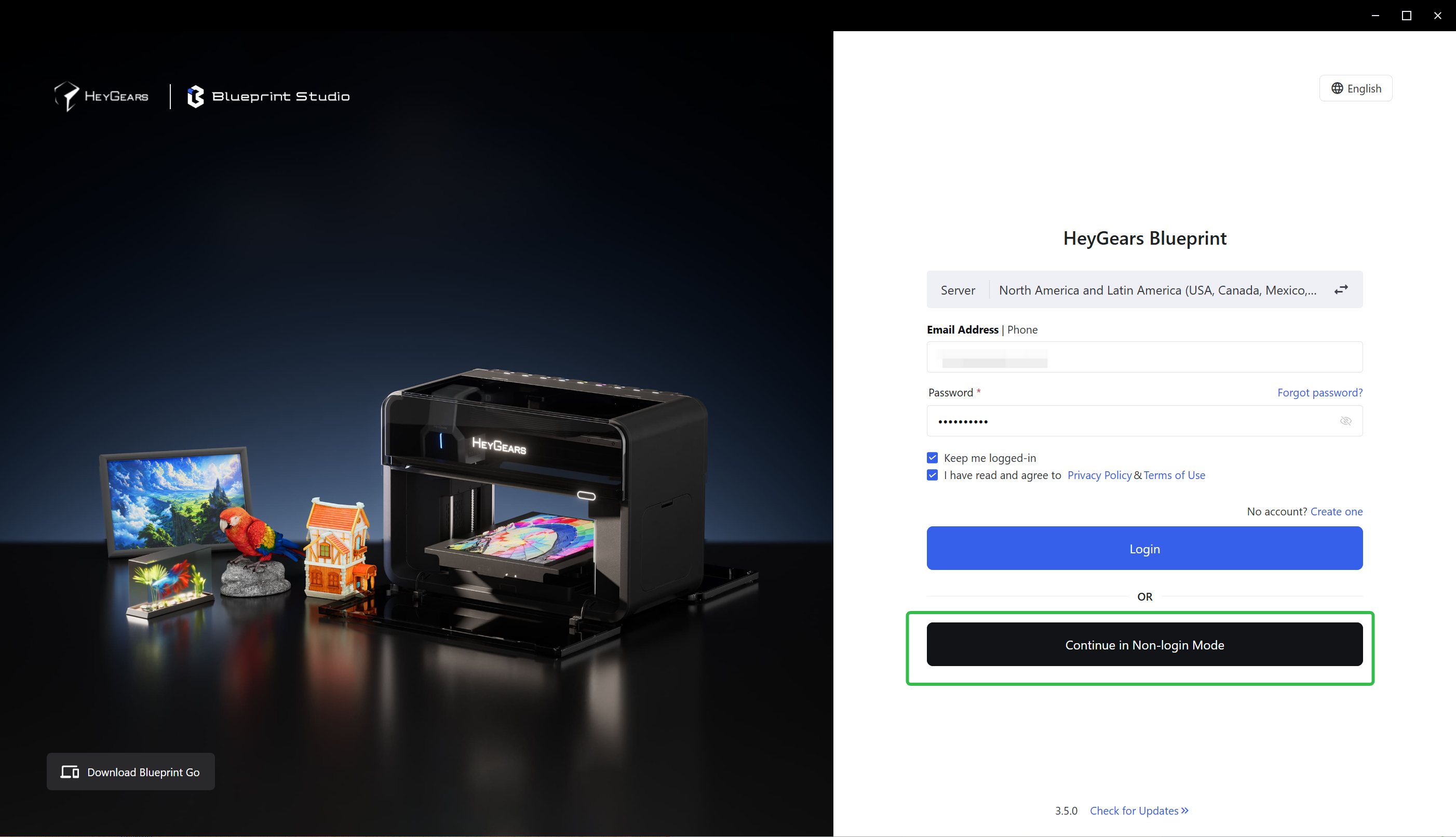
Double-click the application icon to enter the login page, and then click <Continue in Non-login Mode> to enter the Non-login mode:
¶ 2. Pre-processing (Generating Printable Files)
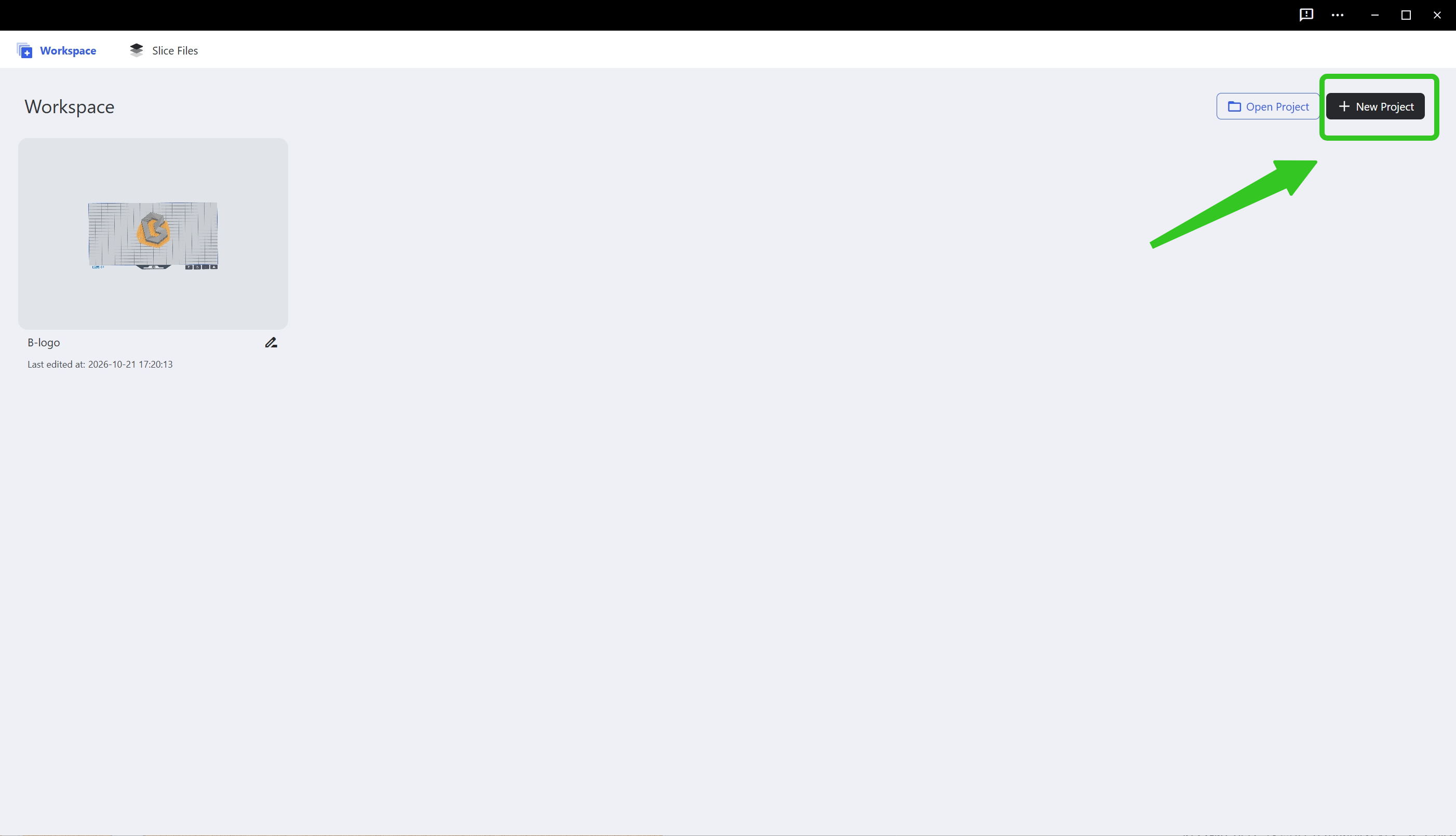
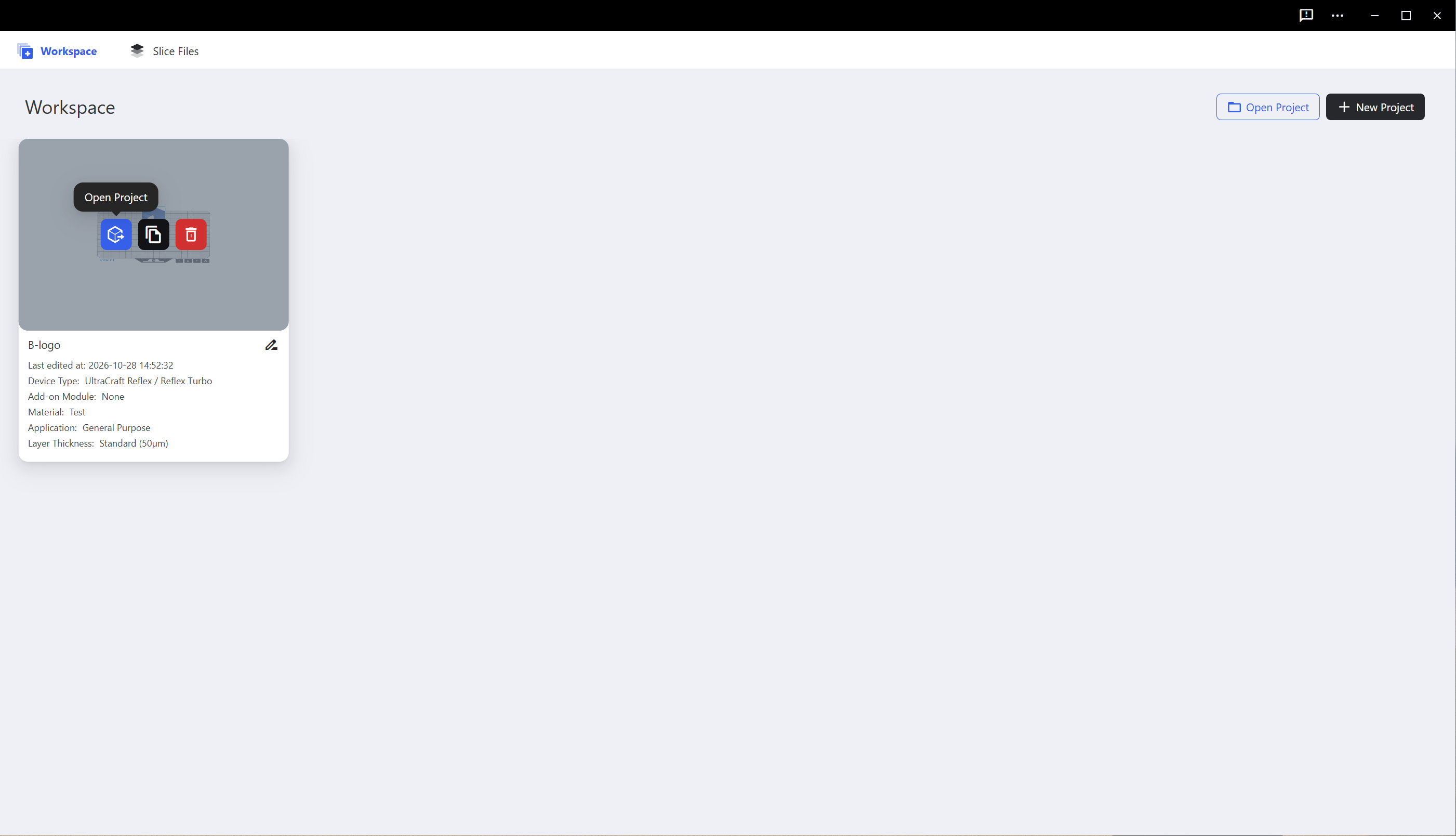
Click <New Project> to create a new blank project, or click <Open Project> to import and enter a previously saved project from the local directory, or enter a previously saved project from the Workspace:
| New Project Button | Project Card Open Project |
|---|---|
 |
 |
After entering the project, follow the instructions to complete the pre-processing. For the operation of preprocessing, please refer to First Print Guide..
¶ 3. Export Slice Files
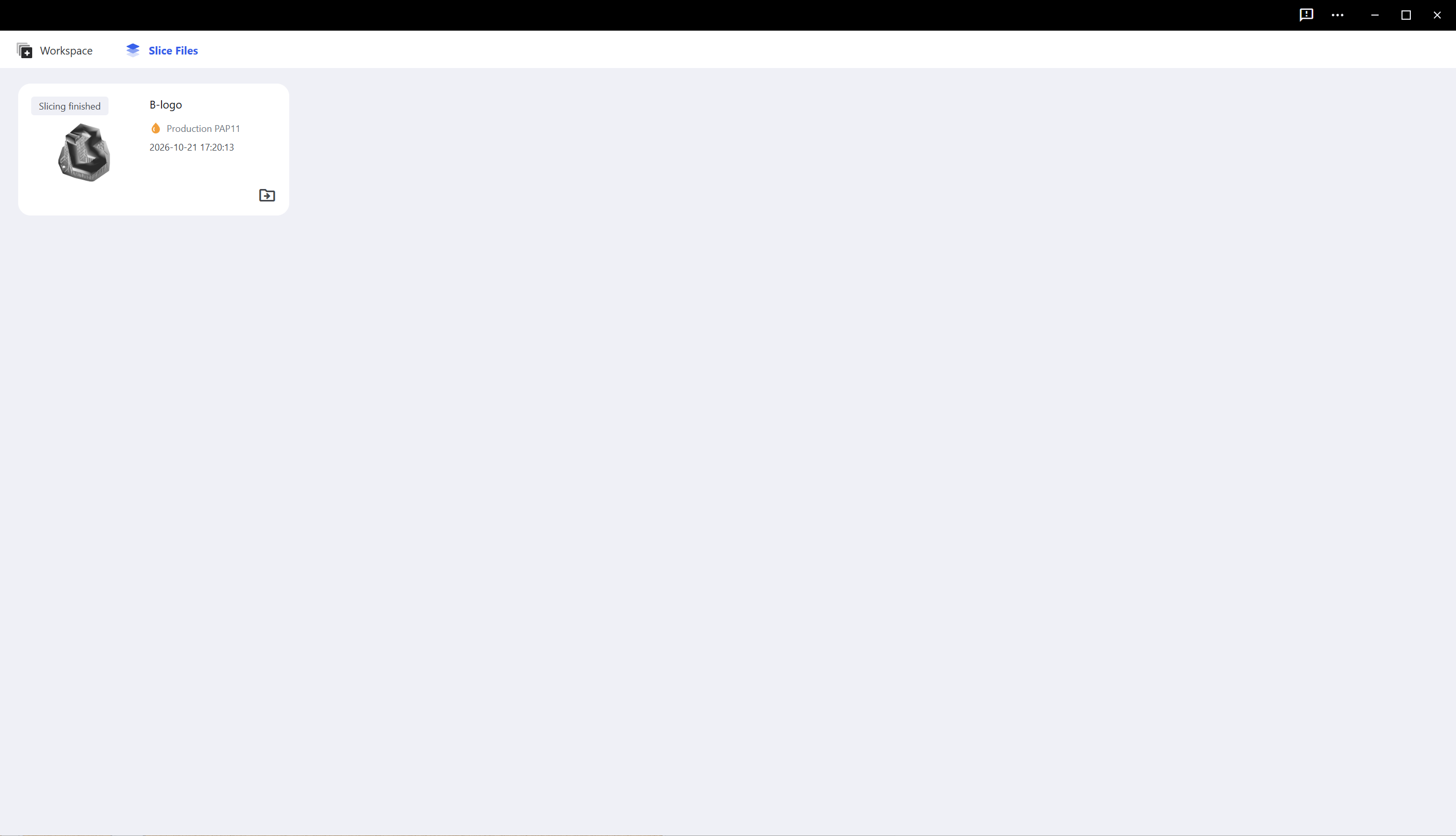
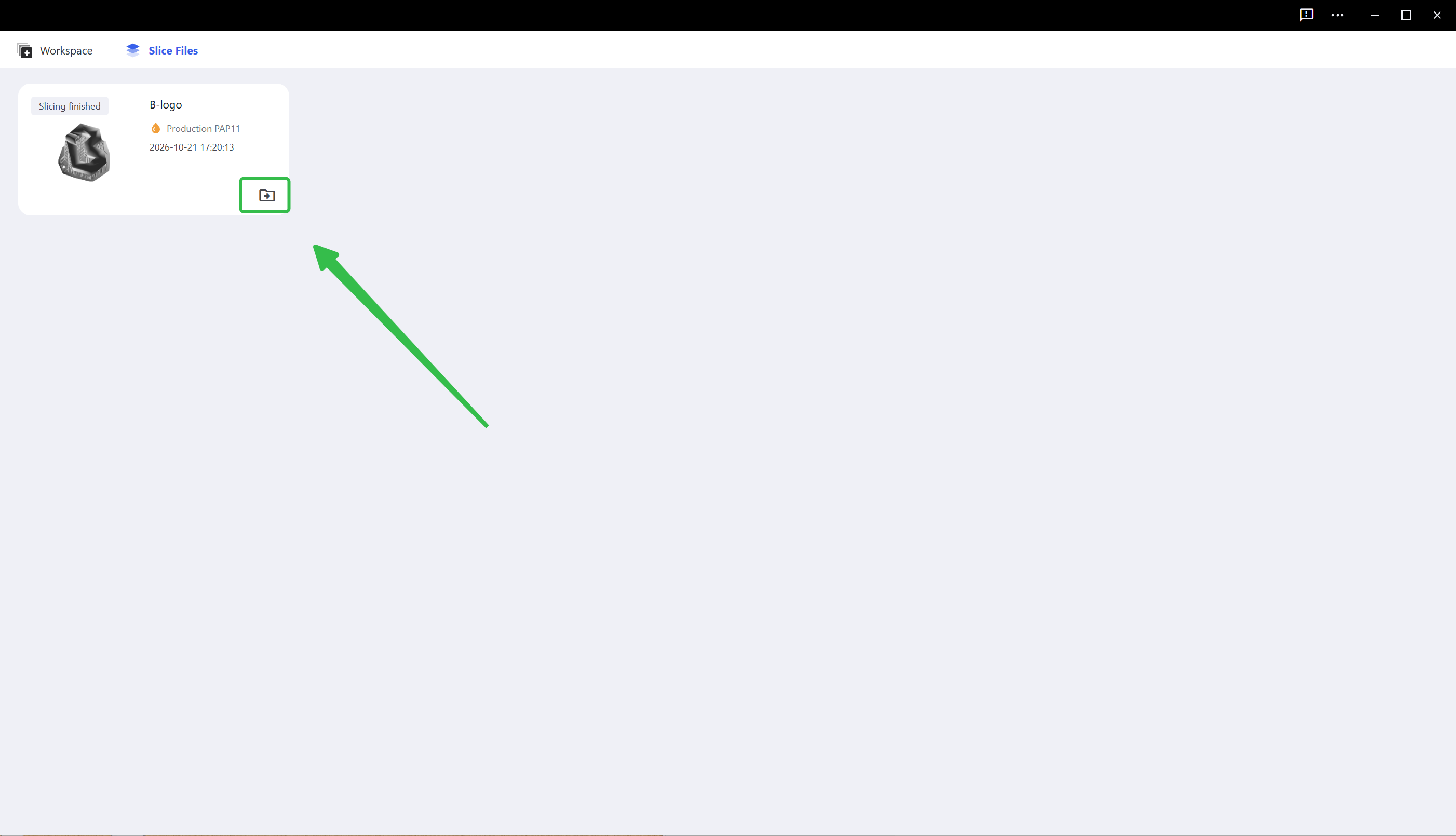
After preprocessing is completed, the generated printable files (or sliced files) can be managed on the page shown below:
¶ 4. Save Locally
-
Select the sliced file card you want to export.
-
Click the <Export> icon button, and a <Select Folder> window will pop up.
-
Select the folder you want to export to through the file browser, and click <Select Folder>.
-
The selected sliced file will be saved to the selected folder.
¶ 5. Other Operations
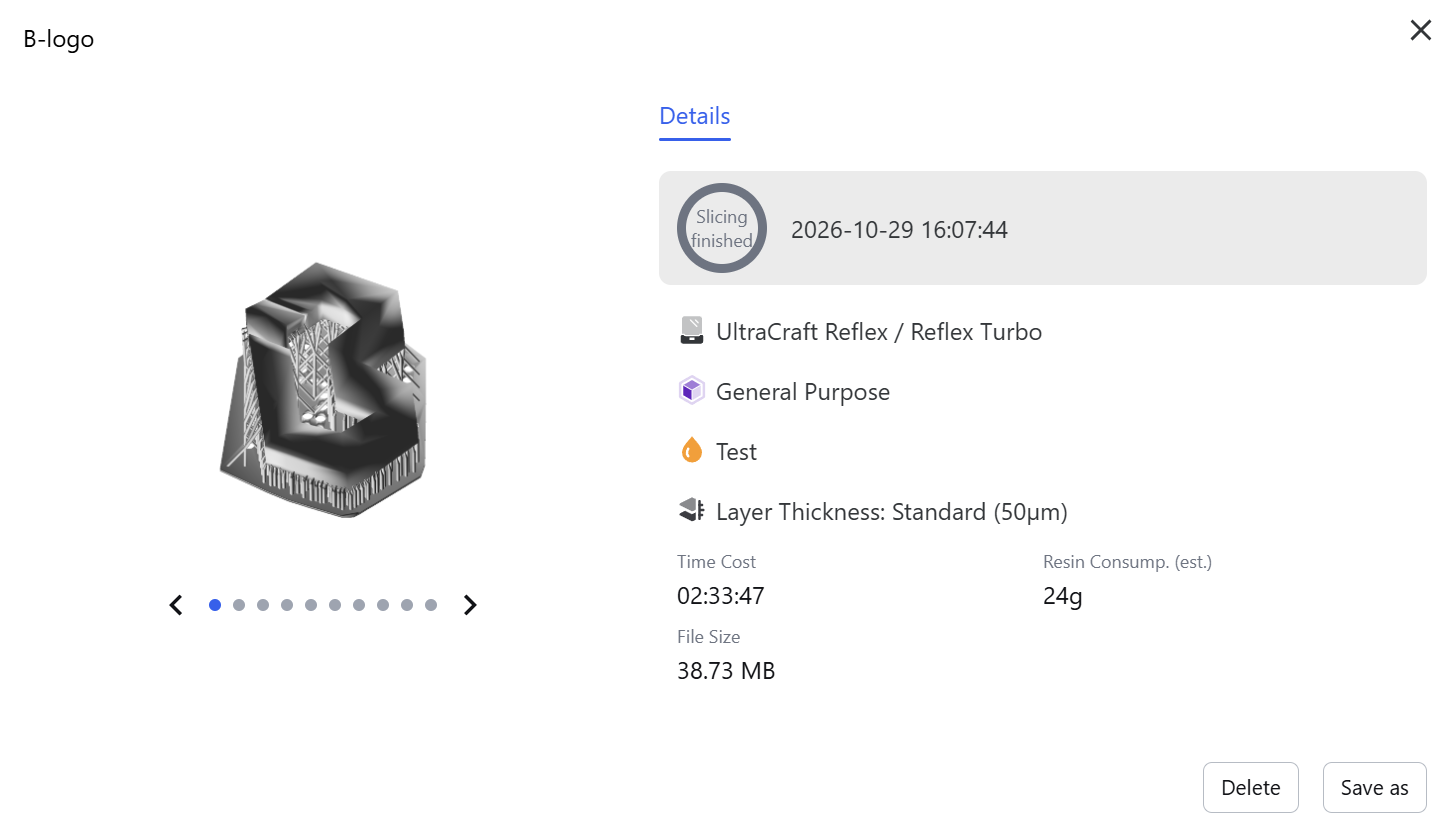
Click the sliced file card, and a sliced file details window as shown in the following figure will pop up:
- View Details
- View the preview of the sliced file: Click the arrow or dot below the image to switch the preview image.
- Delete the sliced file: Click <Delete> to delete the selected sliced file. This operation is irreversible.
- Save as: Click <Save as> to store the selected sliced file to the specified directory.
- Modify the name of the sliced file: Double-click the sliced file, hover the mouse over the sliced file name at the upper left corner, and edit the name of the selected sliced file in the highlighted input box. The modified name will take effect after leaving the input box.
¶ 6. Help & Feedback
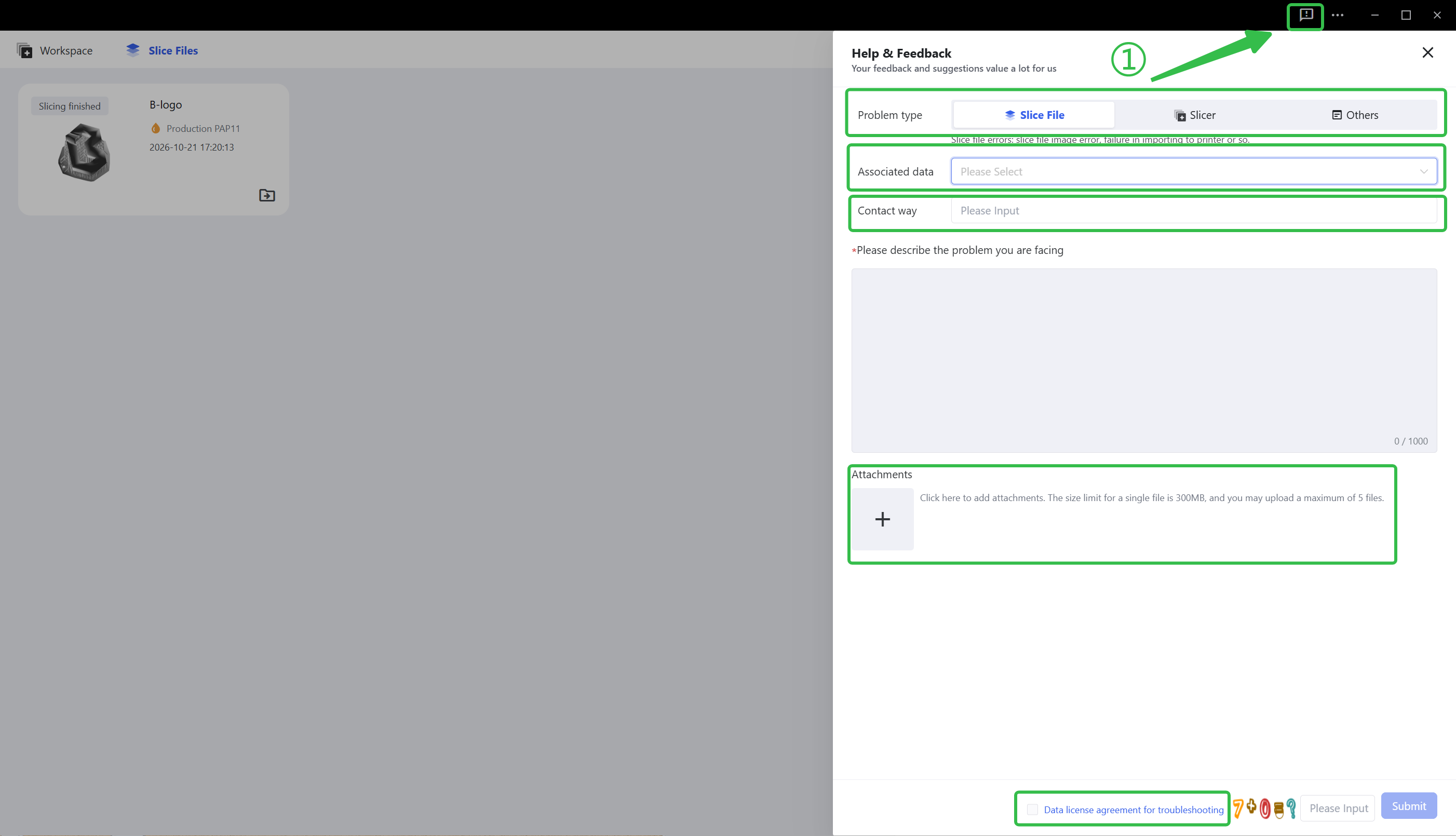
If you come up to any problem while using the app, click the exclamation mark icon on the upper right corner of the navigation bar, select the problem type and the related project file, enter your contact information so technicians can get in touch with you, and describe the specific problem and scenario in detail. Upload any attachments if you have. Check the troubleshooting data authorization agreement, enter the verification code and submit.
Note: You need to remain connected to the Internet to use <Help & Feedback> in Non-login mode.
¶ Update History
| Version | Date |
|---|---|
| 1.0 | 2026-10-26 |