¶ 1. Entry
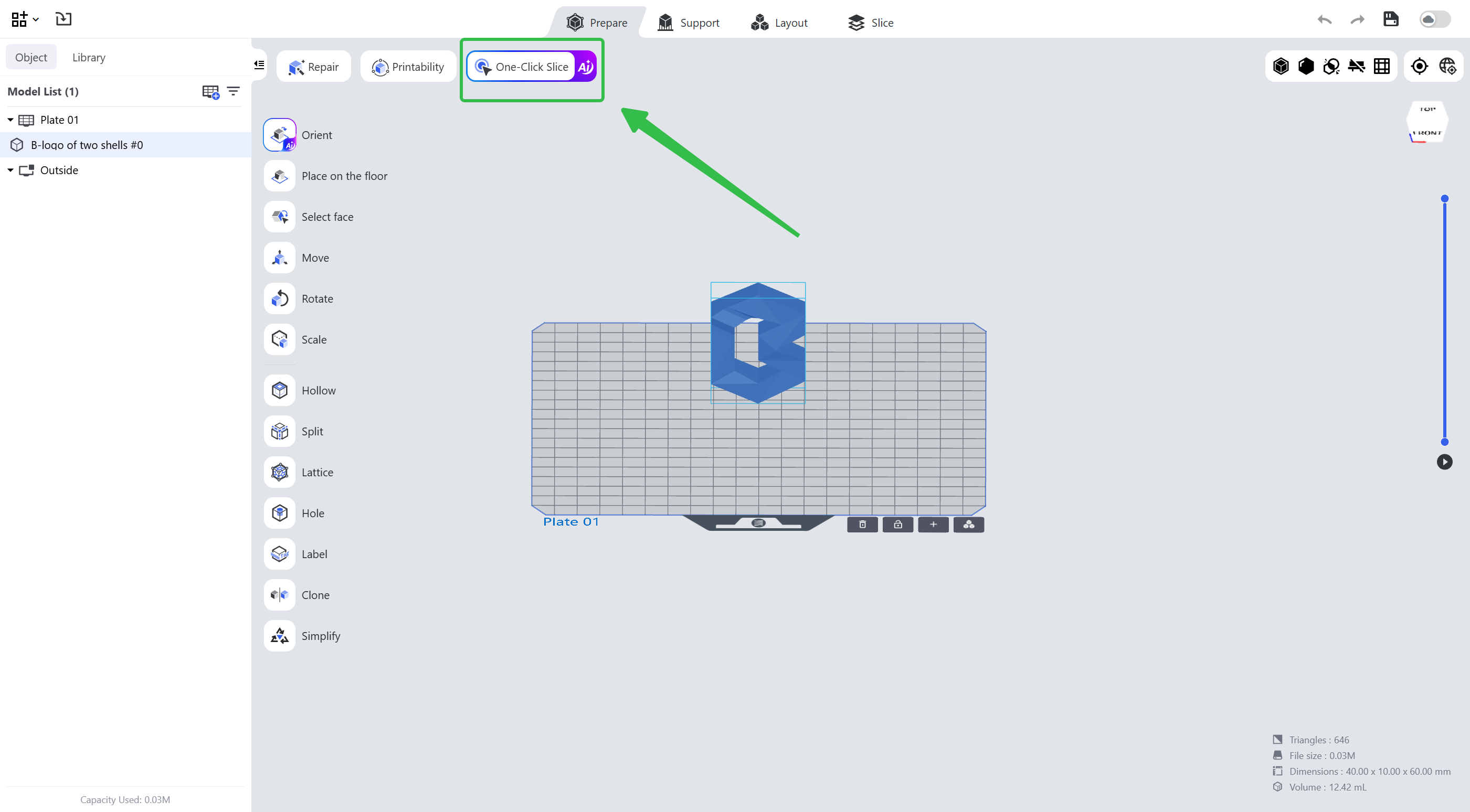
Enter the [Prepare], [Support] or [Layout] page and click the third icon in the upper left corner.
 |
 |
¶ 2. Function
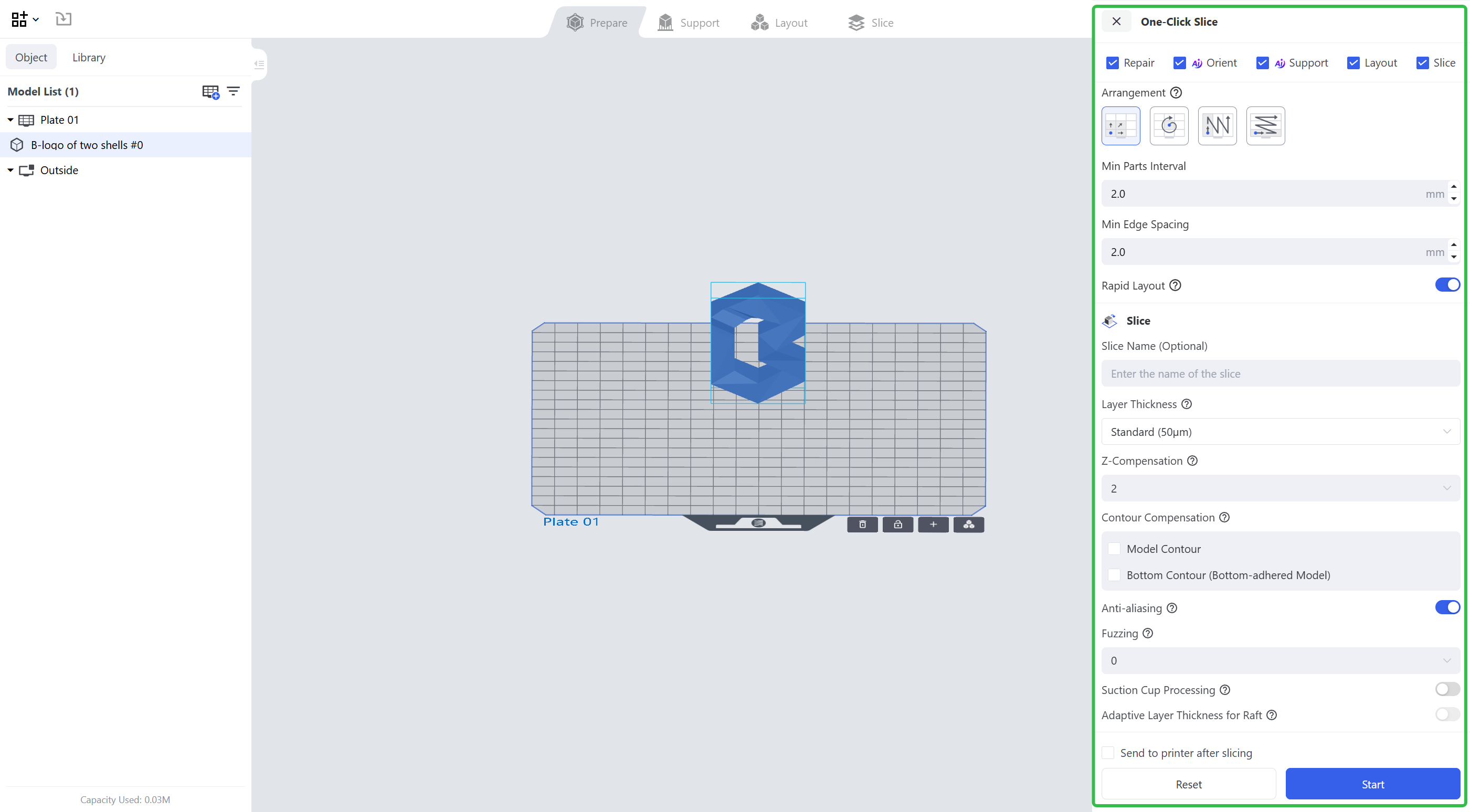
According to the options checked in the One-Click Slice pop-up, Blueprint Studio performs [Repair → Orient → Support → Layout → Slice] on all models. You may use the preset setups or check the parameters you need.
The features such as <Repair> can be checked at the top of the pop-up, and the corresponding parameters can be checked and modified in the menu below.

¶ 2.1 Repair
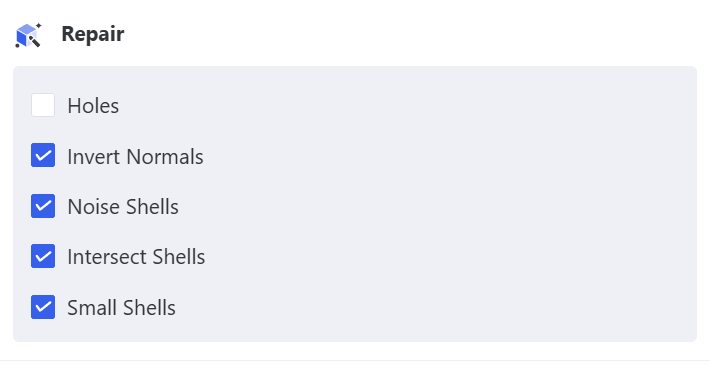
You may choose to detect and repair <Holes>, <Invert Normals>, <Noise Shells>, <Intersect Shells> and <Small shells>.
¶ 2.2 Orient
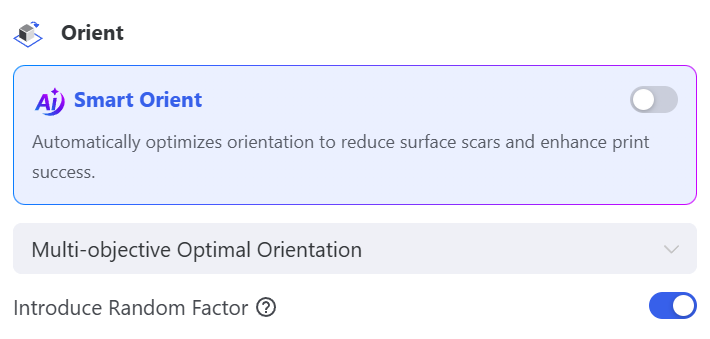
The preset is <Multi-objective Optimal Orientation>. For the applicability of the other orientations, see Orient Guide.
- AI Smart Orientation: if checked, the best orientation is calculated automatically based on model features, which reduces surface damage and improves the print success rate.
- Introduce Random Factor: if enabled, the orientation is optimized with a random factor (the orientation will be somewhat random and cannot be reproduced).
¶ 2.3 Support
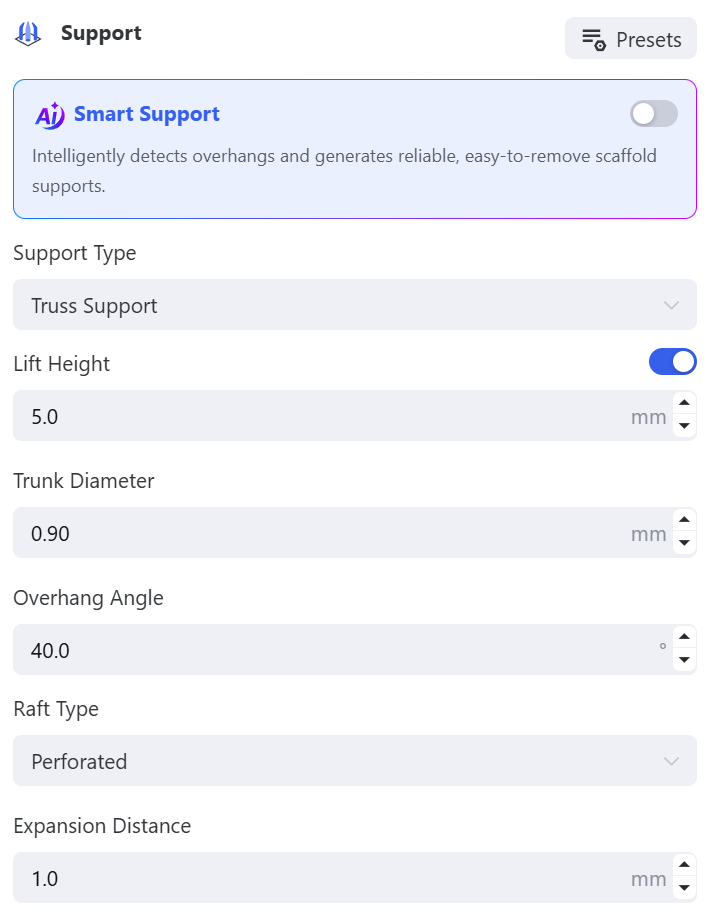
Click the <Presets> button in the upper right corner to apply the recommended support parameters.
AI Smart Support: if checked, structural weak points and overhang areas are identified intelligently, and scaffold supports that are both stable and easy to remove are generated in one click.
For the support parameter list, see the parameters of Auto-support.
¶ 2.4 Layout
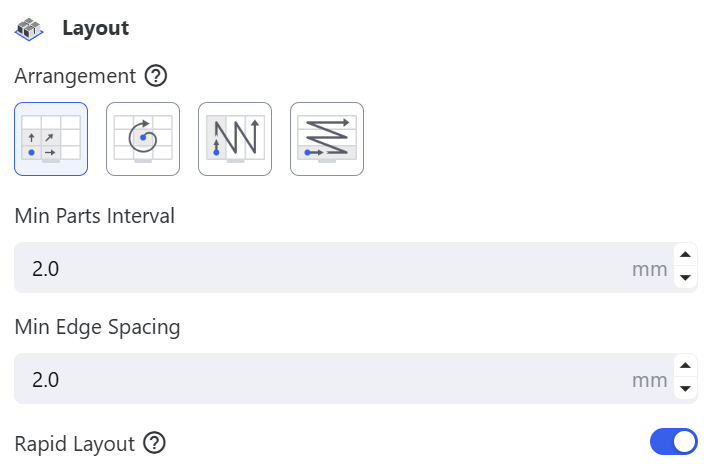
Blueprint Studio provides automatic layout with four arrangements, and you may also set <Min Parts Interval> and <Min Edge Spacing>.
- Rapid Layout: if enabled, layout efficiency comes first and the models might be packed less densely.
¶ 2.5 Slice
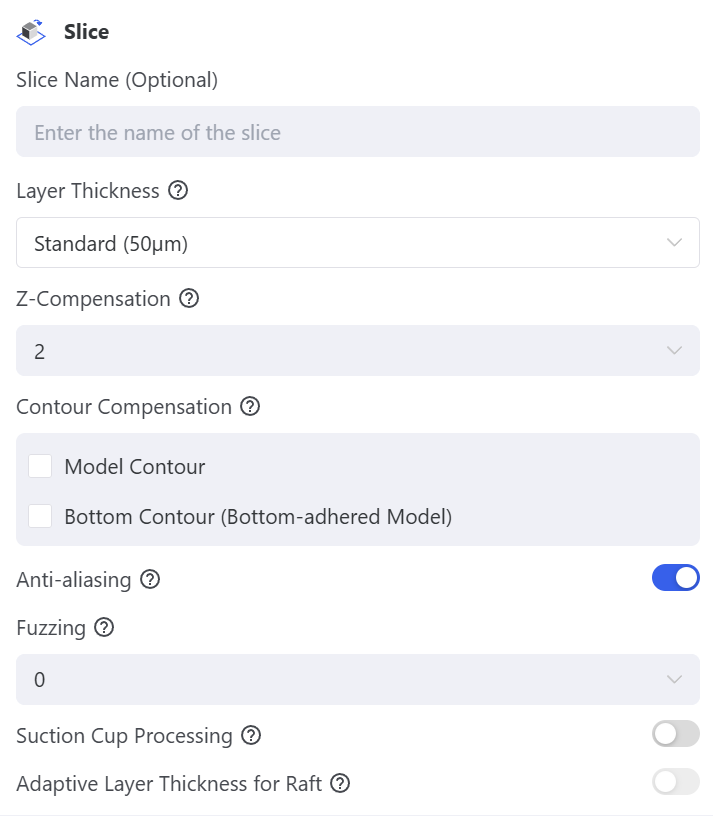
You may set <the slice name>, <layer thickness>, <Z-compensation> and other parameters. For the practical use of the parameters, see the parameters in Slice.
After the above, check <Send to printer after slicing> at the bottom; once one-click slice is finished, you may start printing on the device.

¶ Update History
| Version | Date |
|---|---|
| 1.0 | 2026-10-26 |