Blueprint Studio provides various editing tools to help you pre-process models more efficiently.
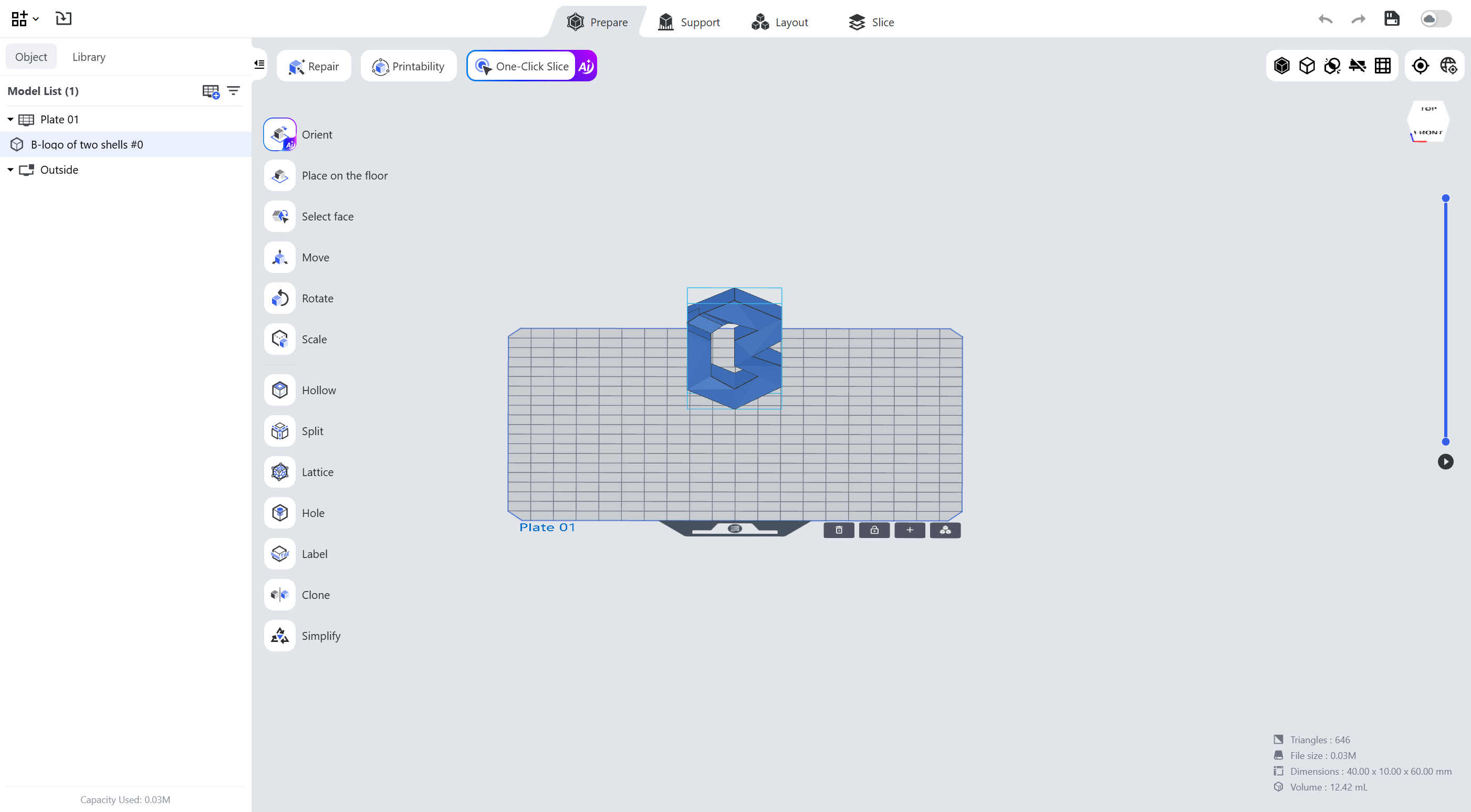
¶ 1. Orient
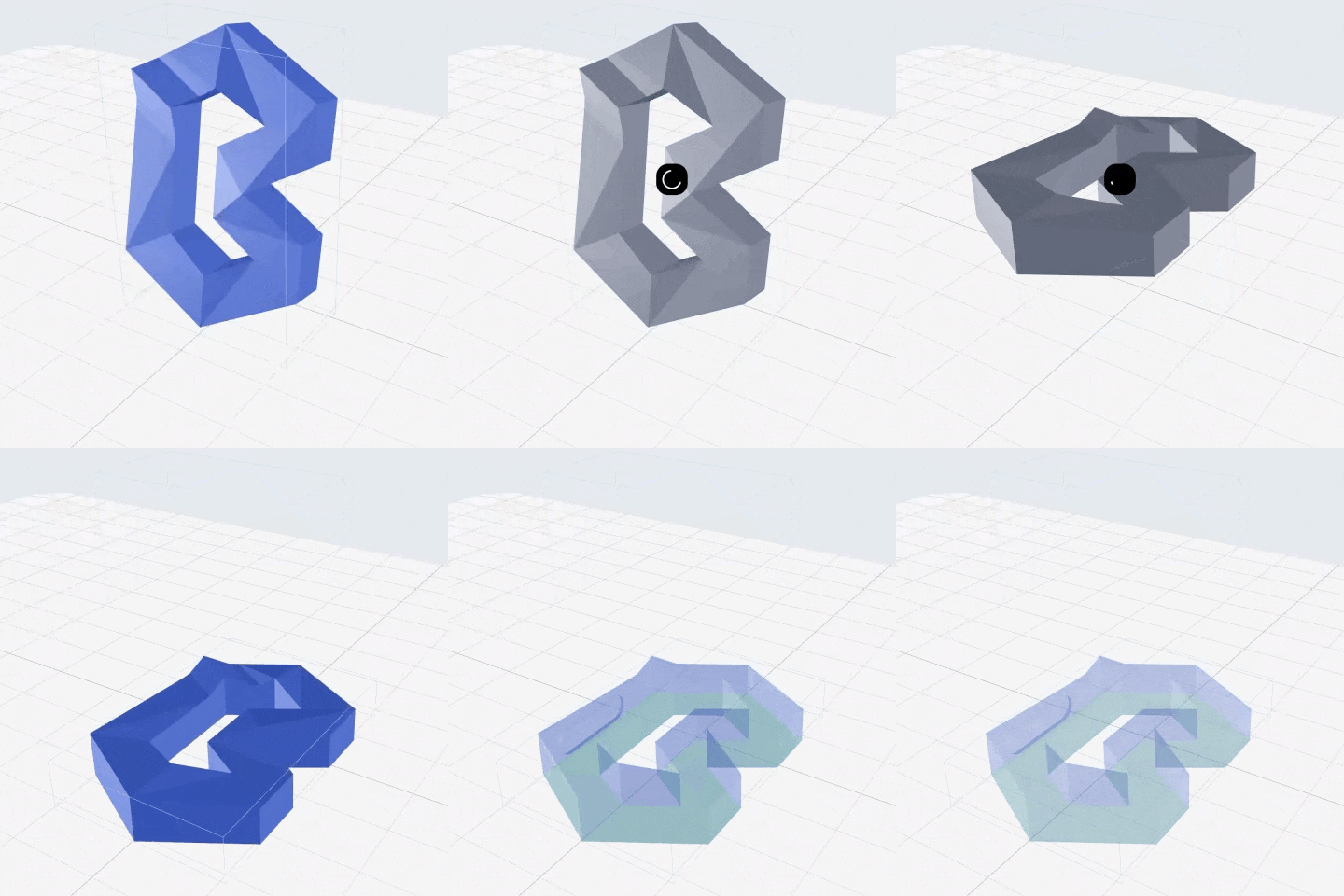
Automatically find the best orientation according to the orientation strategy you define.
 |
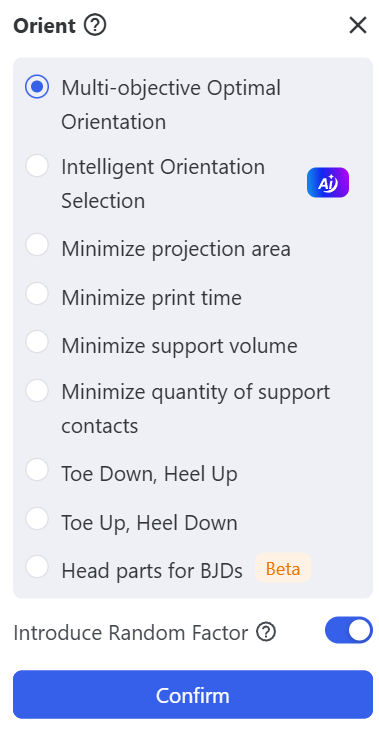 |
- Multi-objective optimal orientation: for scenarios where print quality, time and material all need to be considered; it selects the best orientation automatically.
- Intelligent orientation selection: for complex models or multiple print requirements, this option adjusts the model orientation automatically to optimize the print result.
- Minimize projection area: when you want to reduce the space and material occupied during printing, this option effectively reduces the projection area of the model.
- Minimize print time: when time is tight, this option optimizes the model placement to achieve the fastest printing.
- Minimize support volume: when you need to reduce support material, this option minimizes the support volume and thus saves resin.
- Minimize quantity of support contacts: when the number of supports is strictly required, this option reduces the number of support points and makes post-processing easier.
- Toe down, heel up: for shoe models; it improves the adhesion of the first layer and reduces warping.
- Toe up, heel down: when the appearance of the shoe needs to be shown or a specific design is required, this option optimizes the visual result.
- Head parts for BJDs: for the special requirements of BJD (Ball-Jointed Doll) head models; it better presents the details and contour of the head.
¶ 2. Place on the Floor
The model will stand right on the work plane with its Z-axis height as 0.
¶ 3. Select Face
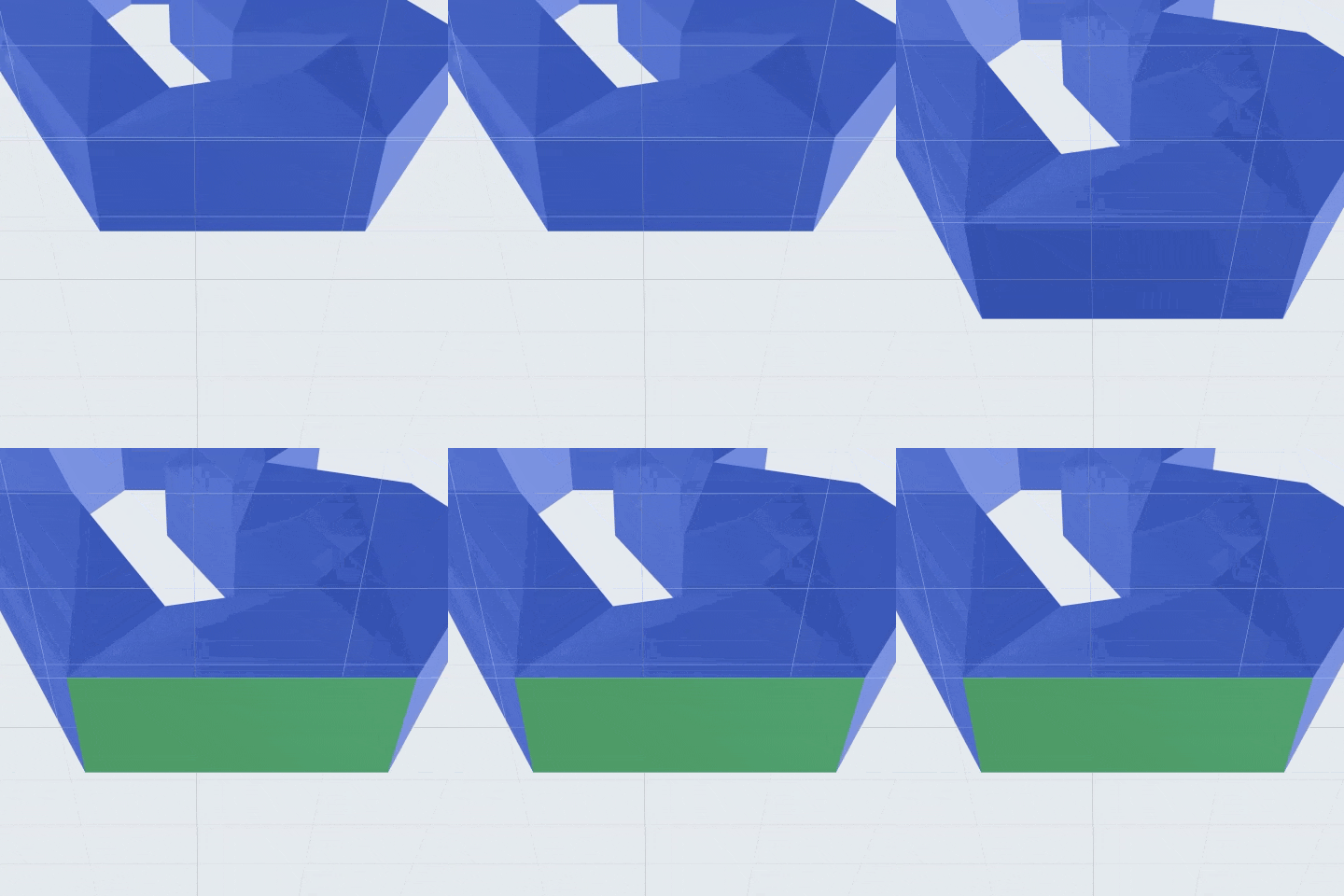
Rotate the model so the face you select orients as you define.
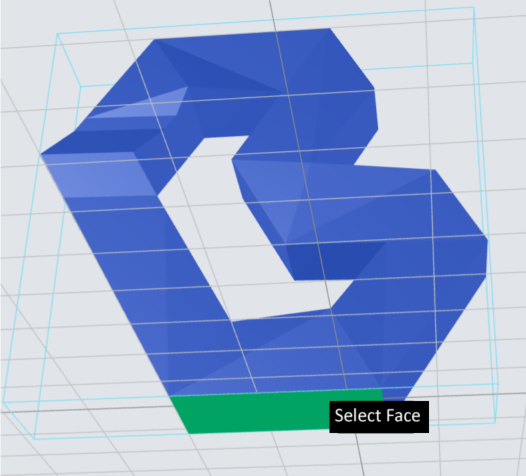
- Facing Down: rotate the model so the selected face orients down, and put the model on the floor.
- Facing Up: rotate the model so the selected face orients up, and put the model on the floor.
¶ 4. Move
Move the selected model precisely according to the parameters (directions and distances) you define.
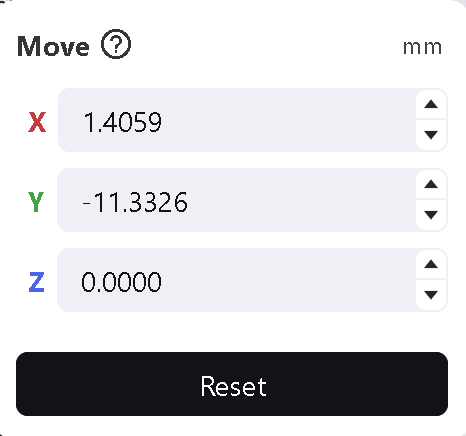
¶ 4.1 Input Moving Distance
Select the model, click the <Move> tool in the left toolbar and enter the moving distance in the parameter panel; the selected model moves immediately as entered.
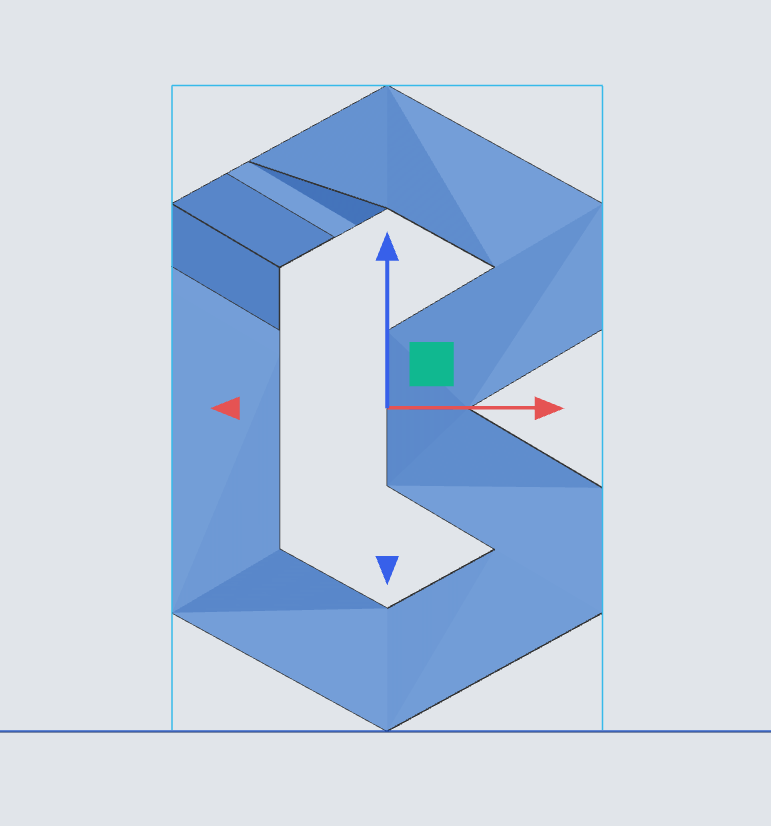
¶ 4.2 Use the Move Gadget
Select an axis or a pad block, then drag the mouse to move the selected model along the selected axis or within the specified plane.
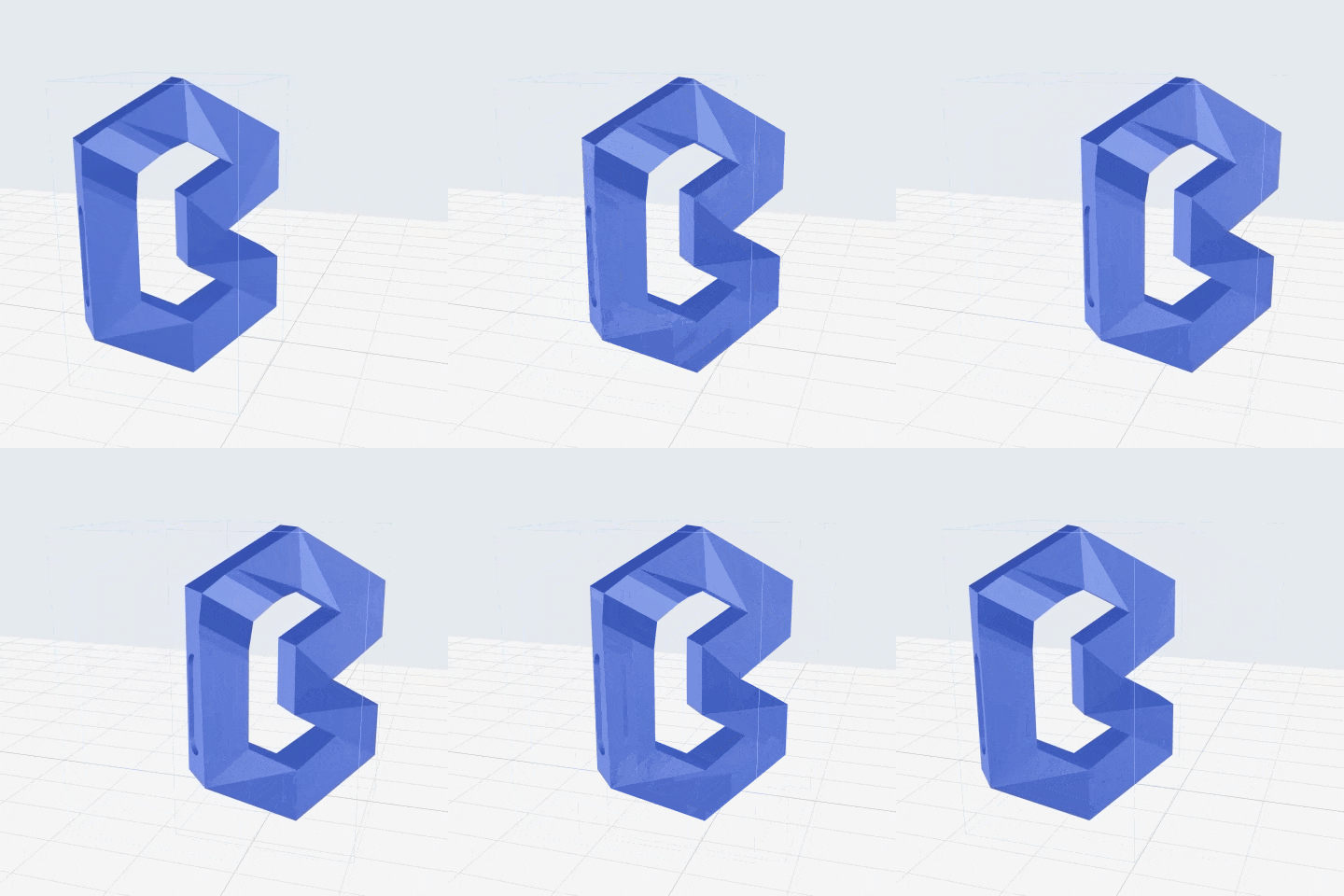
¶ 4.3 Drag with the Left Mouse
Hold down the left mouse on the model and drag; the selected model moves along the track of the cursor on the z=0 plane.
¶ 5. Rotate
Rotate the selected model precisely according to the parameters (directions and angles) you define.
¶ 5.1 Enter Rotation Angle
Click the <Rotate> tool in the left toolbar and enter the angle in the x/y/z direction; the model rotates immediately as entered.
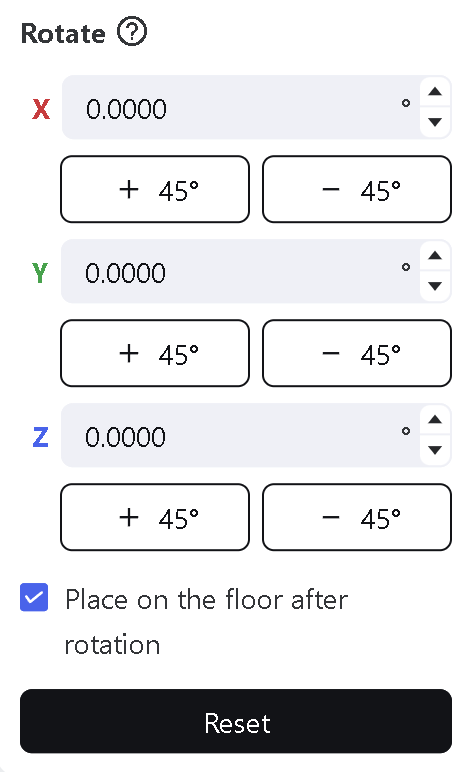
- Place on the Floor after Rotation: if checked, the model is put on the floor automatically after each rotation.
- Reset: click and the selected model goes back to the orientation at which it was imported.
¶ 5.2 Rotate with the Gadget
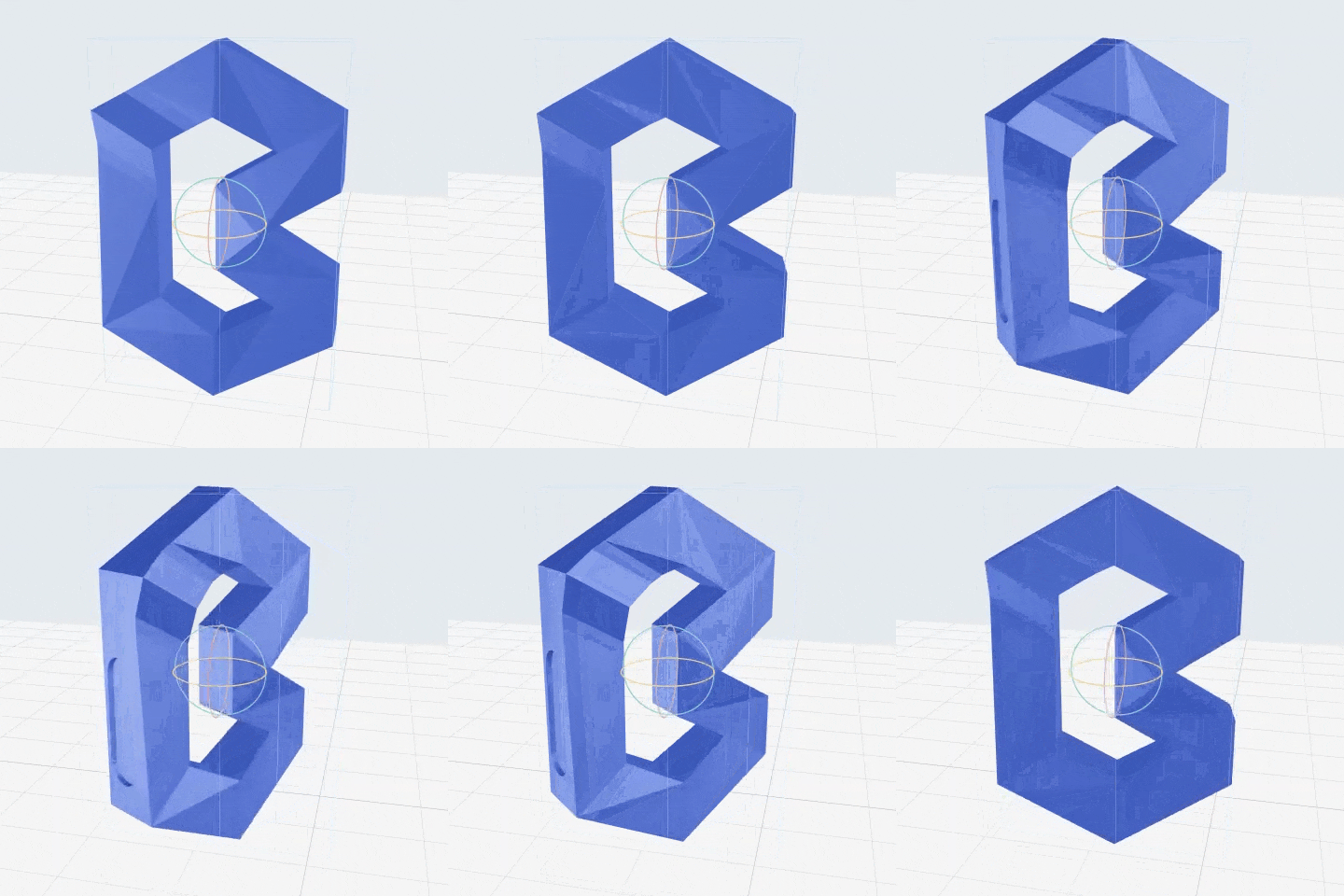
Left-mouse click an arc to select the x/y/z rotation axis, then hold the mouse and move; the selected model rotates along with the mouse.
¶ 6. Scale
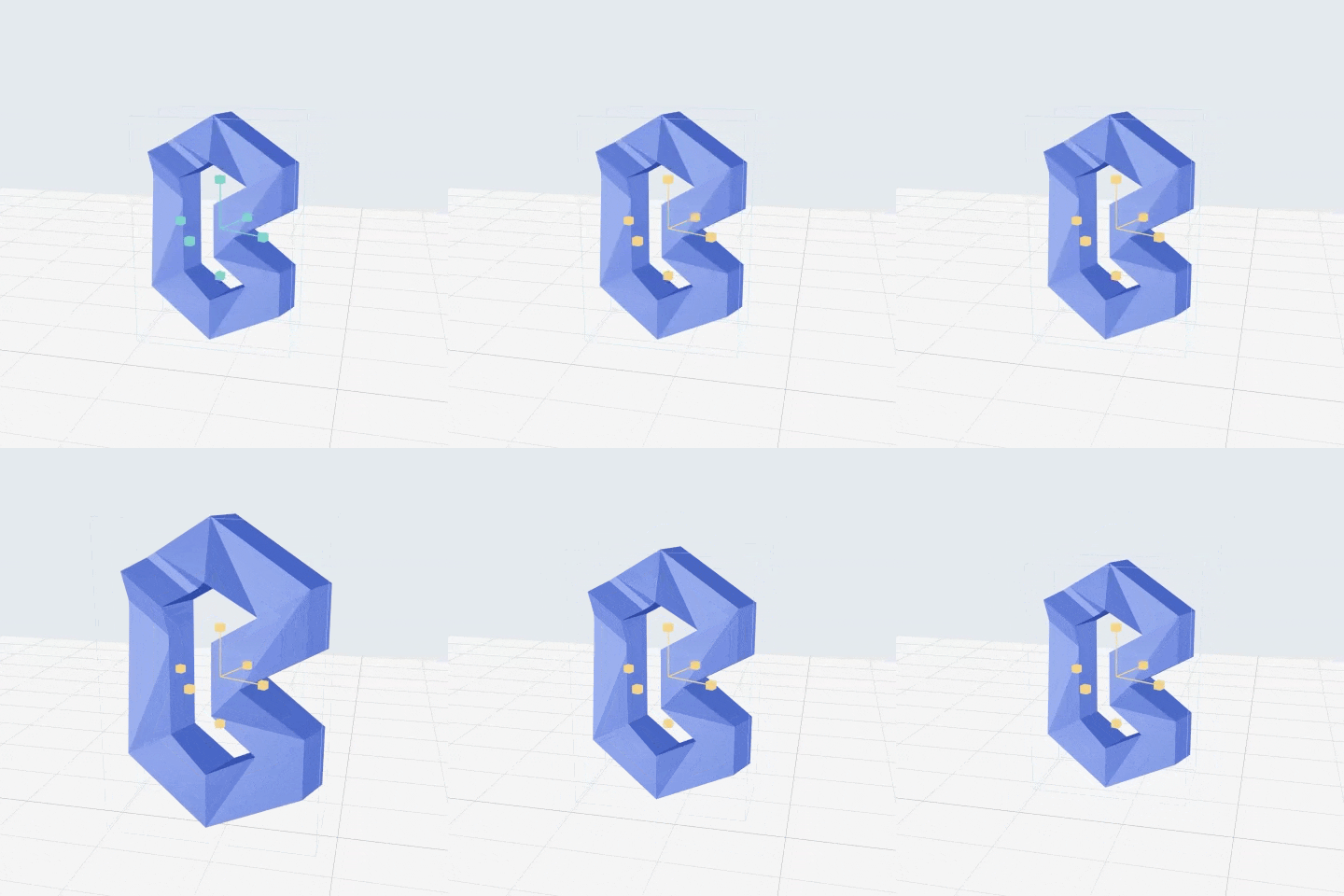
Scale up or down the model by the same ratio. You may also individually adjust the X/Y/Z dimension. For details, see Scale Operation Guide.
¶ 7. Hollow
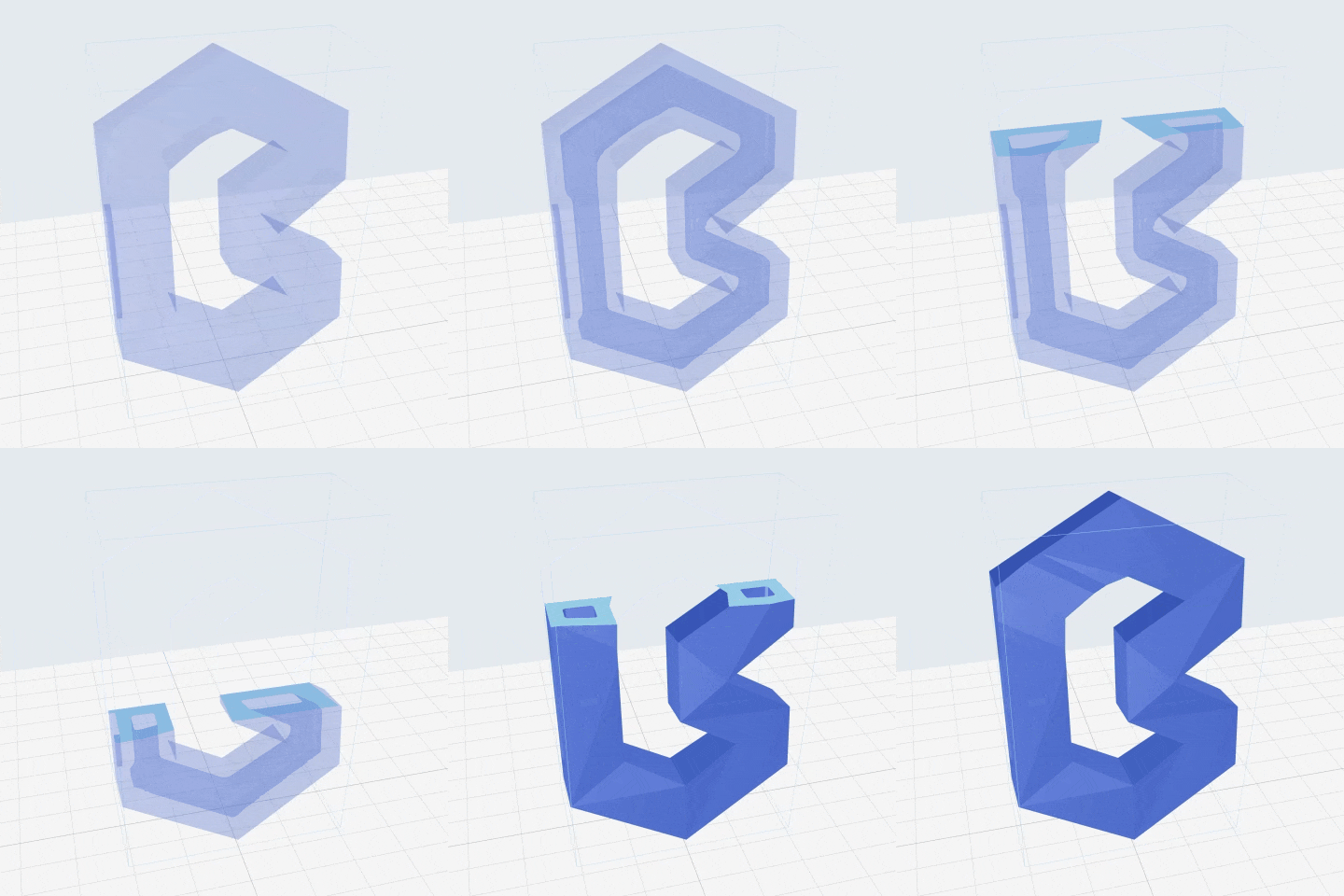
Make the solid model hollow in accordance with the parameters you define. For details, see Hollow Operation Guide.
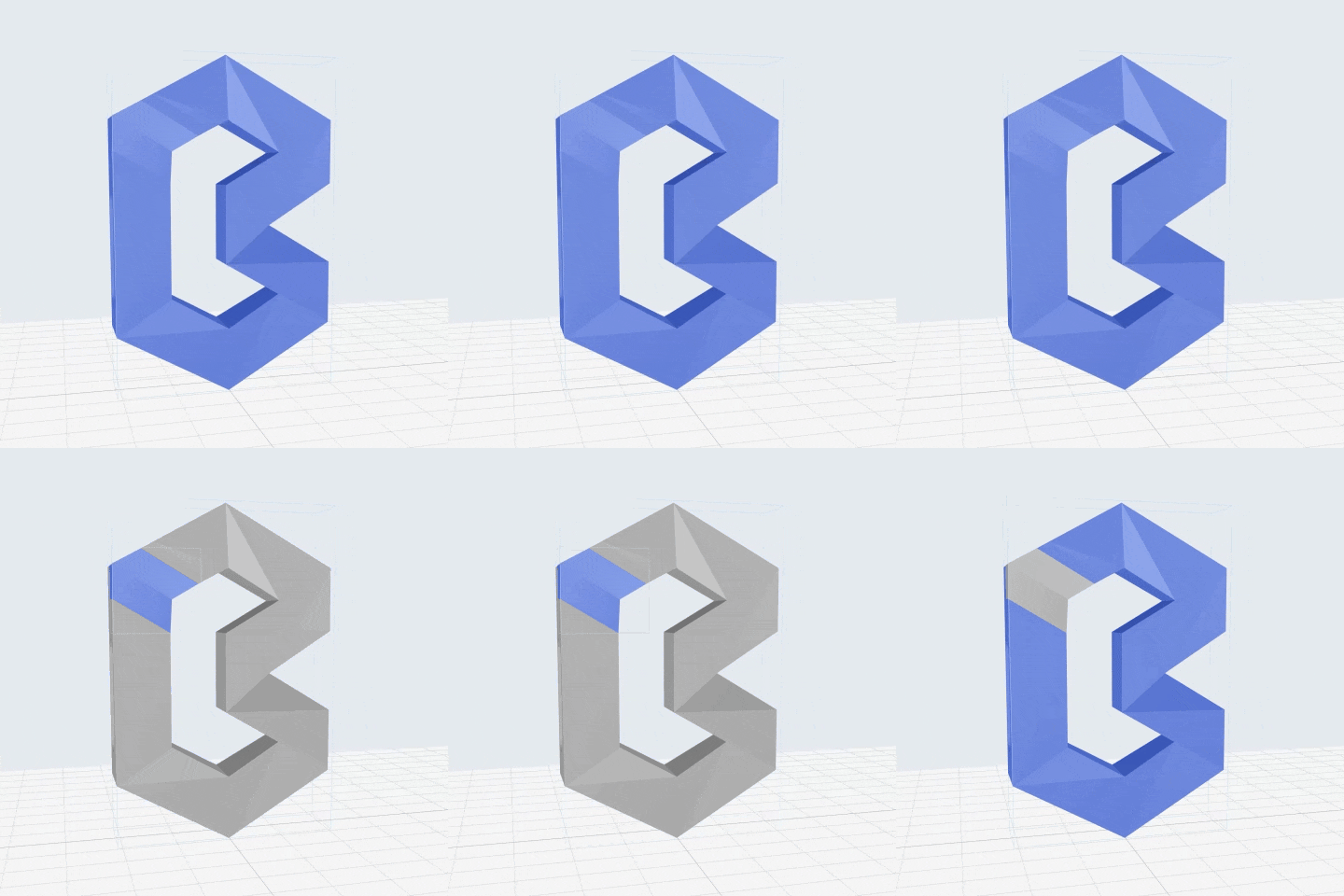
¶ 8. Split
Blueprint Studio supports splitting a combined model into multiple parts. For details, see Split Operation Guide.
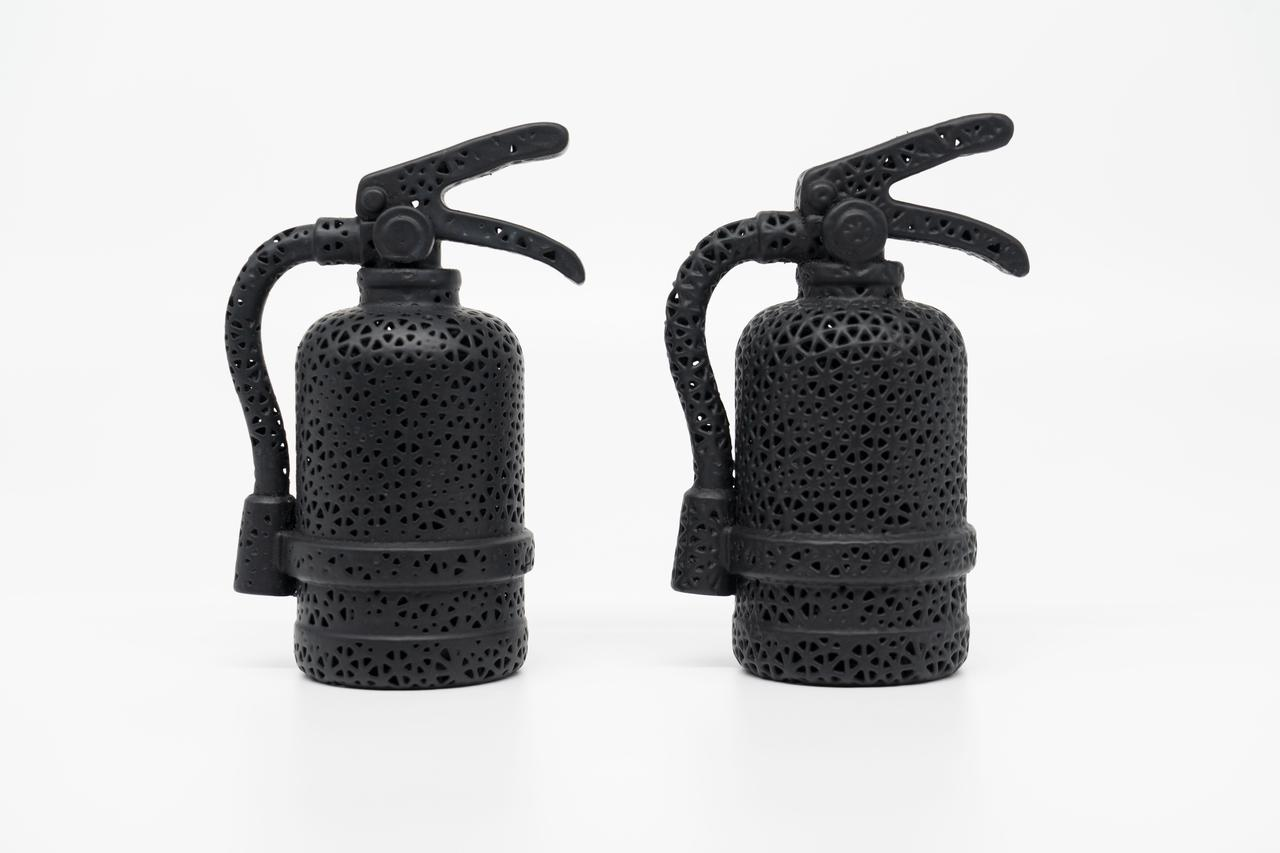
¶ 9. Lattice
Blueprint Studio supports generating lattice models. For details, see Lattice Operation Guide.
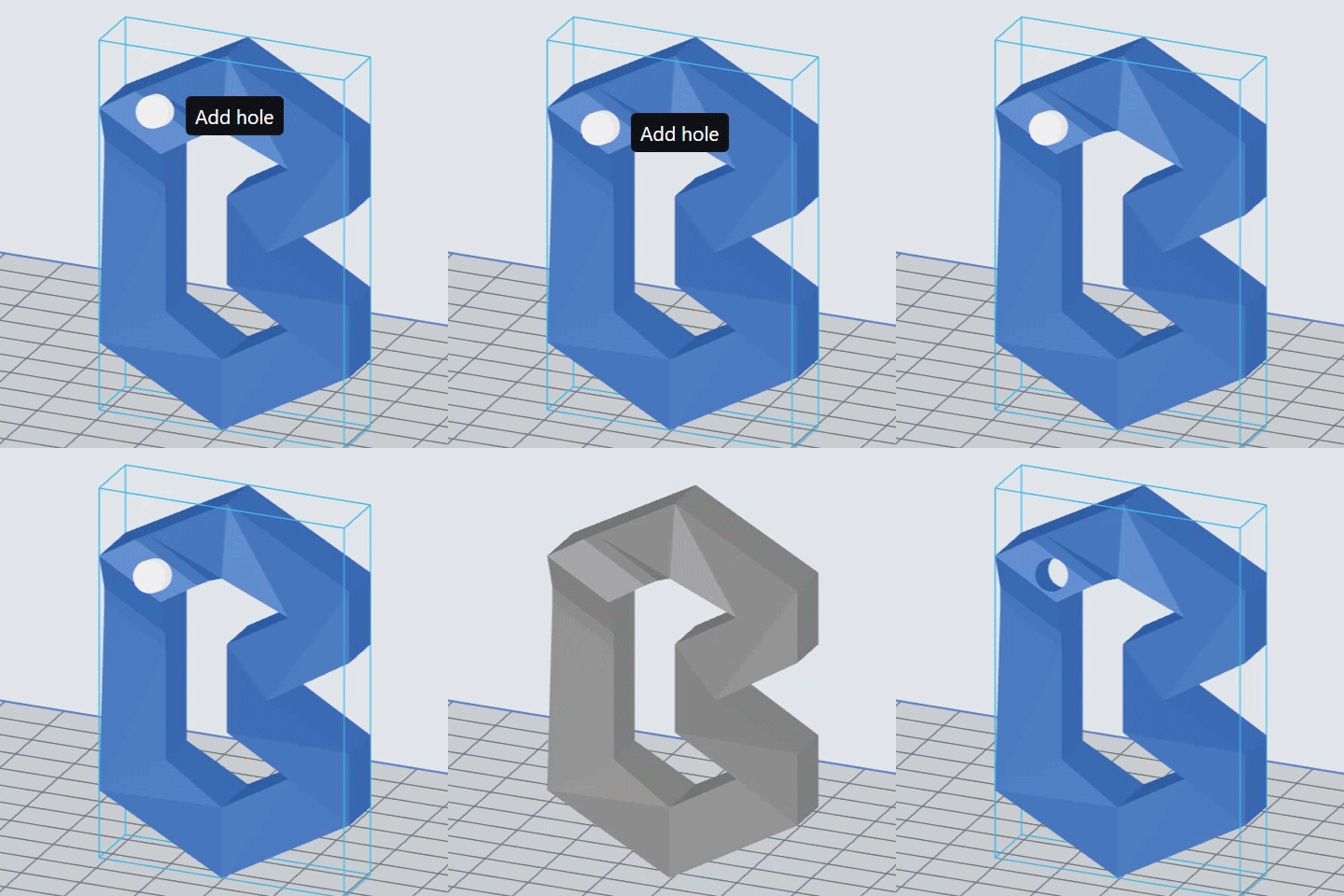
¶ 10. Hole
Make a hole on the model. For details, see Hole Operation Guide.
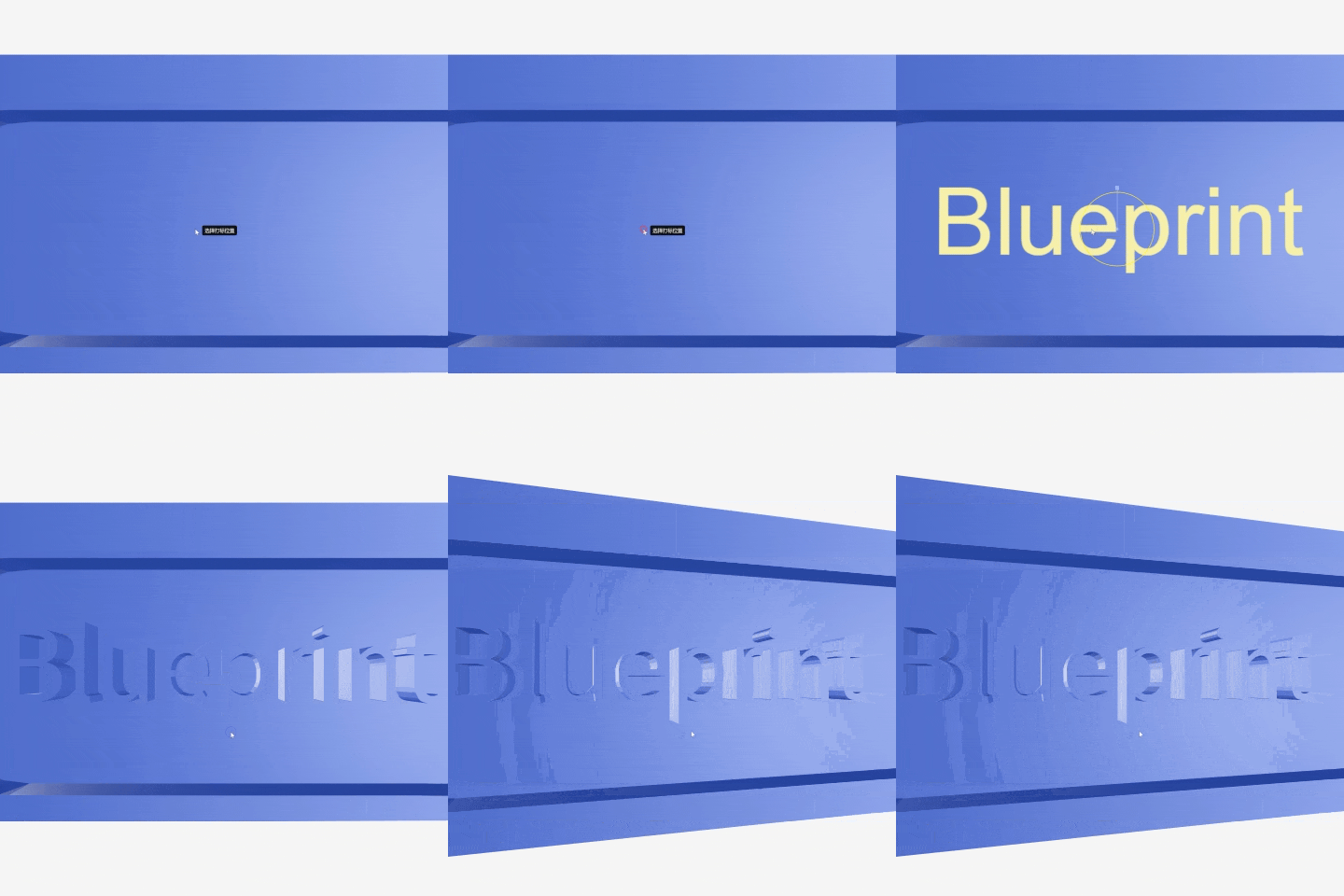
¶ 11. Label
Add a custom label on the model. The tag can be an image or texts. For details, see Label Operation Guide.
¶ 12. Clone
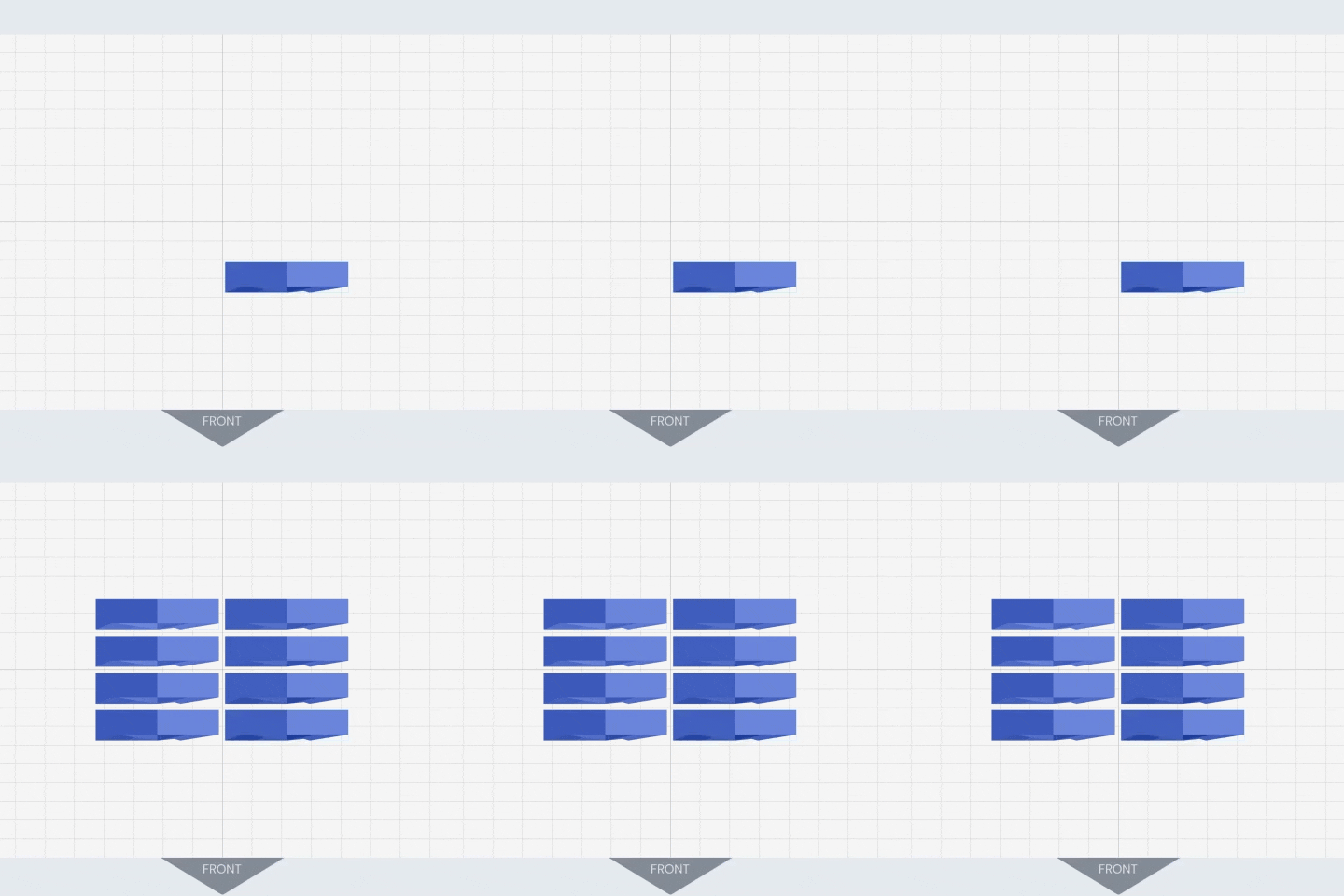
Duplicate the selected model while mirroring the duplicated one, or multi-duplicate the selected model while putting the duplicated ones as a grid. For details, see Clone Operation Guide.
 |
 |
¶ 13. Simplify
Reduce unnecessary triangles on the model and simplify complex models, to decrease file size and improve performance efficiency. However, some details may be lost.
-
By fidelity: The higher the defined value, the lower the level of simplification and the higher the surface quality.
-
By ratio of triangles: The higher the defined value, the lower the level of simplification and the higher the surface quality.
¶ Update History
| Version | Date |
|---|---|
| 1.0 | 2026-10-26 |